 Bloomz
Publish breakfast and lunch menus
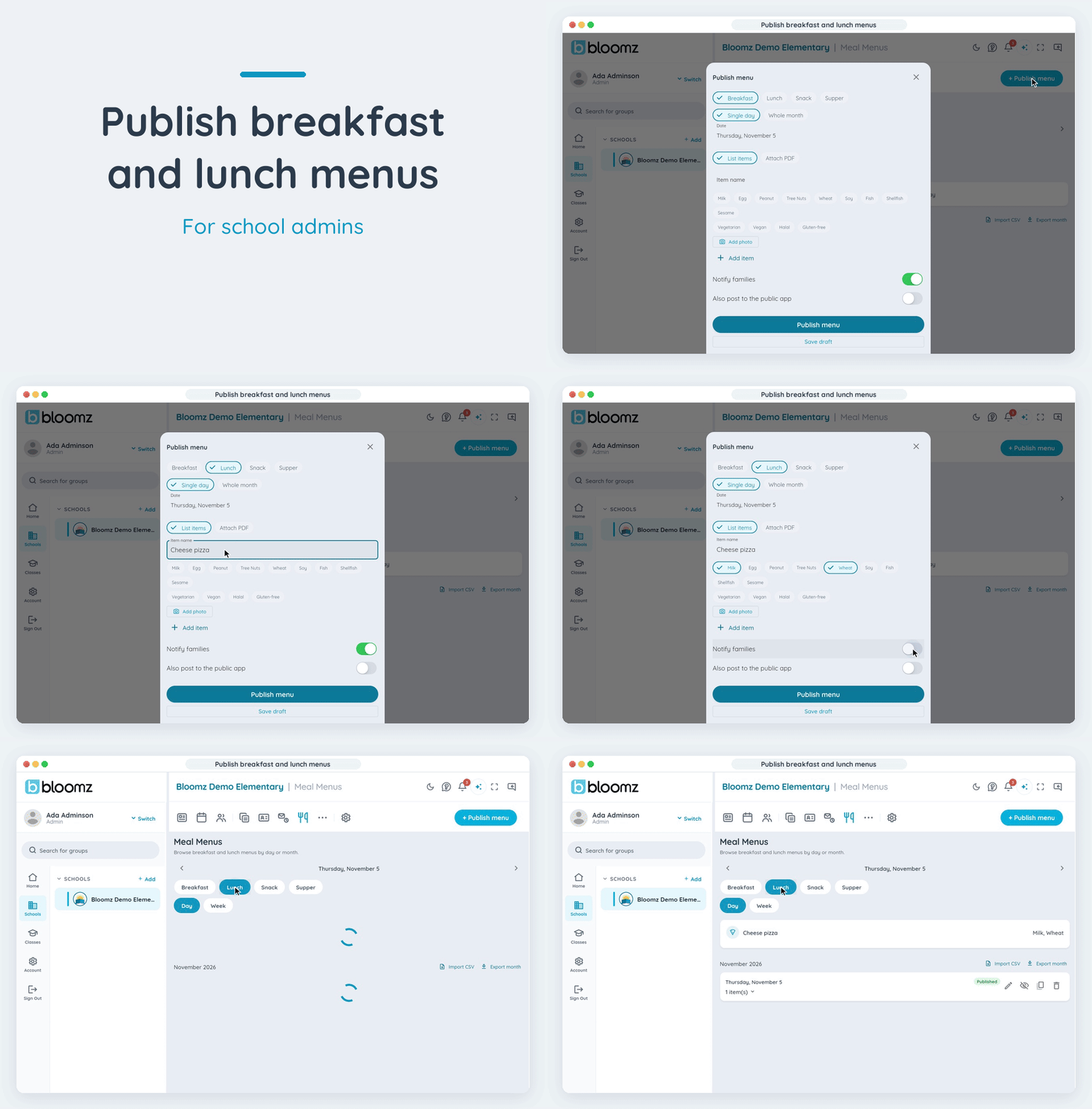
Publish your school's breakfast and lunch menus in Bloomz — item by item with allergen labels, or as an attached monthly document — and they flow to families in the app, to your school website, and to the no-login public app in one step.
Before you start
- Meal Menus must be turned on for your school (Settings → Features). This is menu publishing only — there's no ordering, no cafeteria payments, and no nutrition-compliance engine behind it.
- Publishing a menu is a school admin action in the app; the school's menu list is visible to any staff member.
- A menu covers one meal — Breakfast, Lunch, Snack or Supper — for either a single date or a whole month, and each menu is either a list of items or one attached document, never both.
Step 1 — Start a menu
From your school, select More (…) and choose Meal Menus (once opened it also shows as a tab in the toolbar). Select + Publish menu at the top right.
Step 2 — Choose the meal and the scope
Pick the meal chip, then Single day or Whole month. For a single day, set the Date. Choose List items to enter dishes, or Attach PDF to attach a monthly document instead.
Step 3 — Enter the items and their allergen labels
Type each Item name and tap its allergen chips — Milk, Egg, Peanut, Tree Nuts, Wheat, Soy, Fish, Shellfish and Sesame — plus diet tags such as Vegetarian, Vegan, Halal and Gluten-free. Use Add photo to attach a picture and Add item for the next dish. The allergen labels drive the per-child allergen flags families see, so label accurately and completely.
Step 4 — Publish
Choose whether to Notify families (on by default) and whether to Also post to the public app (off by default), then select Publish menu. To keep working on it instead, select Save draft. The menu reaches the family-facing menus right away, and — where your school shares content publicly — the school website's menu block and the no-login public app.
Step 5 — Manage what's published
Each day or month you've published shows a Published badge with icons to edit, unpublish (the eye), copy or delete it. Publishing again for the same date and meal replaces that menu — a corrected menu overwrites the old one rather than creating a duplicate. Admins can unpublish a menu to pull it back from families; staff can delete one outright. Import CSV and Export month sit above the list.
Watch out: the allergen flags families rely on are only as good as your labels — an item you leave untagged is treated as allergen-free, and a document-style menu can't be flagged at all. If allergy visibility matters to your community, prefer the item-by-item shape over the PDF.
What families see
Published menus, immediately — with each guardian's own children's allergen matches flagged on item-style menus, computed from the allergies in each child's health record. Draft and unpublished menus are never visible to families or the public feed.