 Bloomz
See the school menu and your child's allergen flags
Check what's for breakfast or lunch at your child's school — and see, right on the menu, which items contain an allergen your own child is allergic to, based on the allergies the school has on file.
Before you start
- The Menus surface appears once your child's school turns on Meals & Menus — look for it in the school's More menu. If you don't see it, the school hasn't enabled the feature yet.
- Allergen flags only cover your own children. The matching happens on Bloomz's servers against your child's own health record — no other family's information is ever involved in, or visible from, your menu view.
- Menus a school shares publicly also appear on its website and in the no-login public app, so you can check them without signing in — but the per-child allergen flags only exist in your signed-in view.
Step 1 — Open Menus
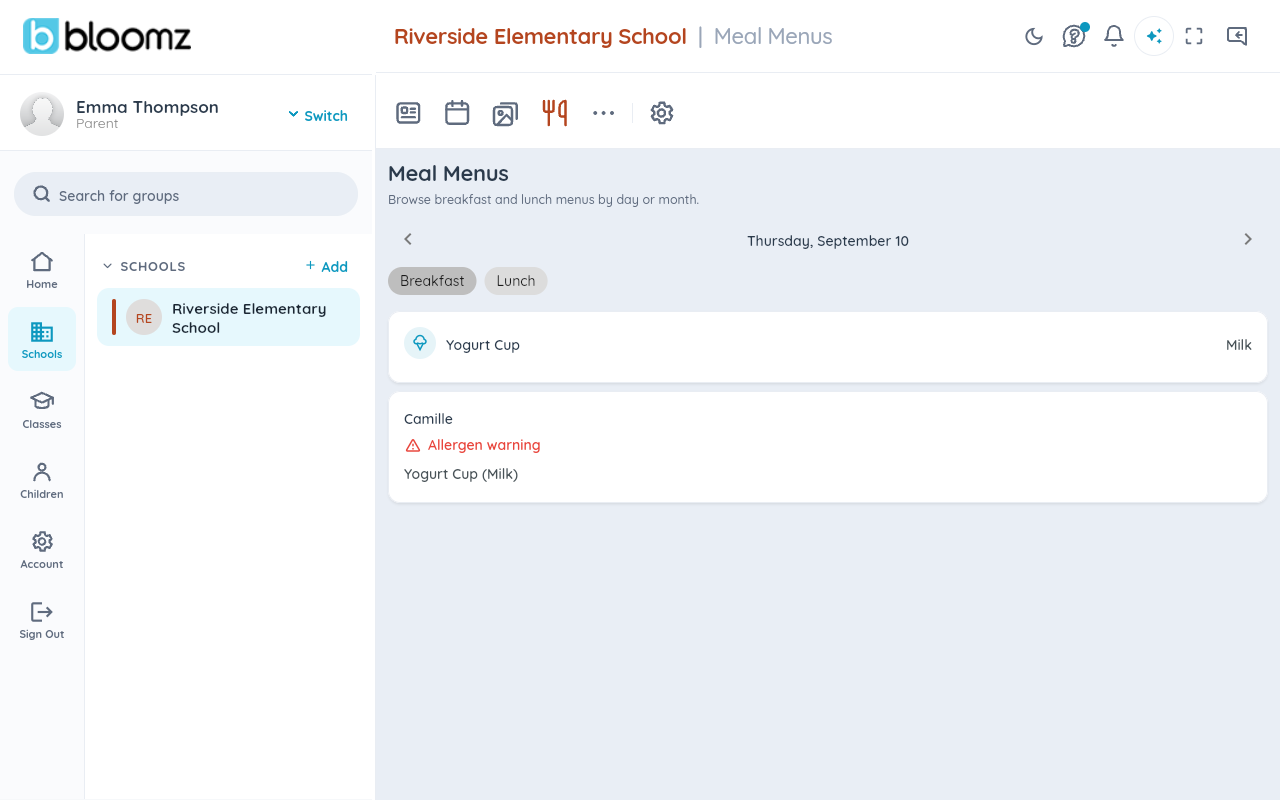
From your child's school, open More (…) and select Menus.
Step 2 — Pick the day and the meal
Use the day navigator to move between dates, and switch between breakfast and lunch.
Step 3 — Read your child's flags
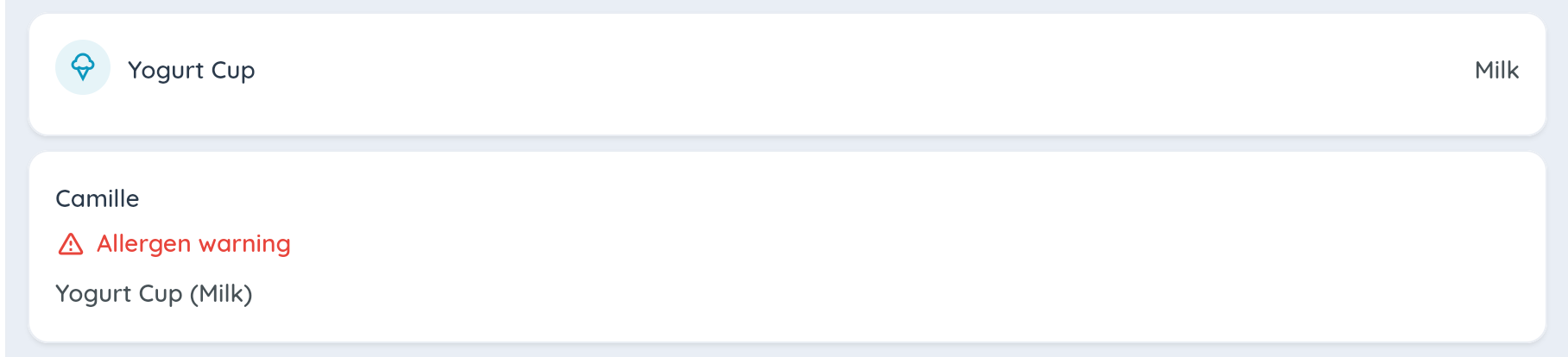
On a menu entered item by item, anything containing an allergen that matches your child's on-file allergies is flagged with your child's name — so a family with two children at the school sees each child's flags separately on the same menu.
When the menu is a document
Some schools publish their menu as a monthly document (a PDF) instead of item by item. It shows as an attached document for the month.

Watch out: allergen flags can only be computed on menus entered item by item, with allergen labels the school staff declared — a document-style menu has nothing for Bloomz to match against, and a mislabeled item won't be caught. The flags are a convenience, not a medical safeguard: for a child with a serious allergy, keep verifying with the school directly.
Related
- Publish breakfast and lunch menus
- Student check-in and immunizations
- Use Bloomz without an account