 Bloomz
Accept Apple Pay and Google Pay at checkout
Families can pay with Apple Pay or Google Pay right from the same modern checkout Bloomz Payments already uses — one tap, no card number to type. Google Pay needs nothing from you; Apple Pay needs one verification step first.
Before you start
- Payments must already be turned on for your school, with card payments accepted.
- You need school or district admin access to the Payments console.
- Apple Pay verification is a per-school Stripe step — it's independent of turning Payments on, and a school can have Payments fully working with cards while Apple Pay is still unverified.
Step 1 — Open the Apple Pay Domain settings card
From your school's More menu, choose Payments, then open the Settings tab and scroll to Apple Pay Domain.
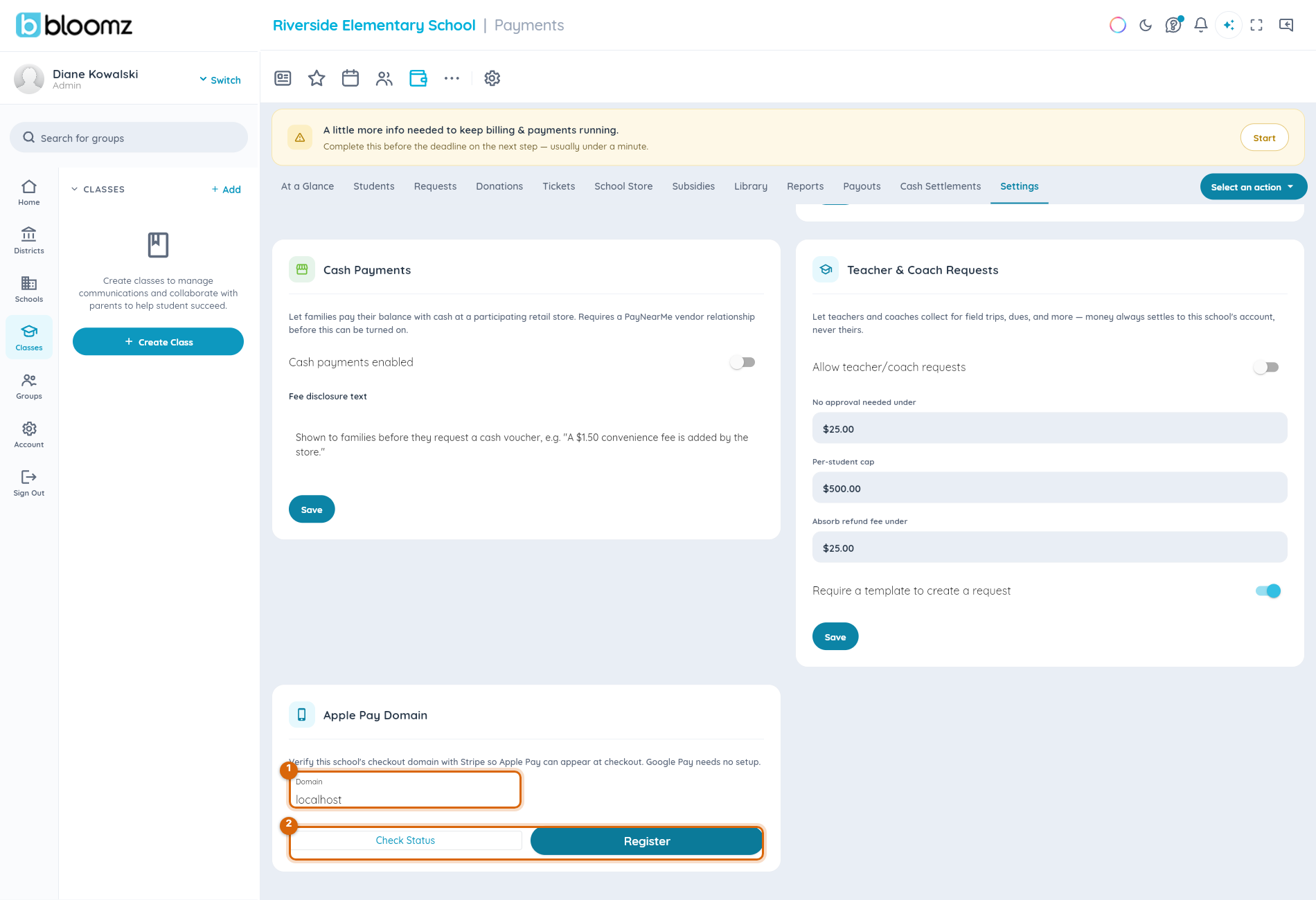
The card explains the split plainly: "Verify this school's checkout domain with Stripe so Apple Pay can appear at checkout. Google Pay needs no setup."
Step 2 — Check your current status
Choose Check Status to see whether your checkout domain is already registered with Stripe for Apple Pay.
Watch out: in this environment, choosing Check Status returned a raw Stripe authentication error rather than a clean "not registered" message — a sign that Stripe credentials for Apple Pay aren't configured here at all yet, not just that the domain hasn't been verified. Your school's own result should read as a plain registered/not-registered status instead; if you see something that looks like a raw error message, that points to the Stripe/API-key setup itself, not your domain.

Step 3 — Register your domain
Once your school's checkout domain is reachable and Stripe is properly configured, choose Register (shown next to Check Status in Step 1's screenshot) to complete Apple Pay verification for that domain. Google Pay requires nothing further — it appears automatically at checkout once card payments are accepted, on any browser and device that already has Google Pay set up.
What families see
Once both are live, families see Apple Pay and Google Pay buttons above the card-entry form at checkout — on your school's own branded domain, not just the default Bloomz checkout URL. Each school's Stripe Connect scoping is independent, so verifying one school's domain doesn't affect any other.