 Bloomz
Check out library books and track returns
Check out and return books from your school's own library catalog, renew or mark a book lost, and see what's outstanding or overdue — from the Checkouts tab, with barcode scanning built in. It is still a school library tool, not a public library system: there are no holds or reserves, and no fines.
Before you start
- Library is off by default — a school or district admin turns it on in Settings → Features, and sets the loan period, per-student book limit, and overdue reminder cadence (see Build your library's catalog and set loan policy).
- Any class or school staff member can record checkouts and returns — there's no special library role to assign.
- Checking out a title not yet in the catalog still works — it's added as a free-text entry — but a catalog-backed title carries its author, copy count and availability automatically, so add books to the catalog first where you can.
Step 1 — Open the checkout log
From your school, select More (…) and choose Library under Engagement. The Checkouts tab lists every checkout, newest first, with filter chips for All / Checked Out / Overdue, a student filter, and search by title, author, ISBN or student.
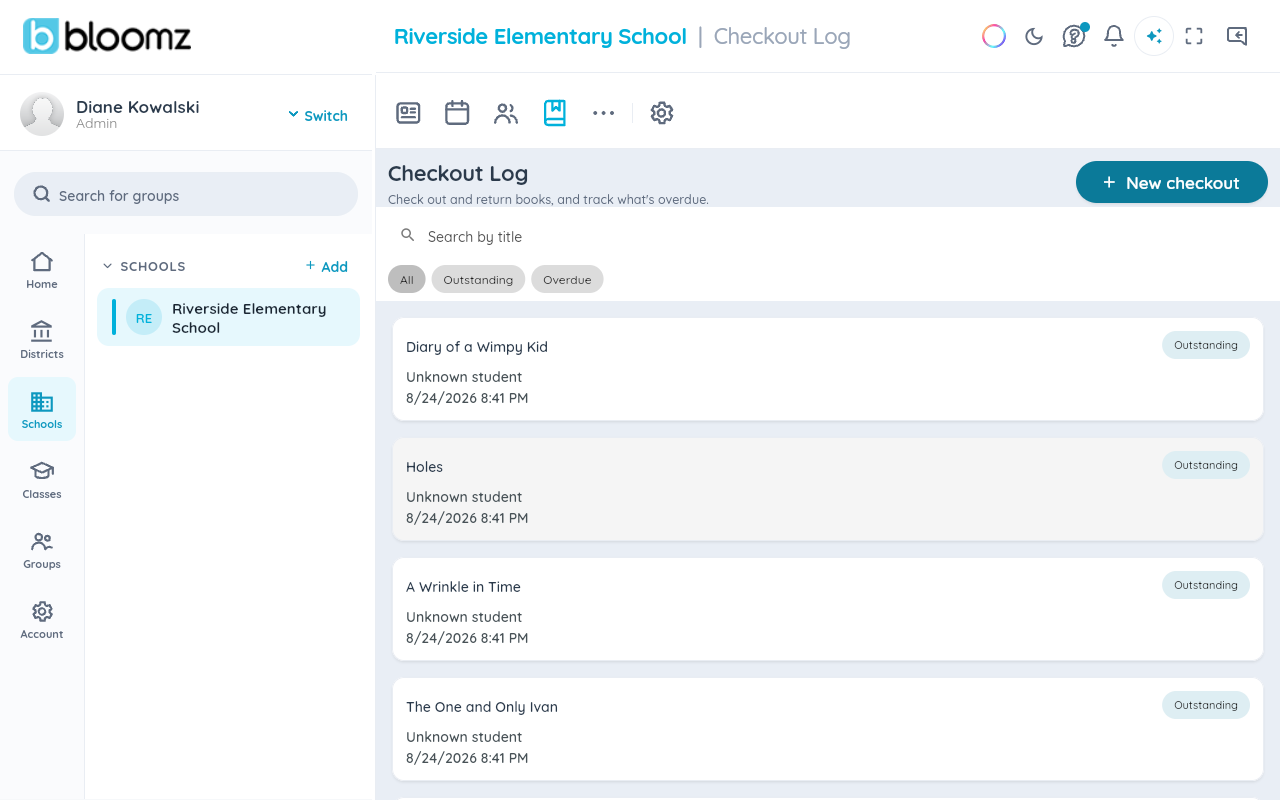
The log narrows to match the filter chip or search term you chose.
Step 2 — Check out a book
Select Check Out. Search the catalog by title, author or ISBN — or scan the book's barcode with a USB/Bluetooth scanner or a camera — pick the student, and confirm the due date (defaults to the school's loan period).
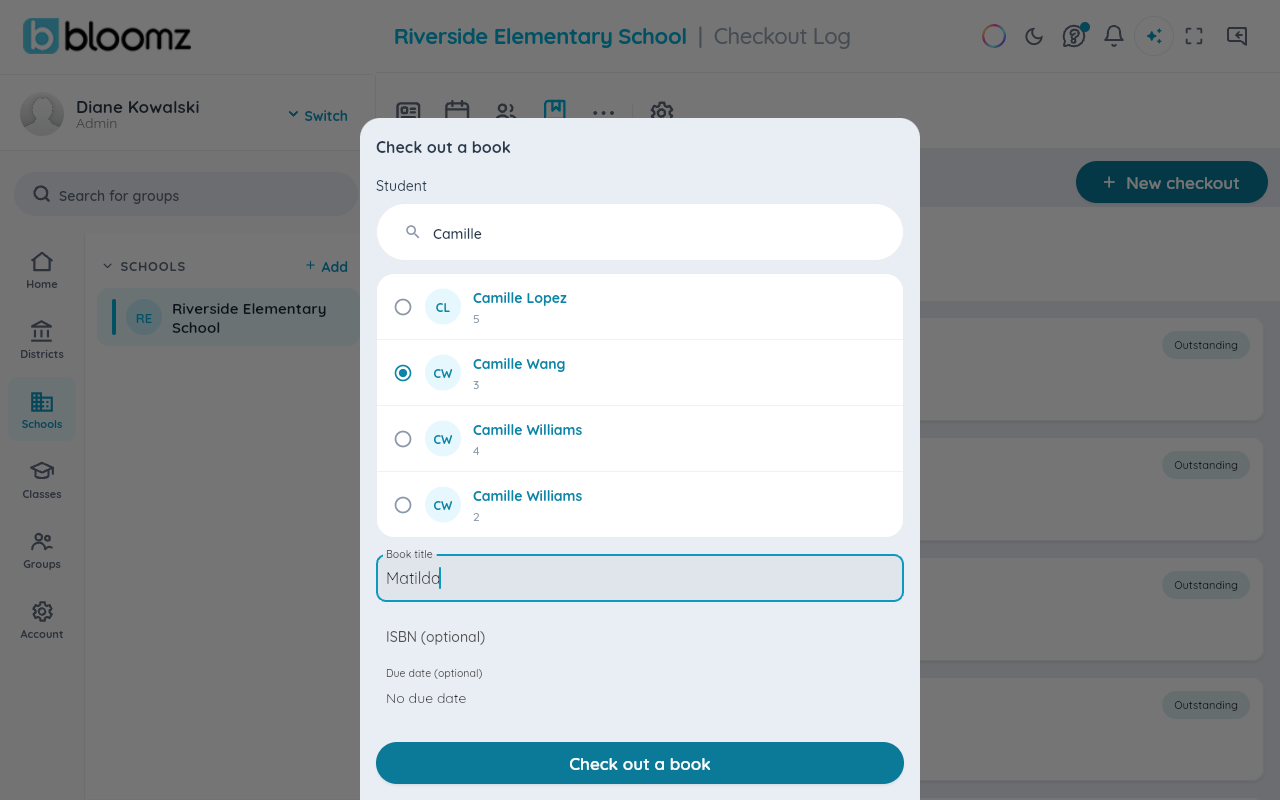

Watch out: if a title has no available copies, or the student is already at their book limit, checkout is blocked with an explanation — Check Out Anyway overrides it for a specific reason (a lost copy found, a policy exception), so use it deliberately, not as a default.
Otherwise, the book moves to Checked Out with the due date you confirmed.
Step 3 — Return, renew, or mark a book lost
Tap a checkout row to open its detail. Select Return once the book is back, Renew to push the due date out (uses the school's default loan period, or pick a custom date), or Mark Lost if it won't be coming back. A book marked lost can be Reopened later if it turns up.
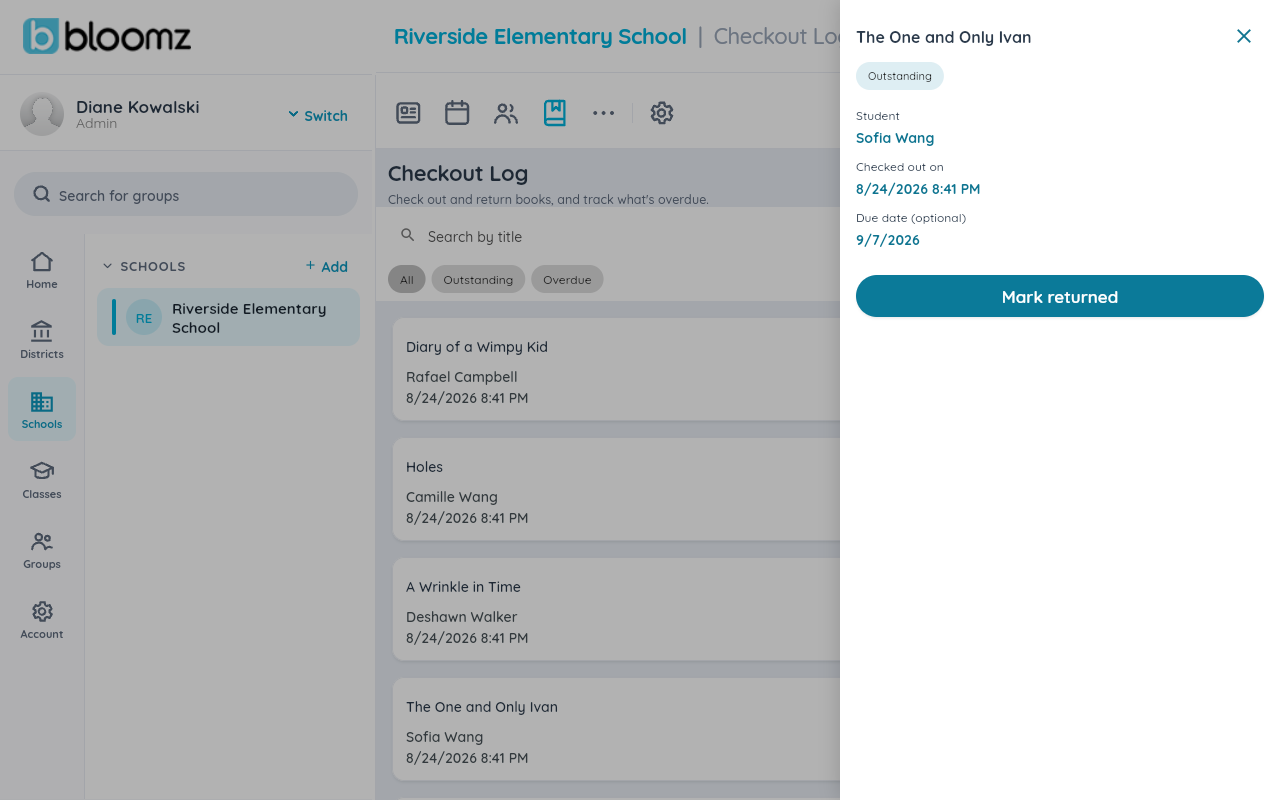
The row updates immediately — a returned copy becomes available again in the catalog, a renewed one shows its new due date, and a lost one drops out of the Overdue filter.
Step 4 — Follow up on overdues
A checkout past its due date shows under the Overdue filter. Bloomz's Pulse attention list flags students holding an overdue book, and the student's own guardians get a reminder — after the grace period your school set, repeating on the cadence your school set — while the book stays out (see the family article below).
What families see
Guardians can open their own child's checkout history, see the child's library visits on the day timeline, and receive overdue reminders — see See your child's library checkouts and overdue notices.