 Bloomz
See your child's library checkouts and overdue notices
When your school uses Bloomz's library module, you can see the books your child has checked out, spot anything overdue, and get a daily reminder while an overdue book is still out. You only ever see your own children's records.
Before you start
Your school has to have the Library feature turned on, and your child linked to your account. If you don't see a Library section on your child's profile, the school isn't using the module yet.
Step 1 — Open your child's checkout history
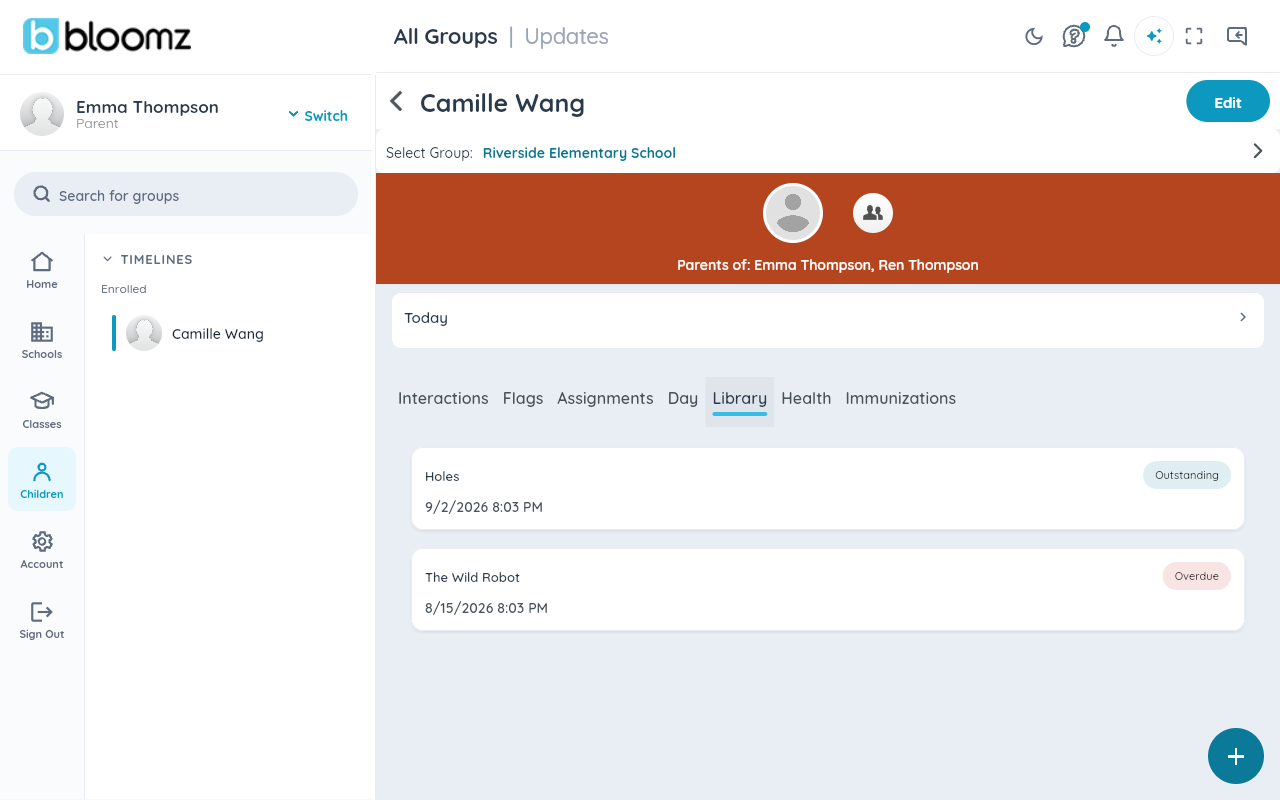
From your child's profile, open their library checkout history. Each row shows the book's title, when it was checked out, its due date, and whether it has been returned.
Step 2 — See library visits on the day timeline
Your child's visits to the library (walking in and leaving) appear on their day timeline alongside check-in, dismissal, and the rest of their day.

Step 3 — Act on an overdue notice
While your child has a book past its due date, Bloomz sends you a reminder notification each morning. Tapping it opens that child's checkout history so you can see which book to send back.

Watch out: the reminder repeats daily on purpose — it stops as soon as the school marks the book returned, so hand the book to the library, not just the backpack.
Related
- Check out library books and track returns
- See your child's messages