 Bloomz
Award behavior points to a student
Catch a student doing something right and award it on the spot — from your class's Behavior tab, a couple of taps logs the point and adds it to the student's running total.
Before you start
Behavior tracking (called Interactions in a few places in the app) only works if it's turned on for your class — check with your admin if you don't see the tab. Points you award are visible to the student and their family, so keep the behaviors specific and positive.
Step 1 — Open your class's Behavior tab
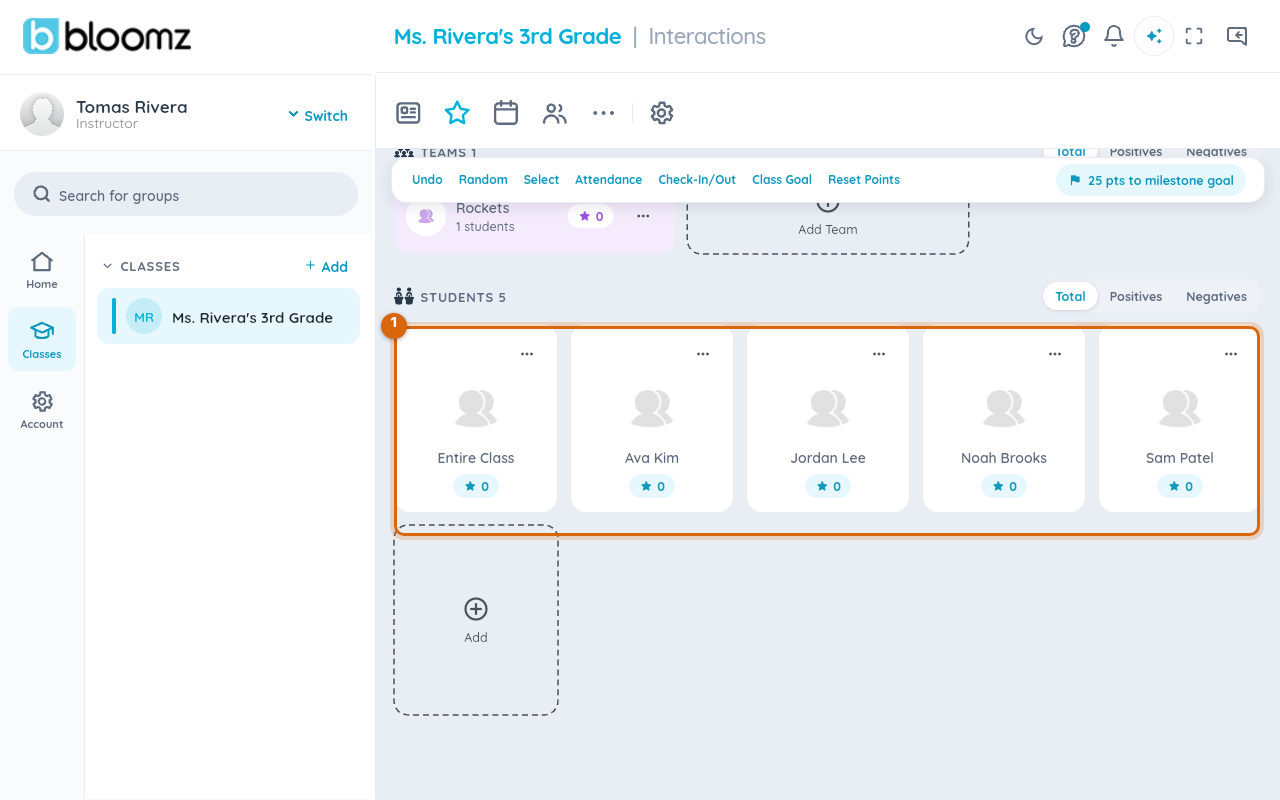
From your class, select the star icon in the top toolbar to open Behavior. It shows your class goal progress and a card for every student with their current point total.
Step 2 — Tap the student
Tap a student's card (their photo) to open their Interactions panel.
Step 3 — Choose the behavior
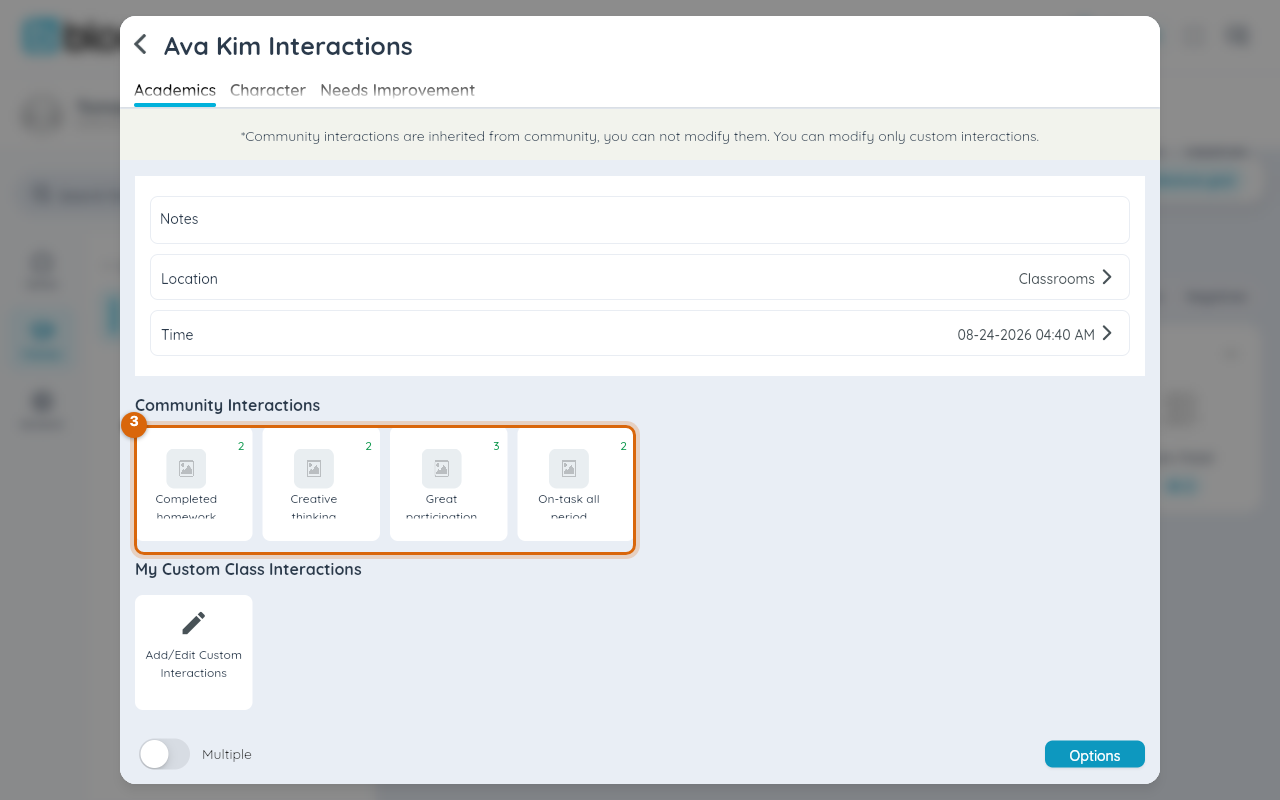
Pick a category tab — Academics, Character, or Needs Improvement — then tap one of the community interactions, such as Great participation or Kind to others. Each card shows its point value in the corner; tapping it logs the award immediately, no separate confirm step needed.
Step 4 — Check the total
The student's running total and your class's positives/negatives stats update right away, and the family sees it reflected the next time they open the app.
Note: the total shown is points left — what the student has earned minus anything already withdrawn or redeemed (for example, through a School Store). It is not the same as total points ever earned; if a student redeemed points recently, the number here will be lower than what they've earned historically.
Watch out: points can't be un-awarded from the family's view once sent — if you tap the wrong student, use Undo in the Behavior toolbar right away, before the notification goes out.
Related
- Choose a behavior theme for your class
- Check your school's House standings
- See your child's behavior and awards
- Run PBIS reports for your school