 Bloomz
Create an assignment from My Library
My Library holds reusable activities you've built or saved — pick one and assign it to your class in a few taps, ready for students to respond to and for you to track.
Before you start
An assignment is just an activity that's been assigned — building or reusing one always saves it to My Library first, so anything you assign is ready to assign again next term. If you don't see Assignment in your class's + Create menu, ask your admin to check that both Student Assignments and Student Portfolio are turned on for your class in Settings → Features.
Step 1 — Start a new assignment
From your class, select + Create, then Assignment. Choose Use One From My Library to pick something you've already made (or Create a New Activity to build one from scratch first).
Step 2 — Pick an activity
Browse Community, School & District, or My Library and select an activity to preview it — the author, grade and subject, and the student instruction.
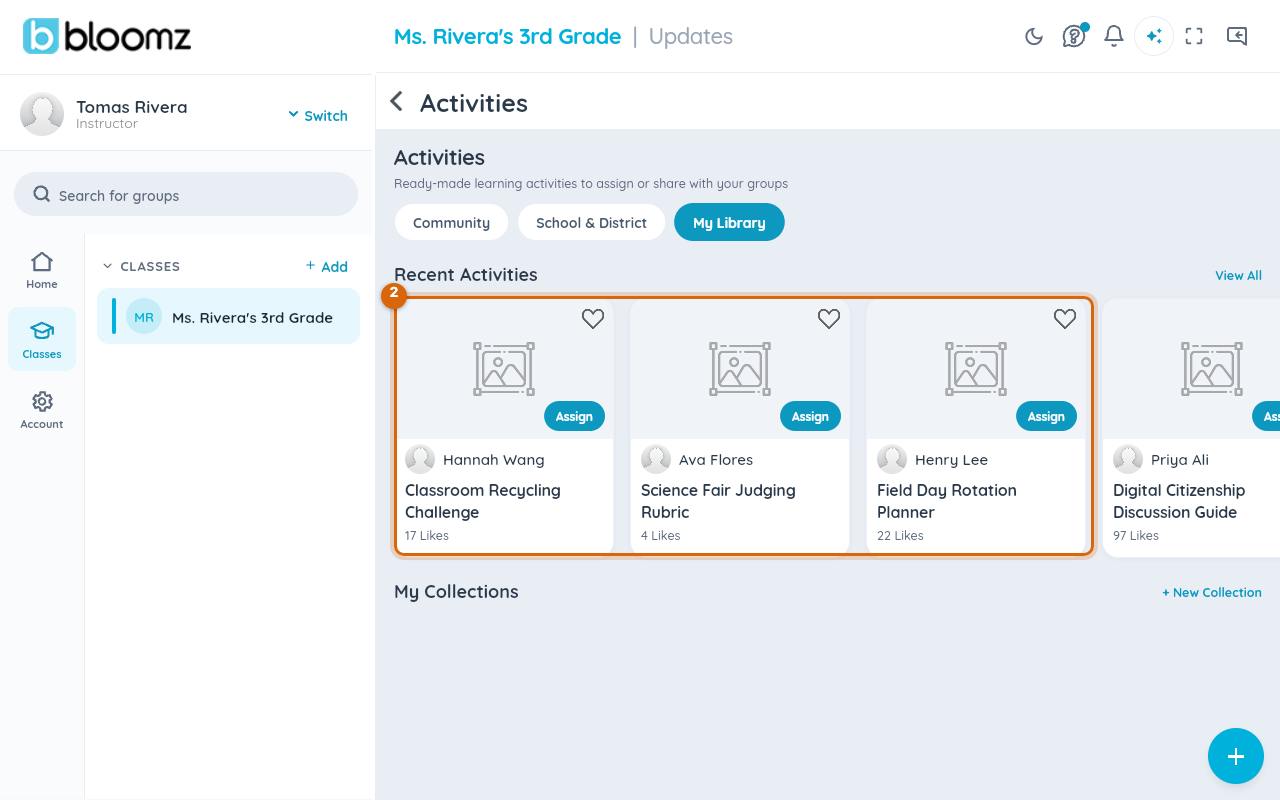
Step 3 — Choose Assign and pick recipients
From the activity card, select Assign, then search for and check the class (or individual students) who should get it.
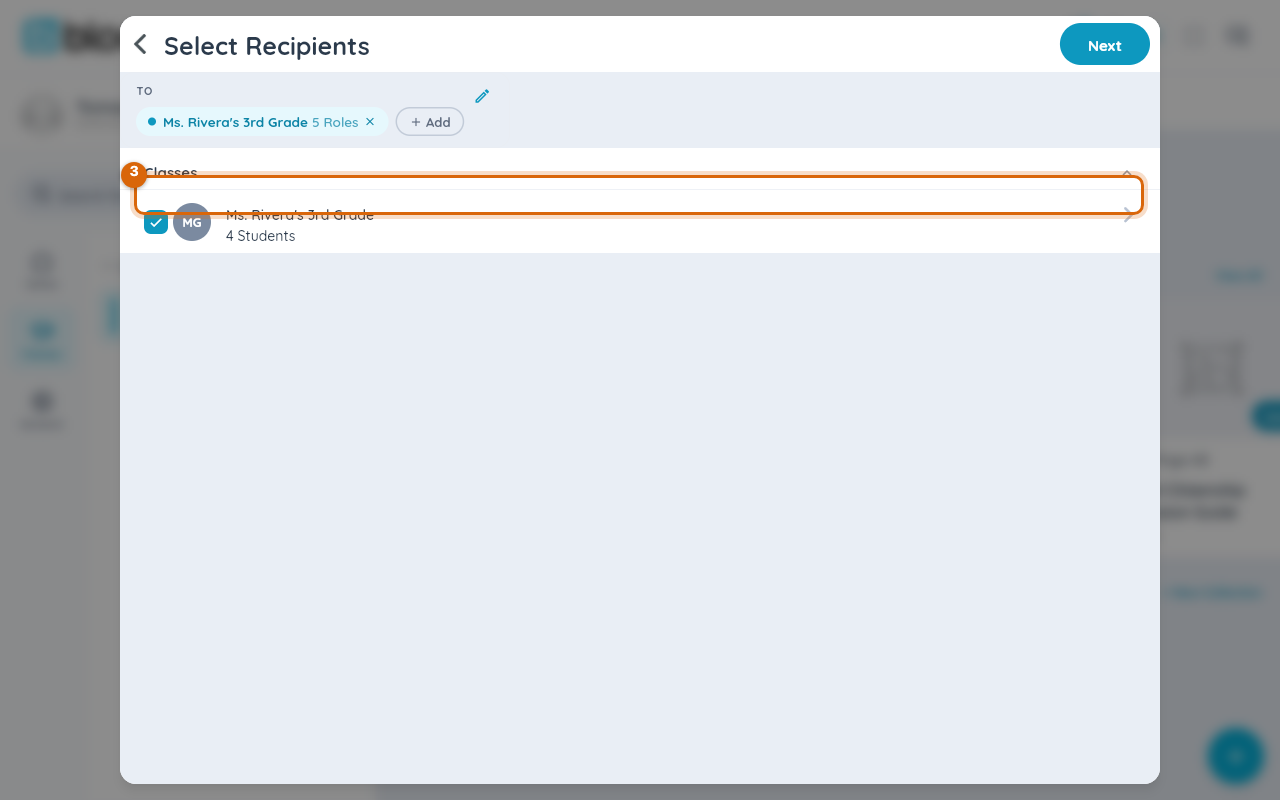
Step 4 — Send it
Pick a folder to file the assignment under (or skip it), then select Assign Now to send immediately, or Schedule to send later.
Step 5 — Check who's responded
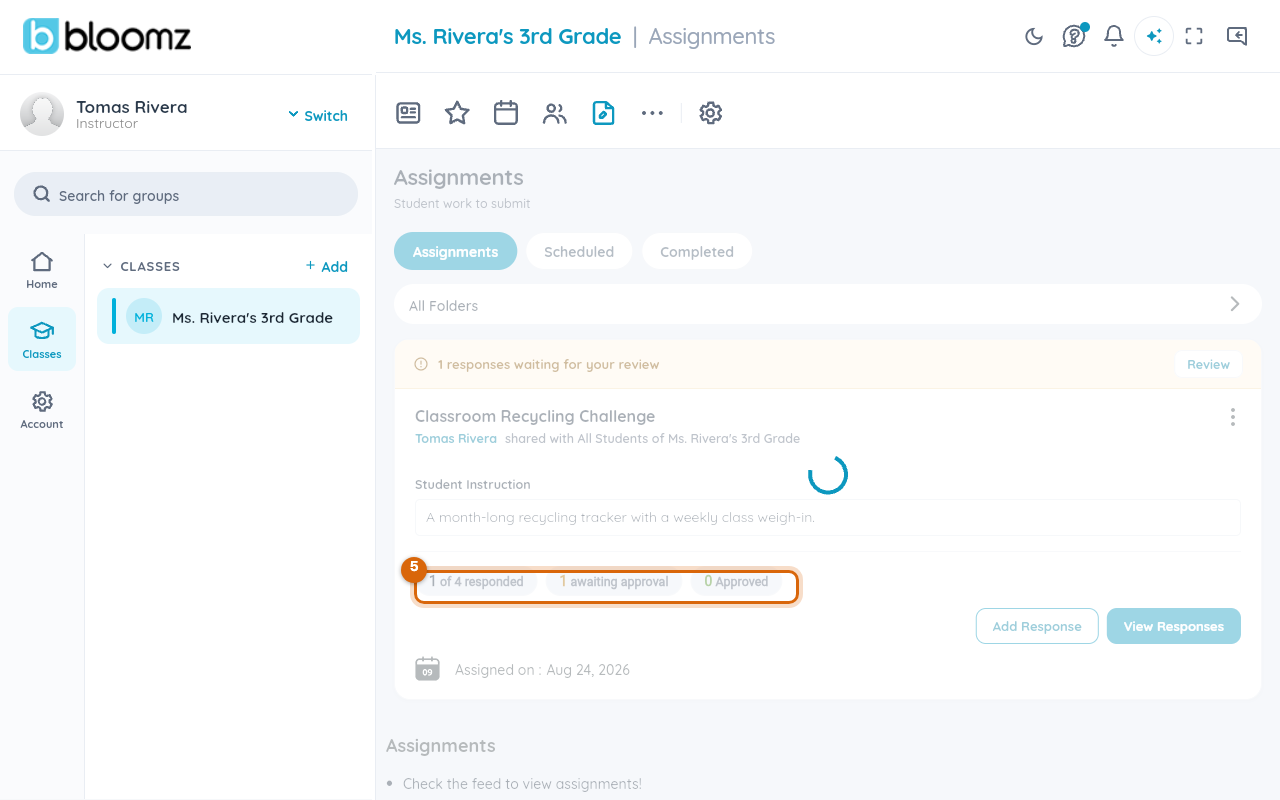
From the class's Assignments module (More → Assignments), the activity's card shows a live count of how many students have responded, how many are awaiting your approval, and how many you've approved.
Related
- Respond to an assignment
- Review student responses and portfolio work
- Award behavior points to a student