 Bloomz
Review student responses and portfolio work
Review what students submitted for an assignment, and approve or send feedback on each one — plus where your child's ongoing work sample collection lives.
Before you start
Responses show up as they're submitted — you don't need to wait for a due date to start reviewing. A banner on the assignment tells you how many responses are waiting for your review at a glance.
Step 1 — Open the assignment's responses
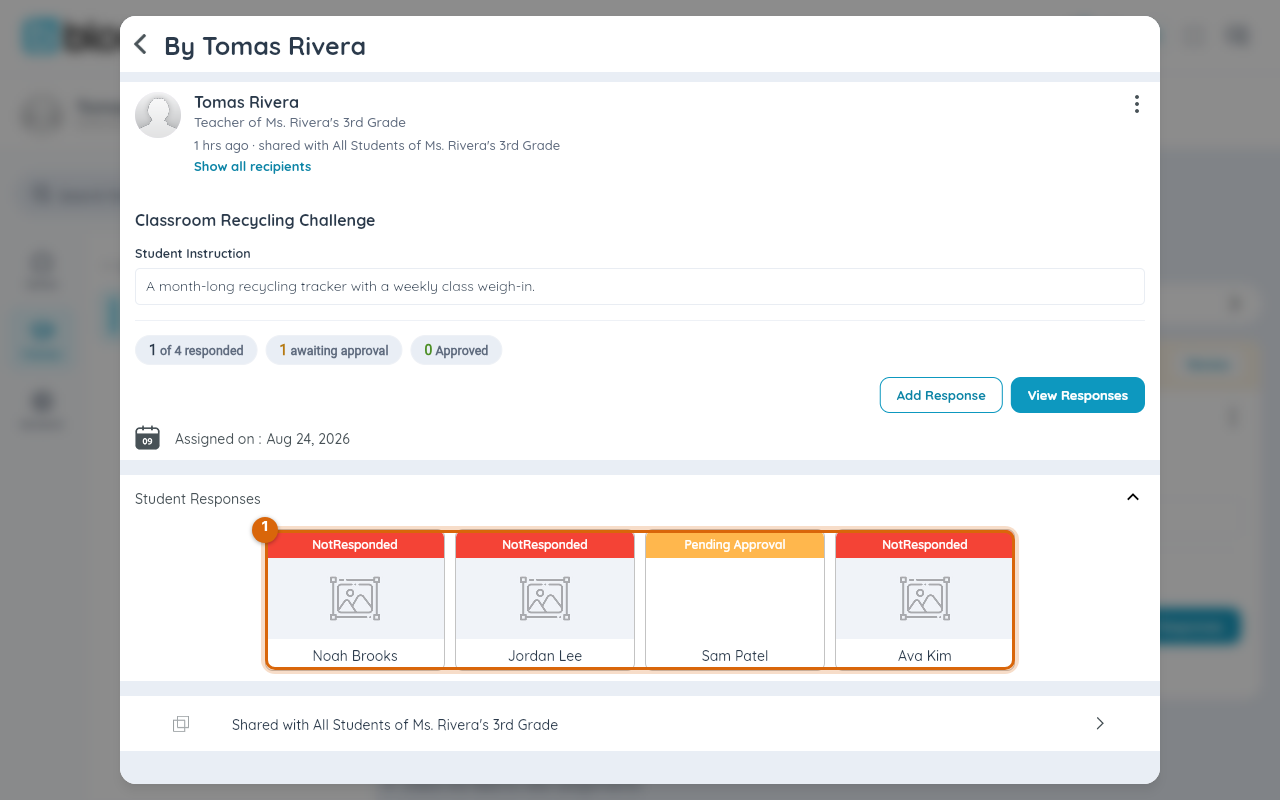
From the class's Assignments module, open an activity and select View Responses (or the Review banner when responses are waiting) to see a status card for every student — Not Responded, Pending Approval, or approved.
Step 2 — Open a student's response
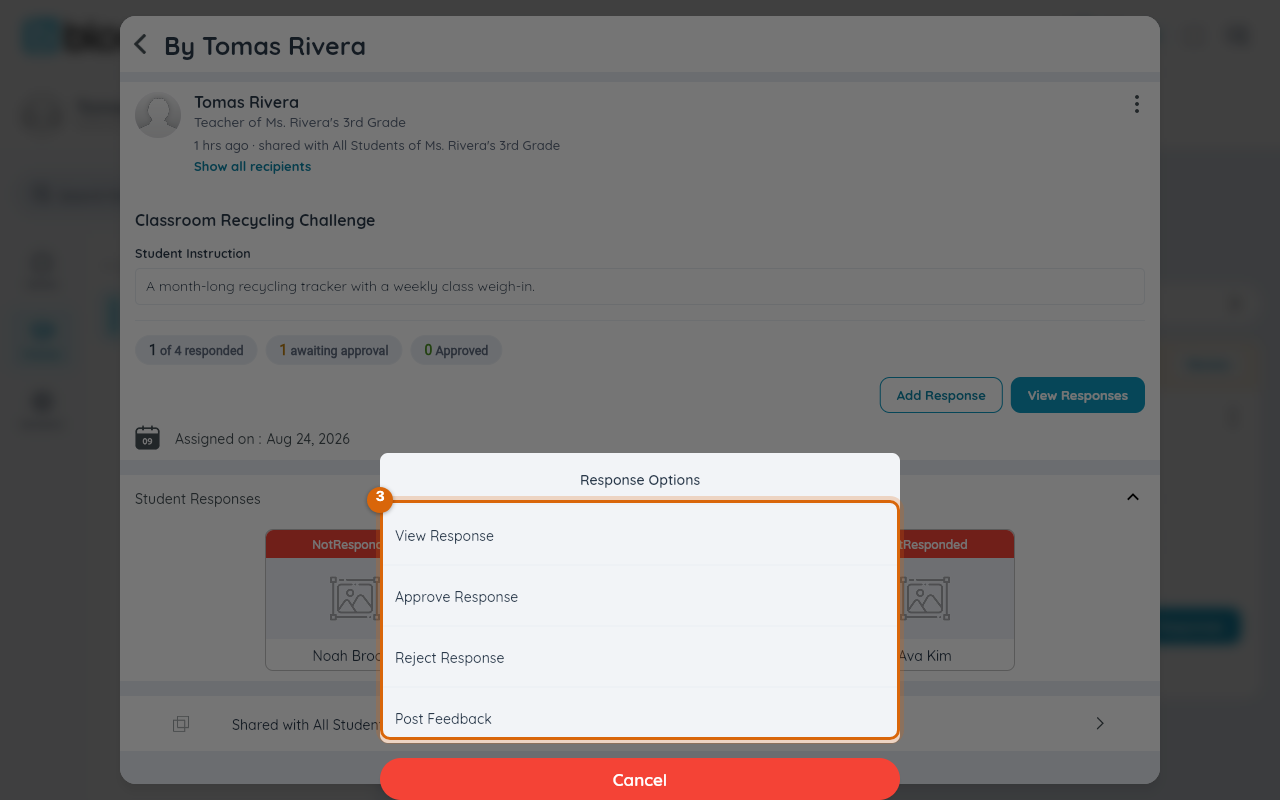
Select a student's card to open Response Options — View Response shows what they submitted (a photo, drawing, video, upload, or link).
Step 3 — Approve or leave feedback
From the same menu, select Approve Response or Reject Response to move it out of the review queue, or Post Feedback to send your own photo, drawing, video, upload, or link back — the same response types students use, so a quick note works well as a drawing with the text tool.
Where portfolio work lives
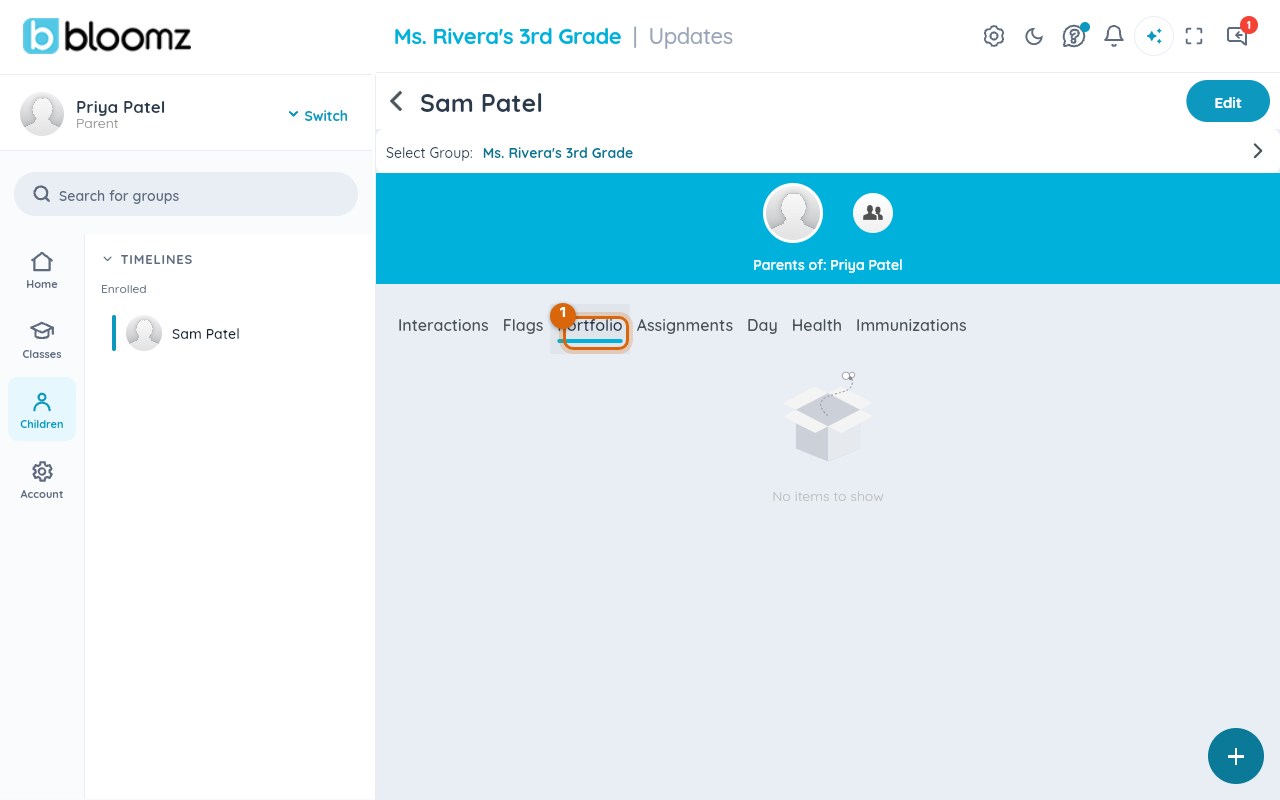
Turning on Student Portfolio in Class Settings → Features adds a Portfolio tab to each student's profile, for staff to collect stronger work samples over time alongside their Interactions, Flags, and Assignments.
Related
- Create an assignment from My Library
- Respond to an assignment
- Run PBIS reports for your school