 Bloomz
Respond to an assignment
Open an assignment from your child's class and add a response — a photo, a drawing, a video, an uploaded file, or a link, depending on what's easiest for what your child made or found.
Before you start
You respond as your child, from their class in Bloomz — from the family side this is the same Assignments module a teacher uses, so what you see is exactly what they posted. Each assignment shows the student instruction and whether a response has been added yet.
Step 1 — Open the assignment
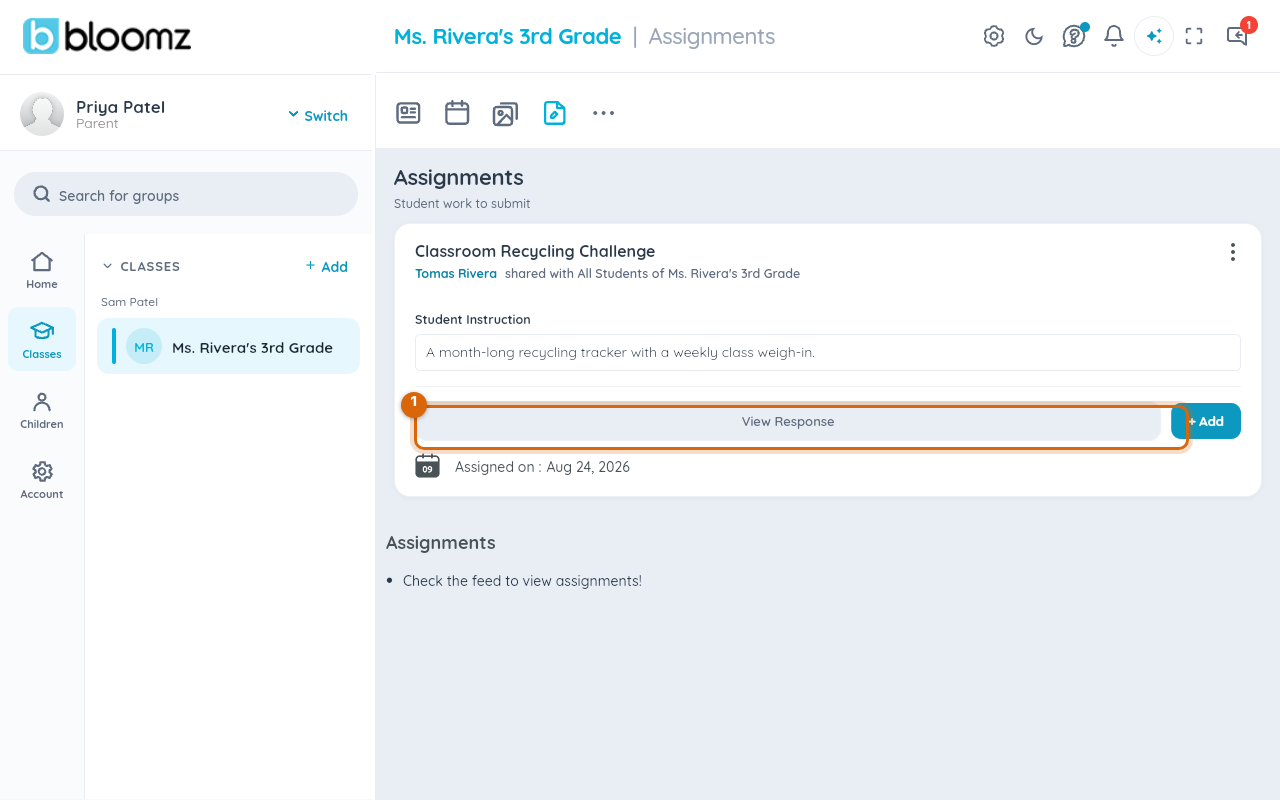
From your child's class, select More, then Assignments, to see the activity with its student instruction and current status.
Step 2 — Select Add
Select + Add, then choose which of your children the response is for if you have more than one in the class.
Step 3 — Choose a response type
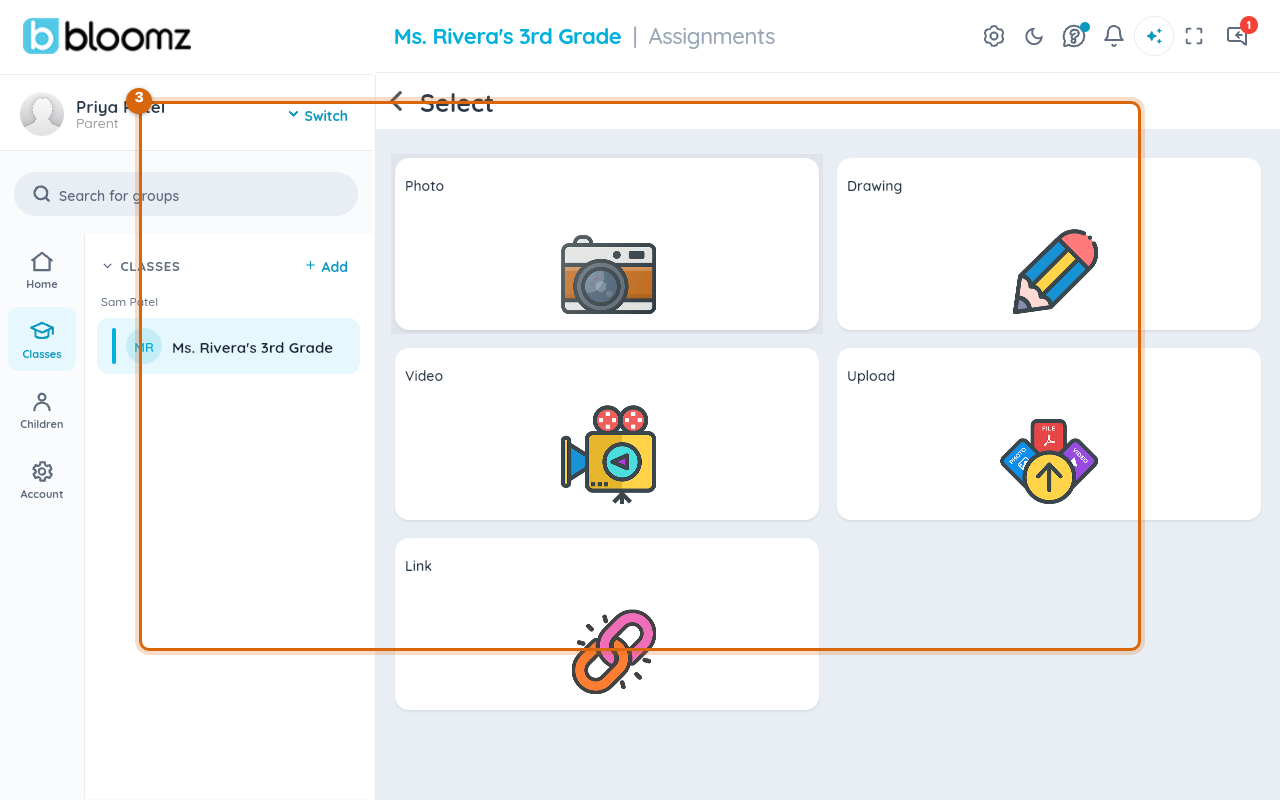
Pick Photo, Drawing, Video, Upload, or Link. Drawing opens a canvas with a text tool, so you can type a written answer directly on it if the activity calls for one.
Step 4 — Save
Once you've added your content, save it. The assignment's status updates to show a response is in, and your teacher can review it from their side.
Related
- Create an assignment from My Library
- Review student responses and portfolio work
- See your child's behavior and awards