 Bloomz
Compare applications side by side
Modified on: Thu, Nov 26, 2026, 5:25 PM
When two or three applicants are close, Compare puts their scores next to each other so you can weigh them without flipping between separate application screens.
Before you start
- Your school needs Admissions switched on, and you need the Admissions Admin or Admissions Reviewer capability — a school or district admin holds both automatically.
- Each application should already have been scored (see Review checklists, scores and decisions) — Compare shows exactly the scores entered so far, not a recalculated ranking.
Step 1 — Open Applications and choose Compare
From the Admissions hub, choose Applications, then choose Compare.
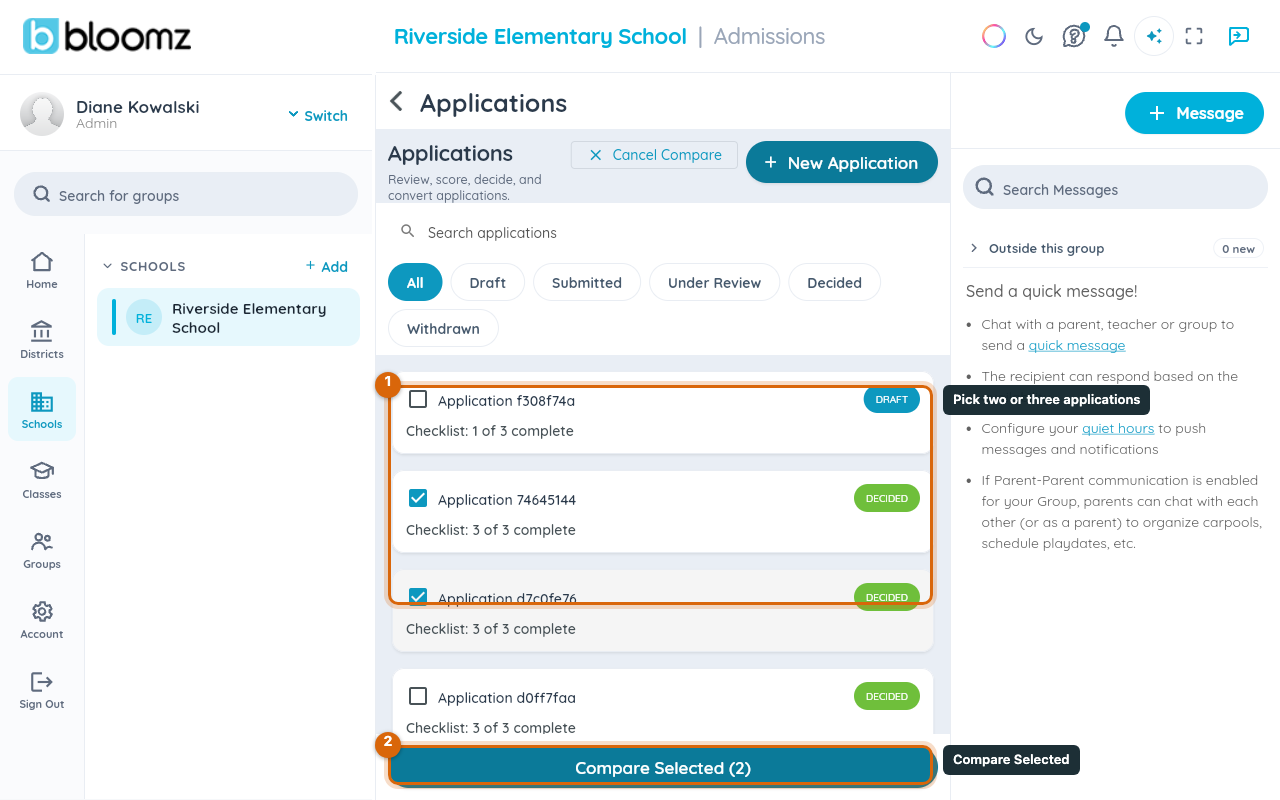
Step 2 — Pick two or three applications
Check the box on each application you want to compare.
Step 3 — Compare them side by side
Choose Compare Selected. Each application opens in its own column with its Total score, so you can read them across at a glance.
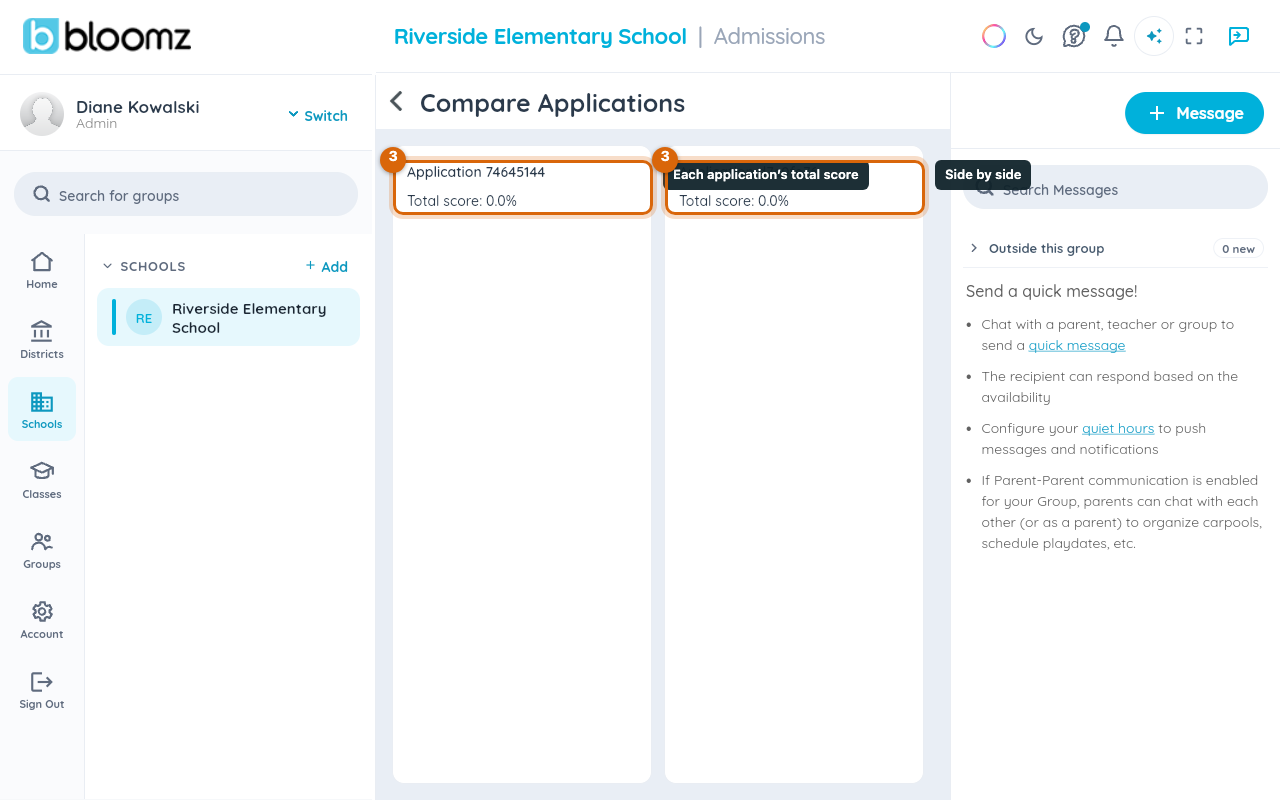
Watch out: Total score reflects exactly the scoring entered so far — an application no reviewer has scored yet reads 0.0%, not blank. Confirm scoring is actually complete before reading a low number as a weak application.
Related
Did you find it helpful?