 Bloomz
Find your way around Admissions
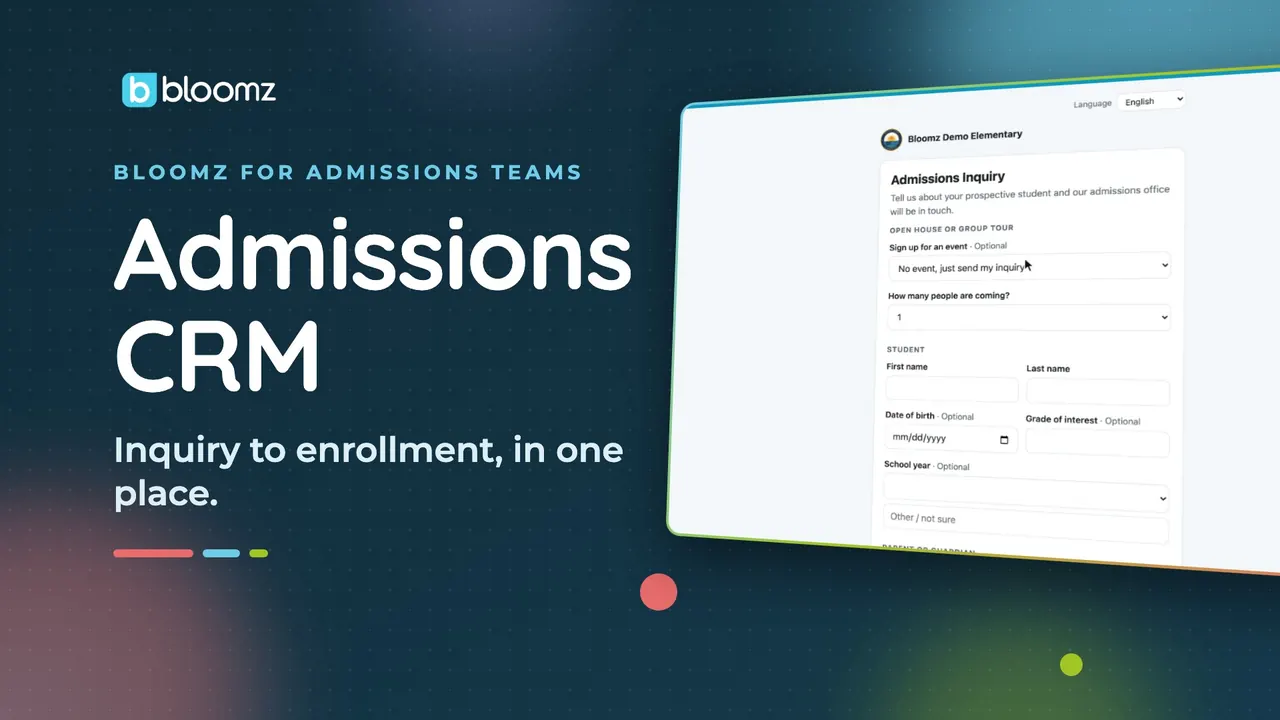
▶ Watch the video (58 seconds): Bloomz Admissions CRM: inquiry to enrollment in one place.
Admissions is Bloomz's built-in system for running an enrollment season: capture a family's interest, take their application, review and score it, decide, and manage a waitlist or a lottery when a program has more interest than seats. This orientation shows you where each stage lives; a season and its checklist are set up for you first, so you are usually landing here to review what has come in.
Before you start
Your school needs Admissions switched on, and you need either the Admissions Admin capability (seasons, decisions, waitlist, lottery, converting an accepted applicant to enrollment) or Admissions Reviewer (reading and scoring applications, comparing them). A school or district admin holds both automatically.
Open the Admissions hub
Open your school, select the … (More) menu, and choose Admissions — search "Admissions" if you don't see it in the first screen. The hub lists every stage of the funnel as its own card, plus a Funnel count at the top for a chosen school year.
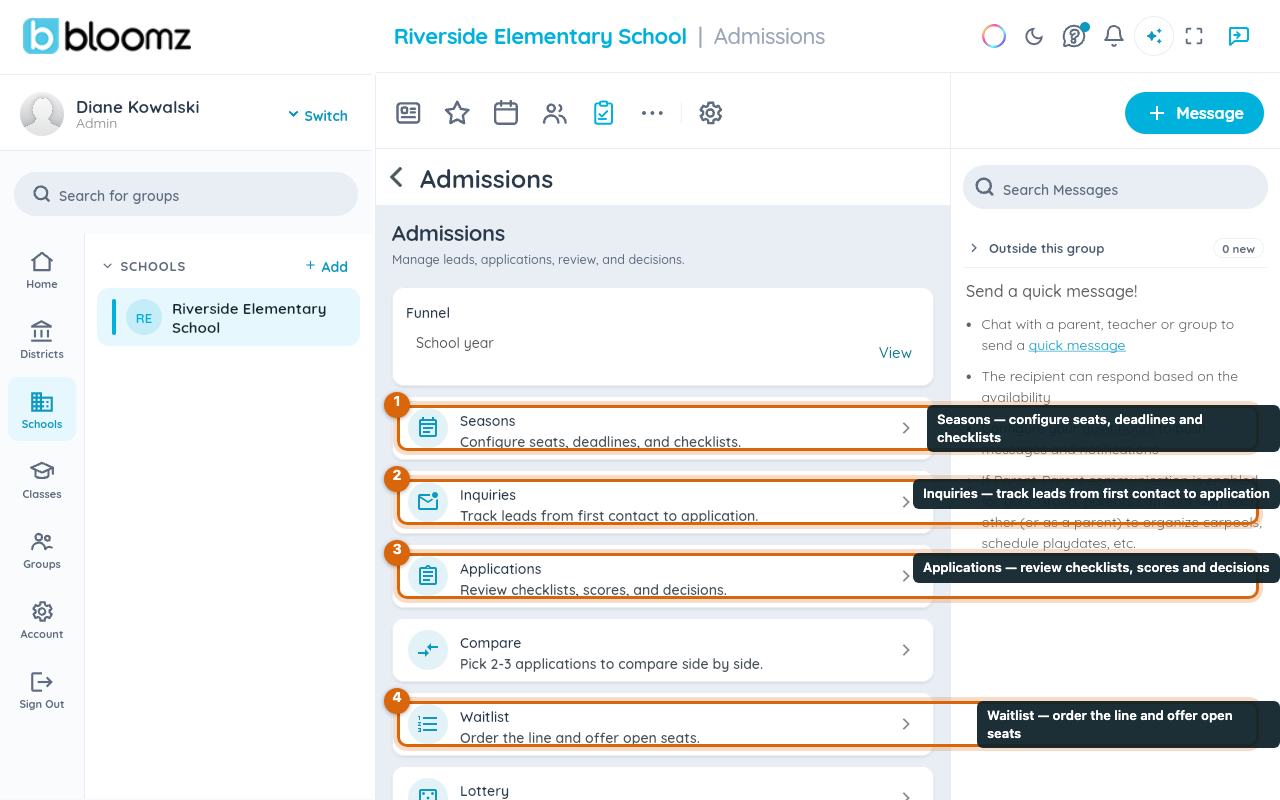
The five stages, in the order a family moves through them:
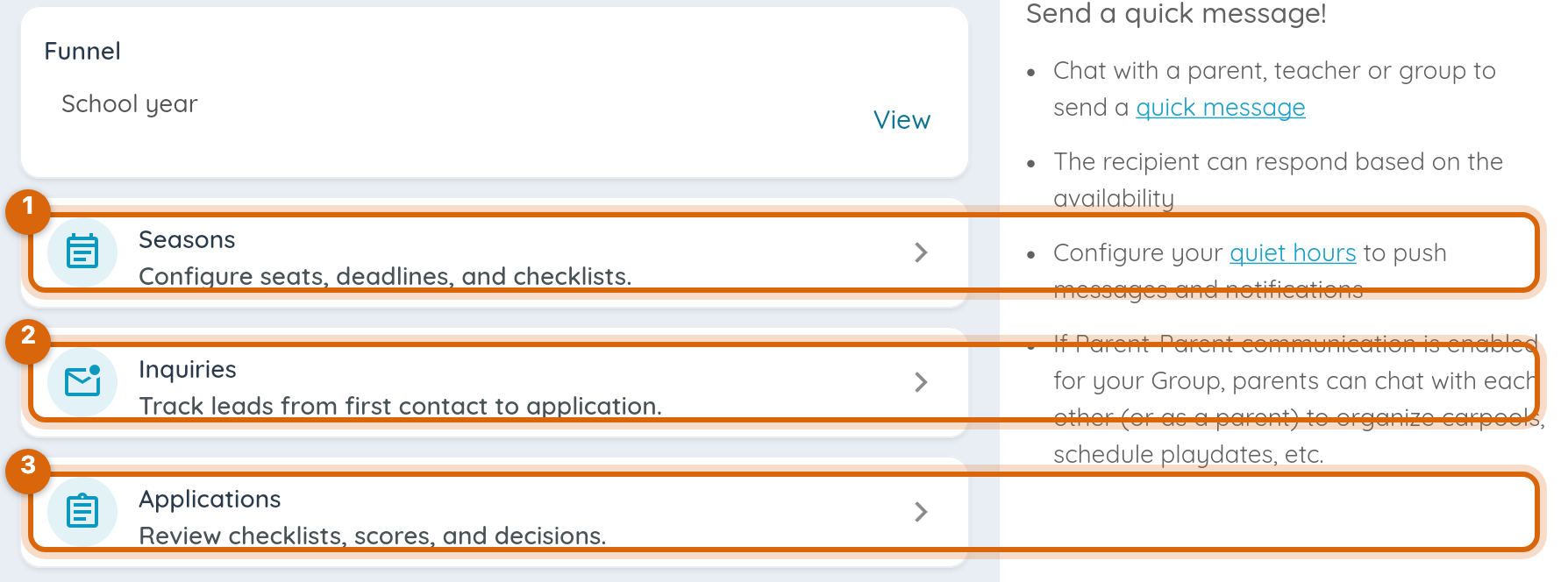
- Seasons — configure seats, deadlines and checklists for an enrollment period (a grade, a program, a school year) and publish it so families can be considered.
- Inquiries — track a lead from first contact — a phone call, a tour sign-up, a website form — through to the moment you start a real application for them.
- Applications — review each applicant's checklist, assign reviewers, enter scores, and record a decision: Accept, Deny, Waitlist or Defer. An accepted applicant can be converted straight into an enrollment record here.
- Waitlist — once a season is full, order who is next in line and offer seats as they open up.
A Compare card lets you pick 2–3 applications and see their scores side by side, and a Lottery card runs a seeded, auditable draw for a season that needs one — useful when a program has a hard seat cap and a fair, repeatable way to choose is required.
Watch out: on the Applications, Waitlist and Compare screens, rows are identified by a short application or reviewer id rather than a family or staff name — keep the family's name or your season's own notes handy if you need to match a row to a real person.
What families see
A family never applies from inside the Bloomz app — an inquiry or application is always started by your staff (or arrives from your school's public admissions form on your website). Once an application exists, the parent who is linked to it gets a My Admissions tile of their own: a read-only view of the application's status, any recorded decision, and — if they've been offered a seat off a waitlist — Accept Seat and Decline Seat buttons.