 Bloomz
Order your waitlist and offer open seats
When a season fills up, new applicants land on its waitlist instead of being turned away outright. Waitlist is where you see the line, move a family within it, and offer a seat the moment one opens up.
Before you start
- Your school needs Admissions switched on, and you need the Admissions Admin capability — a school or district admin holds this automatically.
- The season's Waitlist visibility (set in Configure an admissions season) controls what a waitlisted family can see of their own place in line — this article is about your side of the same waitlist.
Step 1 — Open the waitlist
From the Seasons list, choose Waitlist on the season you want.
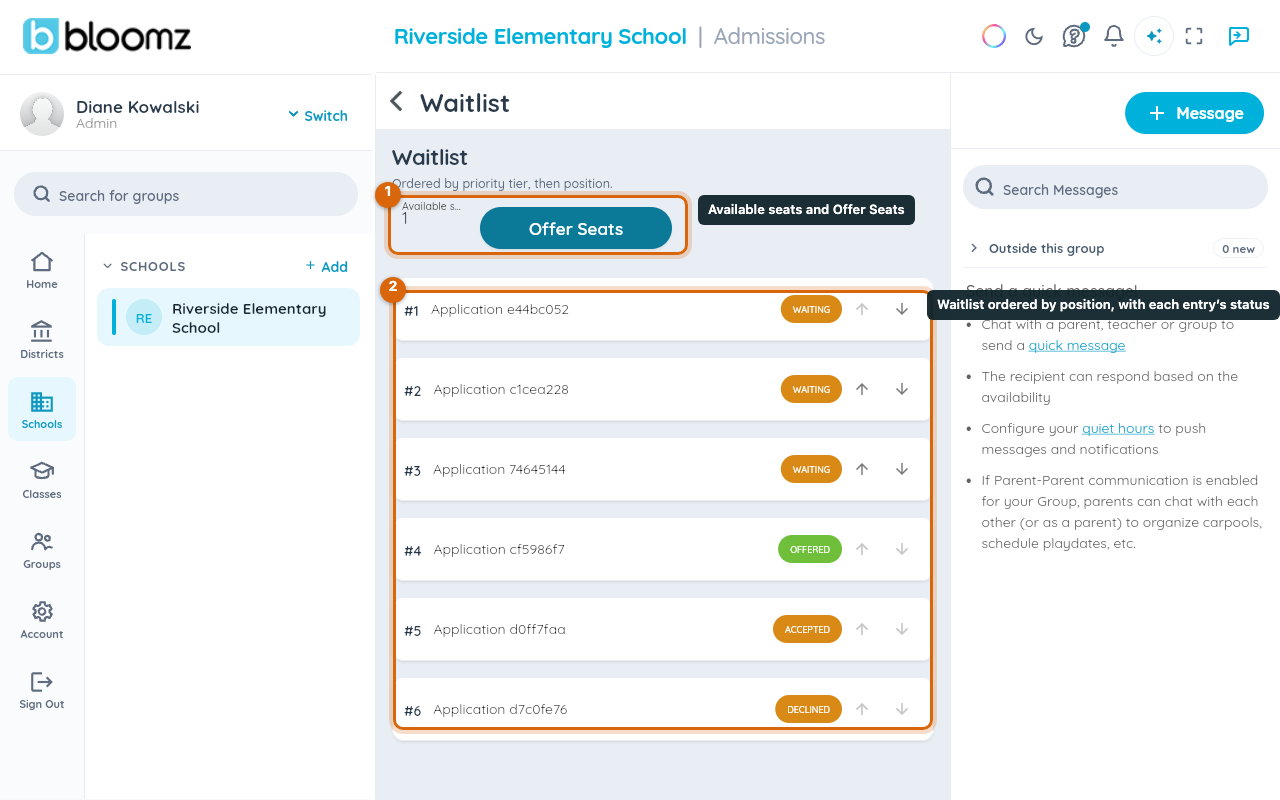
The list is ordered by priority tier, then position, with each entry's status — Waiting, Offered, Accepted or Declined.
Step 2 — Reorder a family if you need to
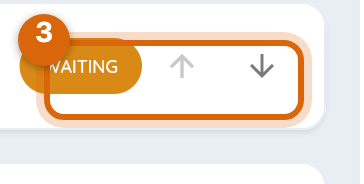
Use the up and down arrows on an entry to move a family within its tier — for a documented exception, a sibling priority you're applying by hand, or a correction.
Step 3 — Offer open seats
Set Available seats to the number of seats you can fill right now and choose Offer Seats. Bloomz offers a seat to the families at the top of the waiting line, in order, and their status changes to Offered.
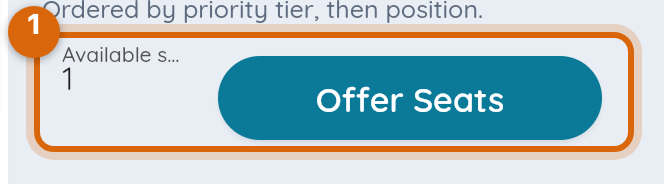
Watch out: seats are offered strictly by position — reorder anyone you need to move before you choose Offer Seats, not after.
What families see
Once a family is Offered a seat, the parent linked to that application sees Accept Seat and Decline Seat buttons on their own My Admissions tile. Accepting or declining updates the status you see here to Accepted or Declined automatically — you don't need to change it by hand.