 Bloomz
Manage the opponents directory and team logos
The opponents directory is your school's shared list of the schools your teams play — each with a name and a logo — so every schedule row can show who's playing whom instead of a bare line of text, and nobody re-types the same league schools every season.
Before you start
- Managing the directory is a school admin task — a directory row is school-wide reference data every parent sees. Coaches and other staff can pick from the directory when linking a game, but only admins add or edit entries.
- Your own team's badge doesn't come from this directory — it uses the team group's own mascot image. The directory covers the other side of the matchup.
Step 1 — Open the opponents directory
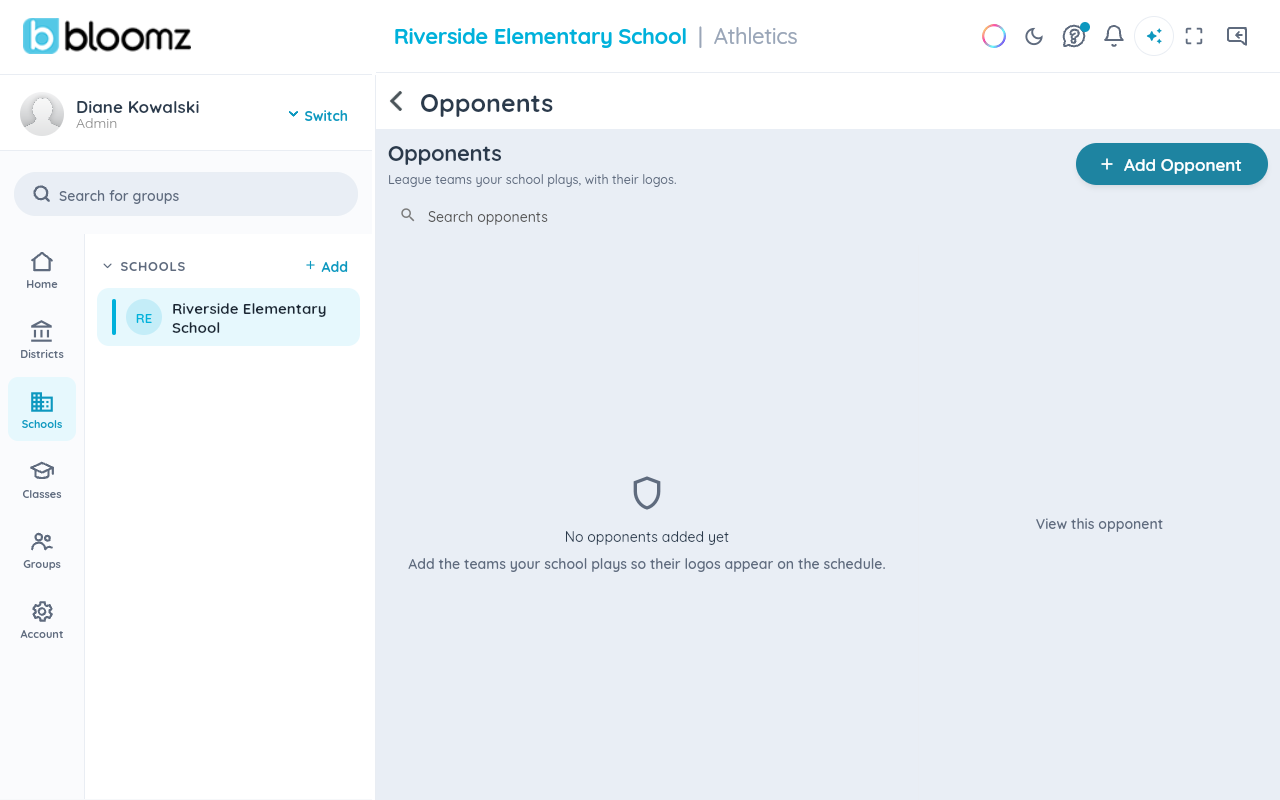
From the Athletics page header, select the admin-only opponents action. The directory opens as a searchable list.
Step 2 — Add an opponent
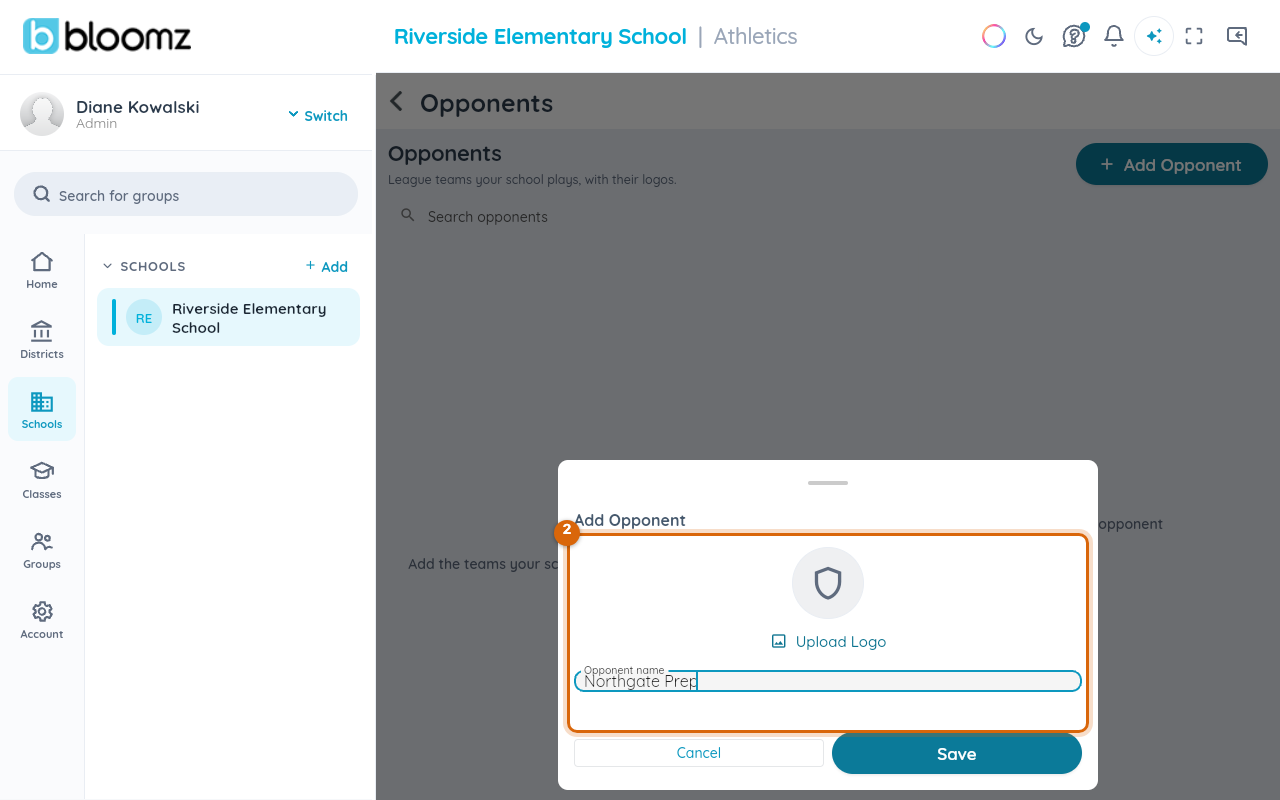
Add an entry with the opposing school's name and upload their logo. An opponent without a logo still works — matchup rows fall back to a sport glyph — so add entries as you go and fill in logos when you have the artwork.
Step 3 — Link games to directory opponents
From a team's page, a game's opponent can be picked from the directory — or typed as free text when the opponent isn't in it yet. Directory-linked games get the logo in their matchup row everywhere the schedule renders.

Step 4 — Keep it current
Editing a directory entry — a rename or a new logo — updates every game already linked to it automatically, so a mid-season logo refresh doesn't leave old games behind. Deleting an entry retires it from the picker without breaking games that already reference it.
Watch out: free-text opponents are always allowed, but they can't carry a logo and each one is a one-off — for schools you play regularly, put them in the directory once so every future game links to the same entry.
What families see
The names and logos, on every schedule row, team page, and game detail — including the public website feed. That's exactly why directory writes are admin-only: an entry here is visible to every family that opens a schedule.