 Bloomz
Follow team schedules and scores
Follow your school's teams and clubs in Bloomz: browse the game schedule, check scores as they're finalized, filter to your sport, and put a team's calendar on your own phone's calendar app.
Before you start
- Athletics is off until your school turns it on (Settings → Features, in the Engagement section). Once it's on, schedules and scores are viewable by everyone — no staff role needed.
- Games your school shares publicly also appear on its website calendar and the no-login public feed, so families without accounts can still see them.
Step 1 — Open Athletics
From your school, open More (…) and select the Athletics tile in the Engagement section. You can pin it to your toolbar if you check scores often.
Step 2 — Browse the schedule and scores
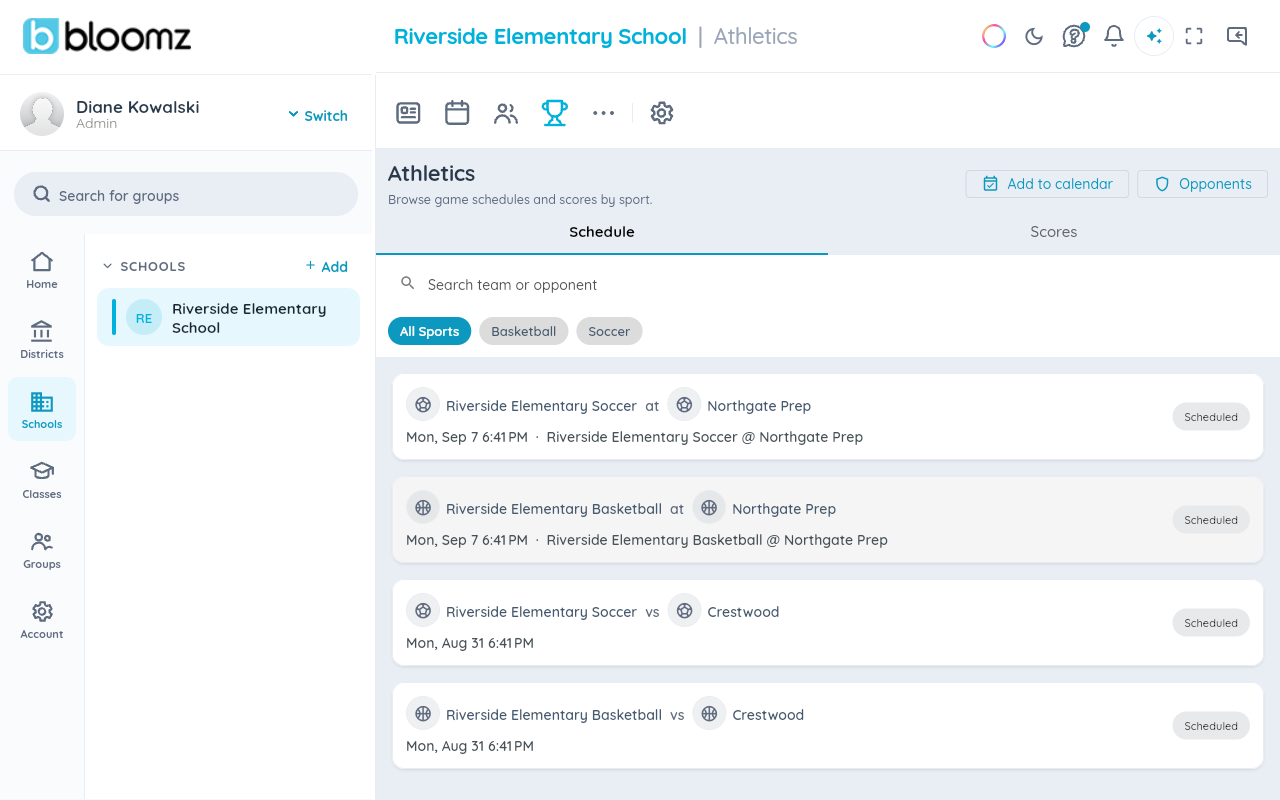
The page has two tabs — upcoming games on one, finished games with their scores on the other. Each game shows a matchup row: your team's badge, a vs/at connector for home or away, the opponent's badge, and both names. A team without an uploaded logo shows a sport glyph instead.
Step 3 — Filter to your sport
Use the sport filter chips to narrow the list to one sport, or search by opponent name.

Step 4 — Open a team's page
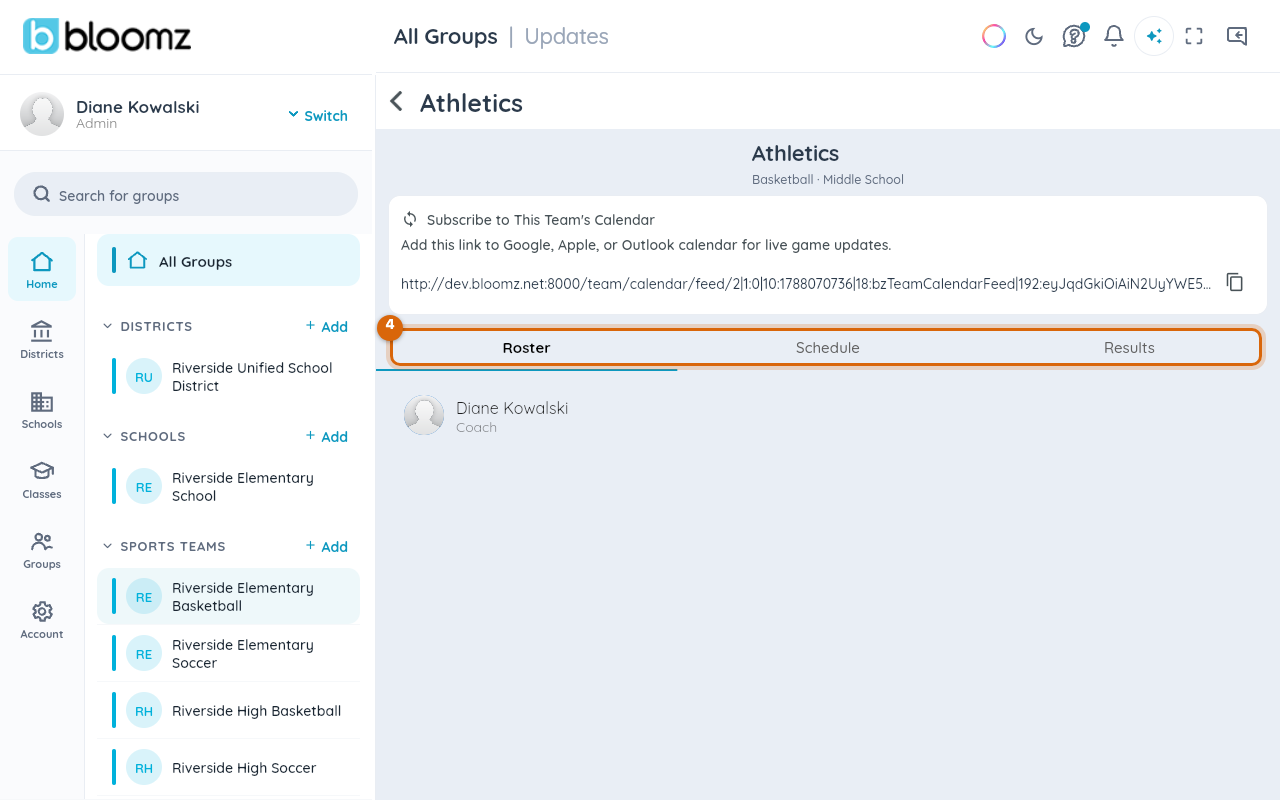
Open a team to see its roster, its schedule, and its results in one place.
Step 5 — Subscribe to the team's calendar
From the team page, use the calendar subscribe option to get the team's feed URL and add it to Google Calendar, Apple Calendar, or any calendar app — games and practices then stay in sync on their own.
Athletics on the school calendar
Games also appear on the school's regular Bloomz calendar tagged as athletics — use the Athletics filter chip on the calendar's list view (and on the public website calendar) to see just them.

Watch out: a game only shows a score once team staff enter one and mark it final — an empty score on a finished game usually just means the coach hasn't entered it yet.
Related
- Enter game scores and share your team's calendar
- Subscribe to your Bloomz calendar
- Find your way around the calendar