 Bloomz
Enter game scores and share your team's calendar
If you're staff on a team or club group — a coach, an assistant, an advisor — you can enter scores for your team's games and manage the team's subscribable calendar feed.
Before you start
- There's no separate "coach" role to request: holding a staff role in the team's own group is what unlocks score entry, checked per team. Being staff at the school lets you manage team profiles and schedules, but entering a score requires staff membership in the specific team being scored.
- Athletics must be on for your school (Settings → Features, Engagement section).
- Games and practices live on the team group's own Bloomz calendar, tagged as athletics — a game shared publicly reaches the school website like any other webshared event.
Step 1 — Open your team's page
Open your team from the Athletics area. Score entry lives here — on the team page, where each game row carries its own Enter score action. (The school-wide schedule list is read-only, even for coaches.) When your active group is your team, the + Create menu also offers a Score update shortcut straight to this page.
Step 2 — Enter the score
Select Enter score on the game, enter the home and away scores, and save. You can save a partial, in-progress score, but marking a game final requires both scores to be filled in.
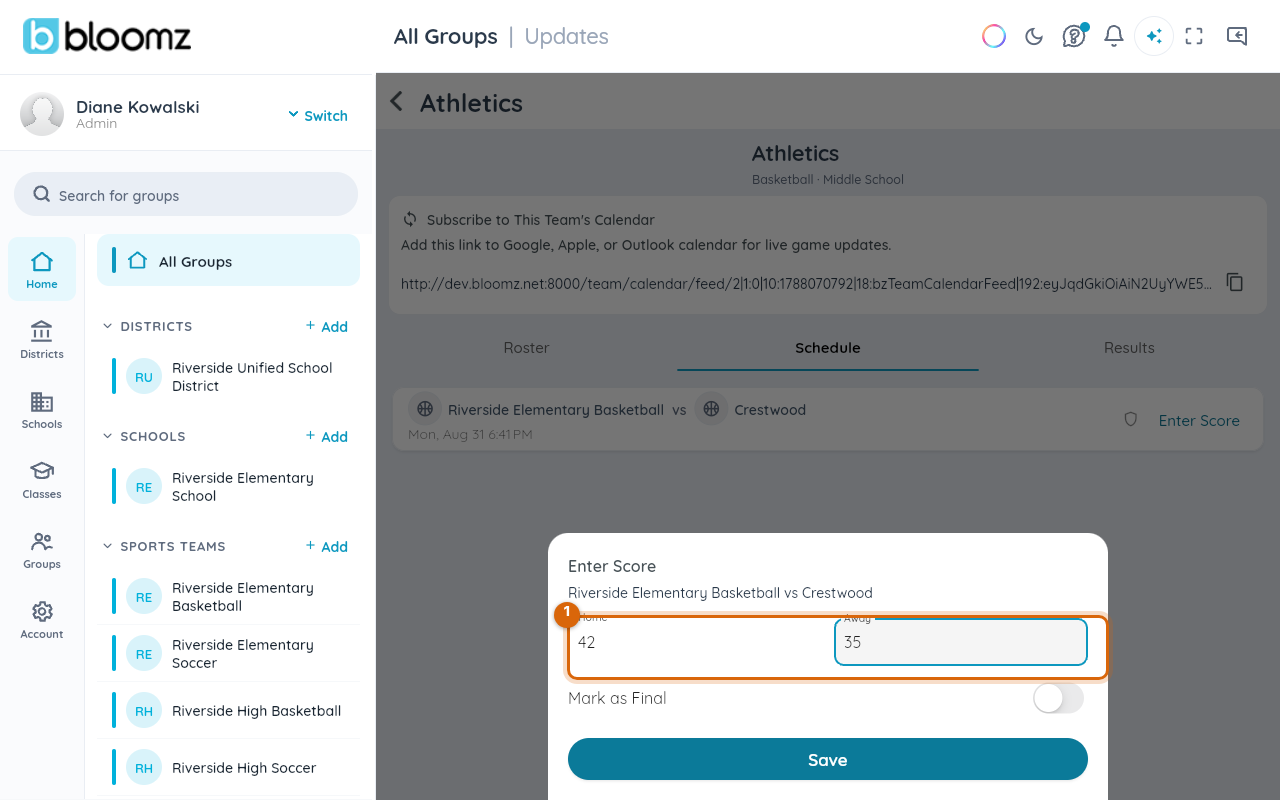
Step 3 — Finalize
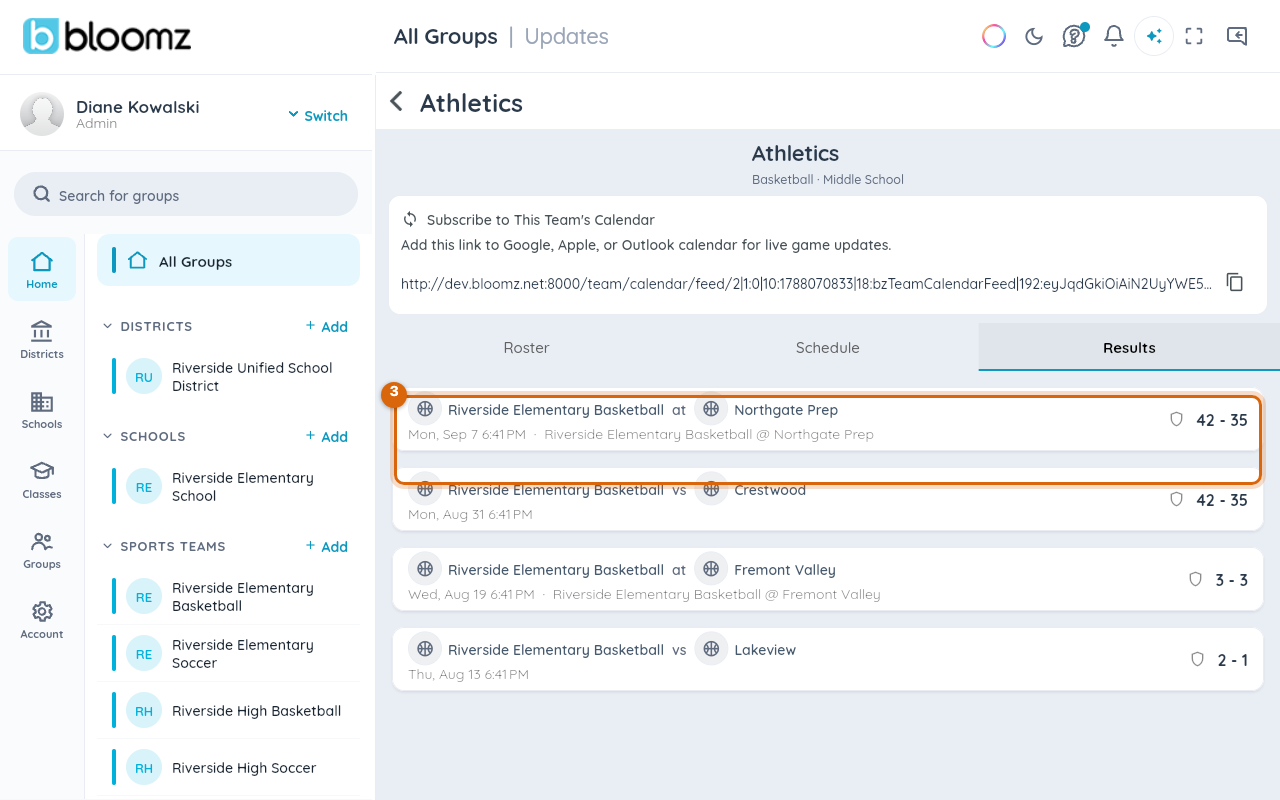
When the game is done, mark it final. Every member of the team's group gets a final-score notification, and the game moves to the results/scores views everyone sees — including the public feed when the game is shared there.
Step 4 — Manage the team's calendar feed
From the team page's calendar subscribe section you can get the team's feed URL to share with families, and rotate it if it needs to be revoked — rotation mints a fresh URL and permanently disables the old one.
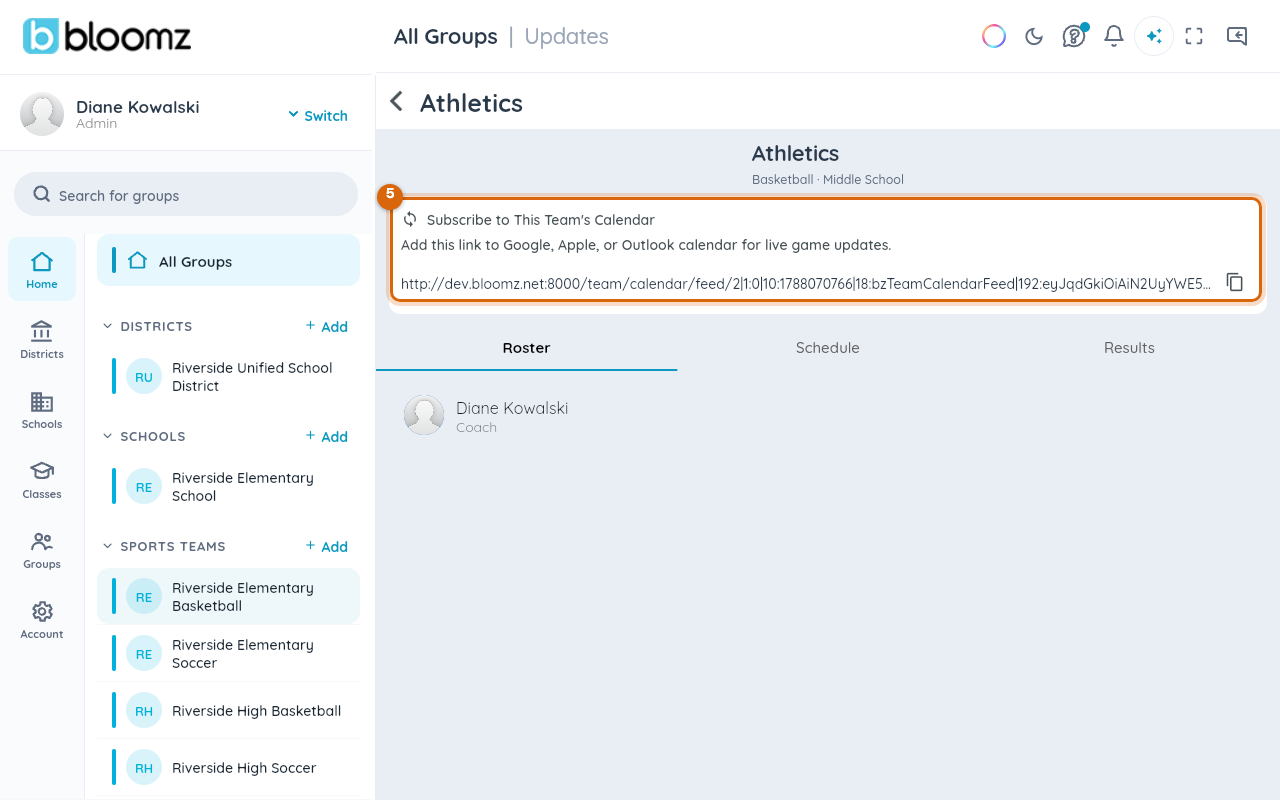
Watch out: rotating the feed URL breaks every existing subscription — anyone who added the old URL to their calendar app stops receiving updates until they subscribe again with the new one. Rotate when you need to cut off access, not as routine maintenance.
What families see
The schedule, the matchup rows, and finalized scores — everything on the schedules and scores surfaces is family-visible by design, and publicly shared games reach the school website and the no-login public app too. In-progress score entry isn't pushed to anyone; only marking a game final notifies the team.