 Bloomz
Manage the referral queue and record outcomes
The referral queue is where the office works incoming office referrals: triage new ones, record what was done, and keep a per-student history — with repeat patterns escalating into Thrive automatically where your school has it on.
Before you start
- The queue is for referral admins: school admins hold the capability automatically, and your school can grant it to other staff (a dean or counselor) without making them admins.
- Office Referrals must be turned on for your school (Settings → Features, Safety & Wellbeing). The queue lives in the school's More menu under Safety & Wellbeing, and you can pin it to your toolbar.
- Every referral moves through four statuses: New, In Review, Action Taken, and Closed.
Step 1 — Open the queue
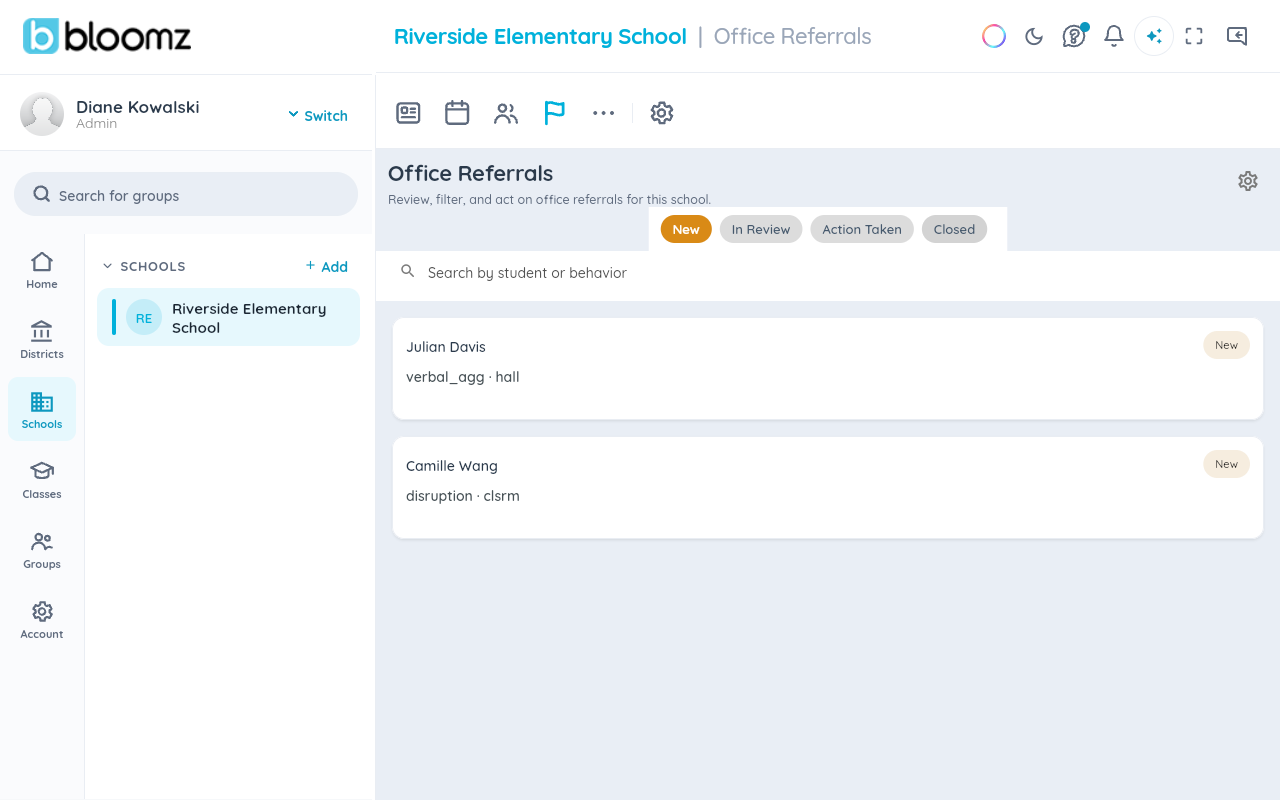
From your school, open More (…) and select the Office Referrals tile under Safety & Wellbeing. The queue opens segmented by status, newest first.
Step 2 — Filter to what needs you
Use the filters — behavior, location, student, and date range — and the search box, which searches the incident notes. The status tabs keep your place as you work through each stage.

Step 3 — Peek a referral
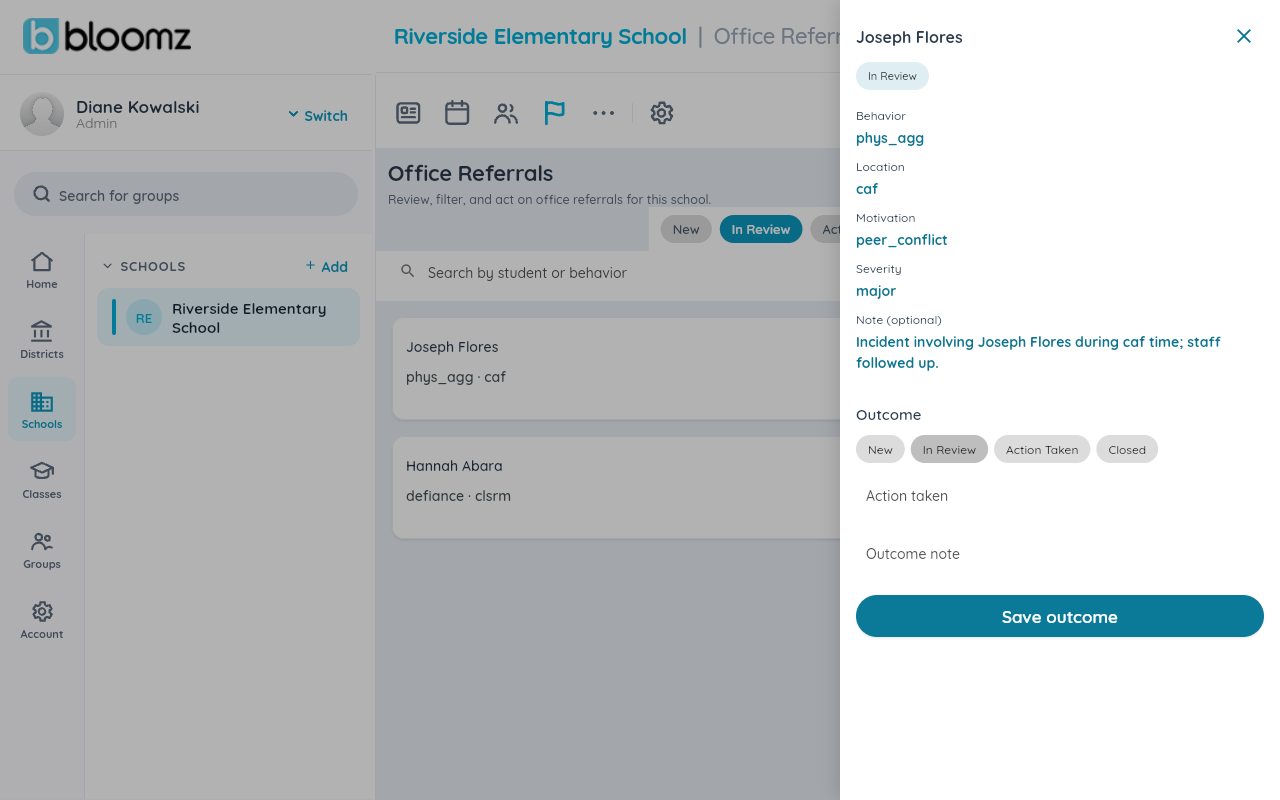
Select a row to open its detail tray without losing your place in the list: the full record — behavior, location, motivation, others involved, severity, the submitting teacher's note — plus the outcome form and a link into the student's Thrive case when one exists.
Step 4 — Record the outcome
From the tray, record what was done: describe the action taken and add an optional note. Recording an outcome moves the referral to Action Taken, logs a behavior flag on the student's Interactions record (so behavior dashboards and the day timeline pick it up), and notifies the teacher who submitted the referral. You can also move a referral's status directly from the queue when you're just triaging — but moving one to Action Taken always requires the action to be described.
Step 5 — Check the student's history
Open a student's referral history from their profile to see every referral on record chronologically — the fastest way to tell a one-off from a pattern.

Watch out: repeat referrals escalate on their own. With Thrive on, a student crossing your school's escalation rule (default: 3 referrals in a rolling 30 days) automatically opens a Thrive case and drafts a translated family notice — once per school year per rule, so a fourth referral never opens a second case. If your school doesn't use Thrive, Bloomz Pulse still raises a warning when a student has repeat referrals with no case tracking them.
Your school's referral categories
The module's settings screen shows the behavior and motivation catalog your school uses and explains the escalation rule. In this release it's a read-only reference — the catalog is managed by Bloomz, so contact your Bloomz account team if your school needs a category added or retired.
What students and parents see
Families never see the queue. They hear from the school through whatever outcome contact you make, and through the escalation notice where one is configured — delivered in each guardian's preferred language, with printed mail where your district has set it up.