 Bloomz
Submit an office referral
When a behavior incident needs the office, file an office referral from wherever you are — the submit sheet is built to clear in under a minute, and the office is notified the moment you send it.
Before you start
- Office Referrals is a staff tool that's off until your school turns it on (Settings → Features, in the Safety & Wellbeing section). If you don't see the option, ask your admin.
- Any staff member can submit a referral; only referral admins (school admins, plus any staff your school has granted the referral-admin capability, such as a dean or counselor) see the queue and record outcomes.
- A referral is not the same as a behavior point: points and flags live in your class's Interactions, while a referral is a formal office-discipline record with its own queue and follow-up.
Step 1 — Open the Create menu
Select + Create, scroll to the safety section, and choose Office referral. You can also start one from a student's profile menu — that way the student is already filled in.
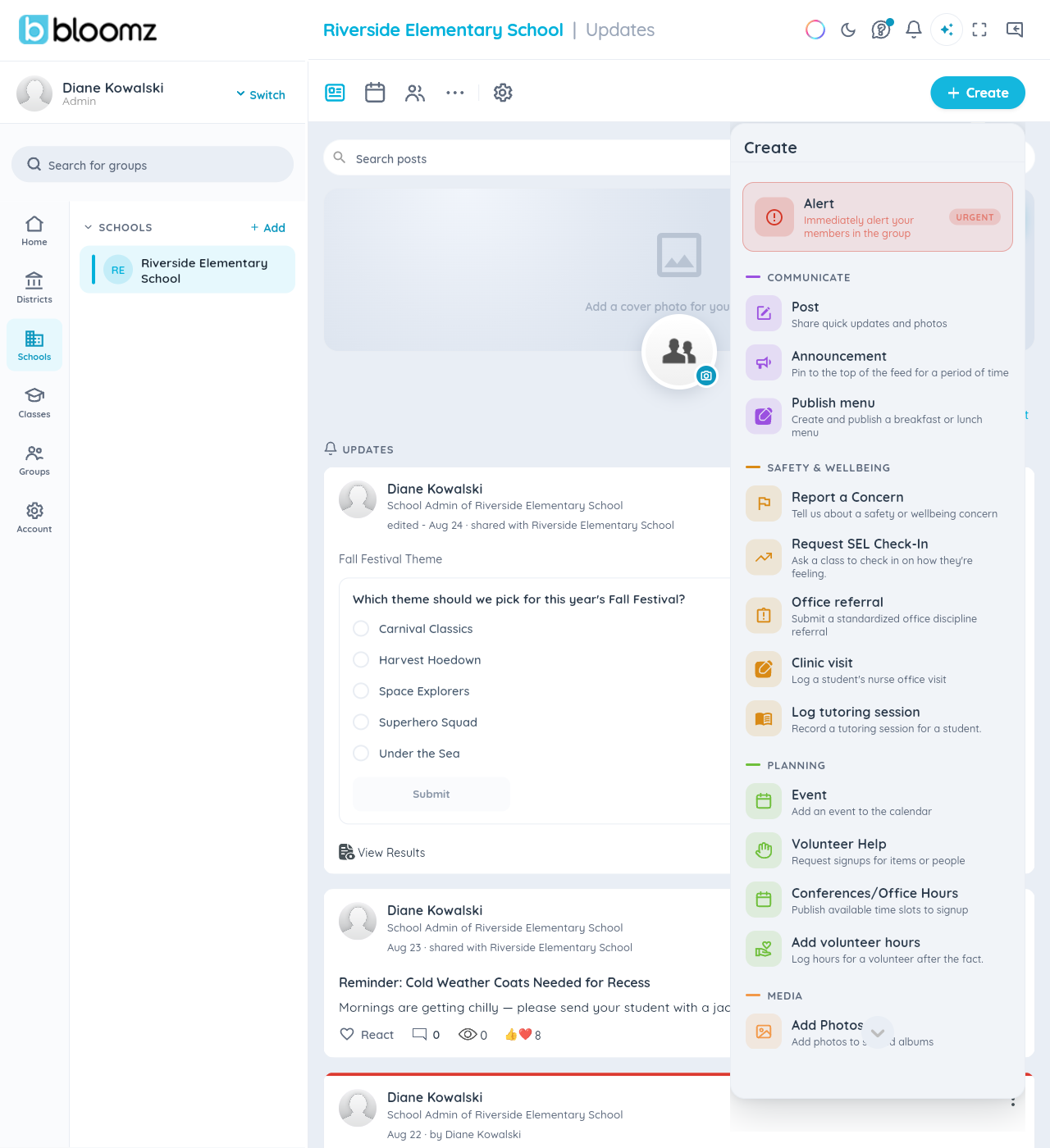
Step 2 — Pick the student and describe the incident
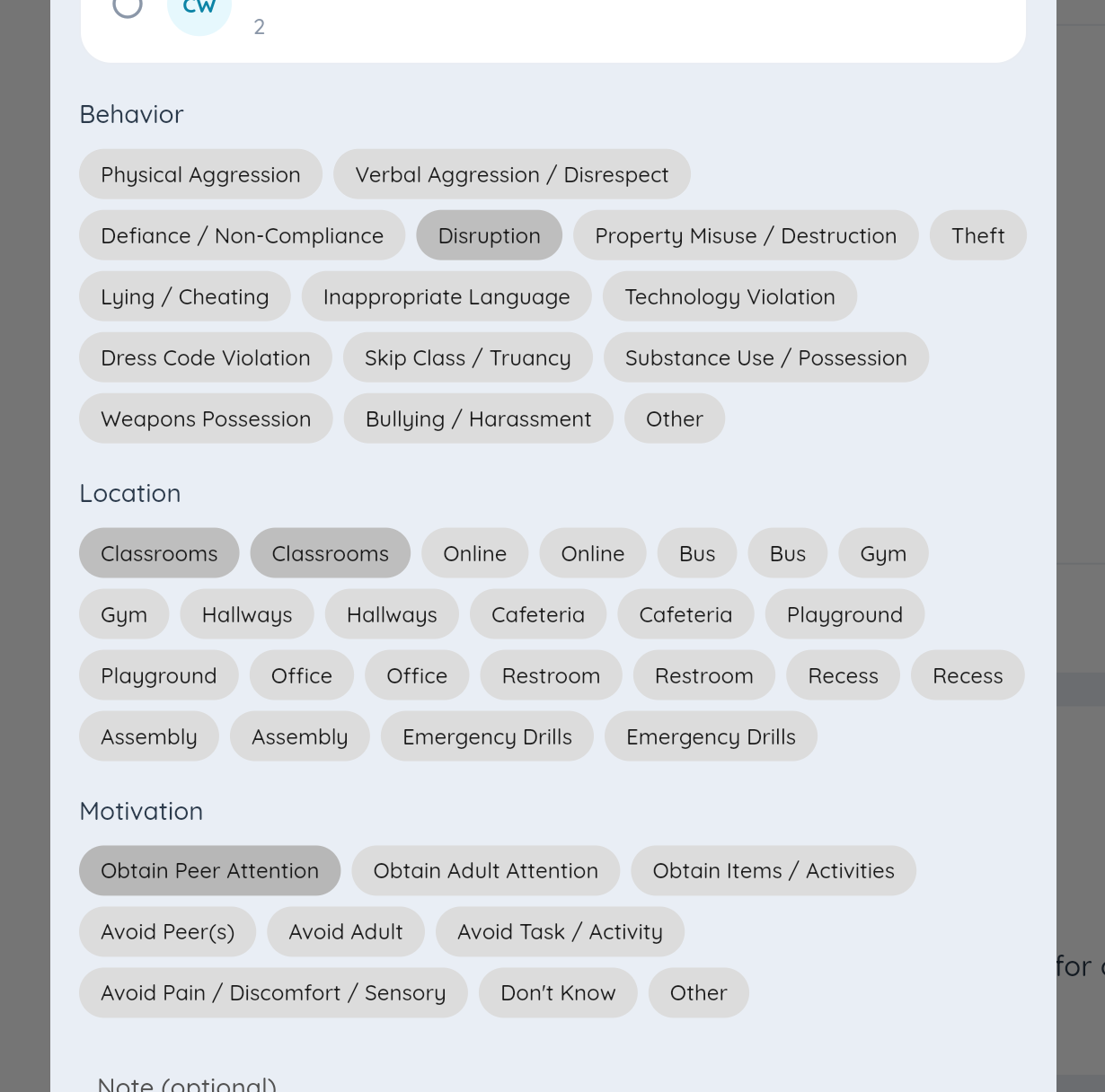
Choose the student, then pick the behavior and the location from your school's lists — the behavior list is a standard office-discipline catalog (covering things like physical aggression, disruption, and defiance), and the location list is the same one hall pass and dismissal use (classroom, cafeteria, hallway, playground, gym, library, office, and more).
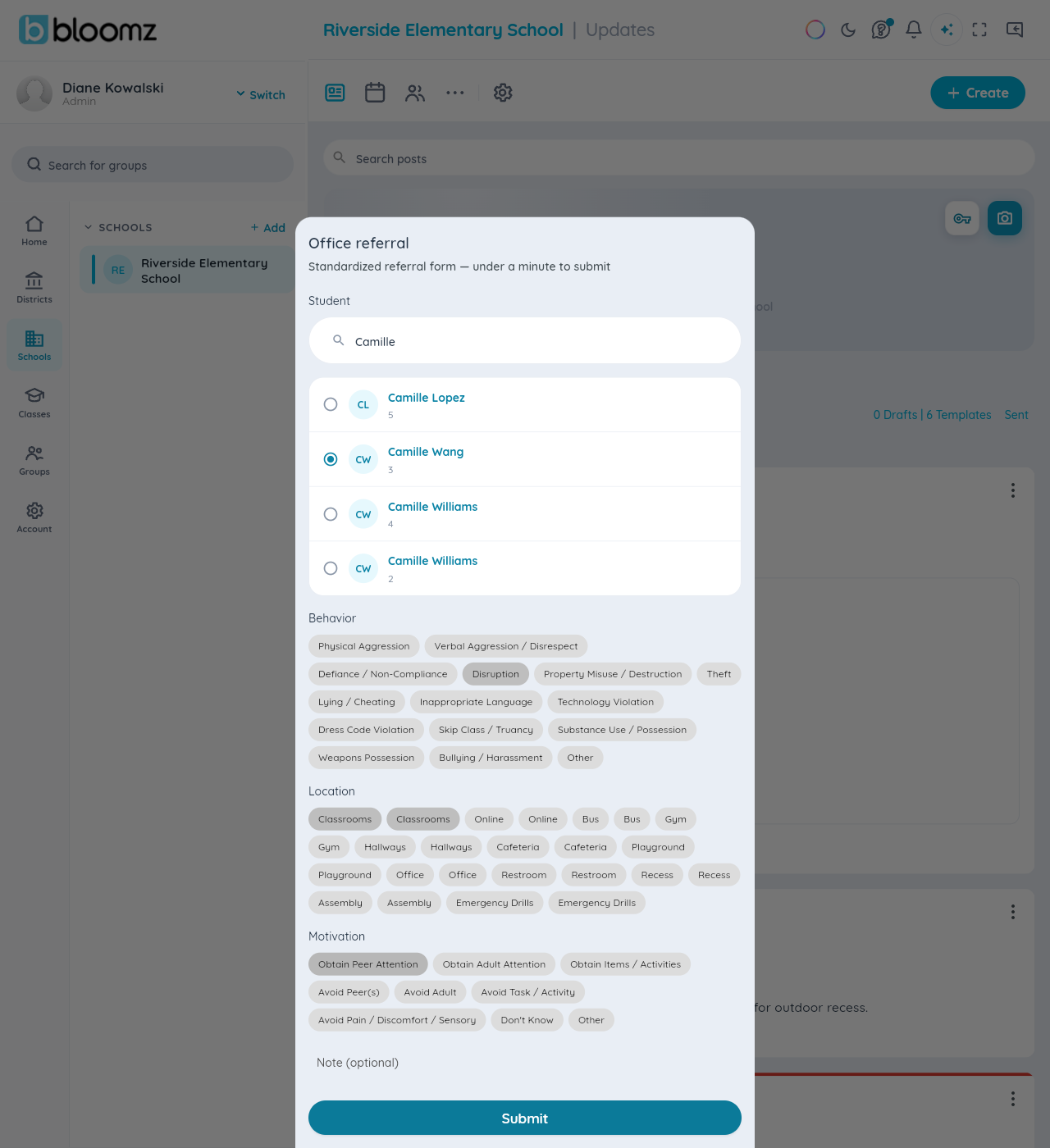
Step 3 — Add the optional details
If you know it, record the perceived motivation (seeking peer or adult attention, avoiding a task, and so on), any other students involved, a severity, and a short note. None of these are required — a referral with just a student, behavior, and location is complete.
Step 4 — Submit
Send the referral. Referral admins are notified instantly, and the referral lands in the office queue as New. You'll get your own notification later, when the office records an outcome on it.
Watch out: if this is the student's third referral inside your school's escalation window (the default rule is 3 referrals in 30 days), and your school uses Thrive, submitting can automatically open a Thrive support case and draft a translated notice to the family — so don't be surprised to see follow-up happening the moment you submit.
What students and parents see
Nothing, at the point of submission. A family hears from the school through the outcome the office records, or through the escalation notice where your school has configured one — never through the raw referral itself.