 Bloomz
Send due-date reminders
Give a fee a due date and Bloomz does the chasing automatically — a balance-due notice before it's late, and a past-due notice after, without you sending anything by hand.
Before you start
- Reminders only run on charges that have a due date set — a charge with no due date is never reminded about.
- Each reminder is sent once per charge; paying stops future reminders for it immediately.
Step 1 — Open the charge or plan
In the Payments console, open the request, plan, or one-time charge you want reminders on.
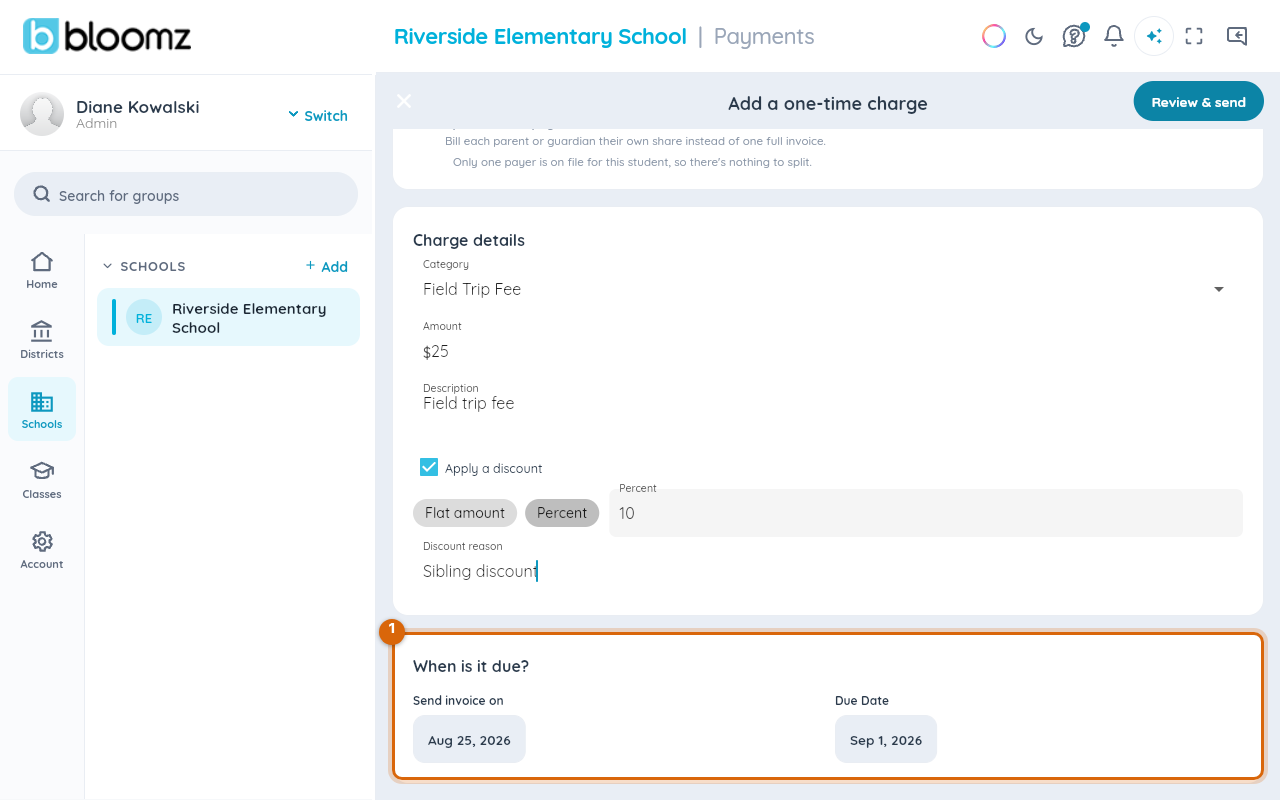
Step 2 — Set a due date
Add or confirm the Due Date field.
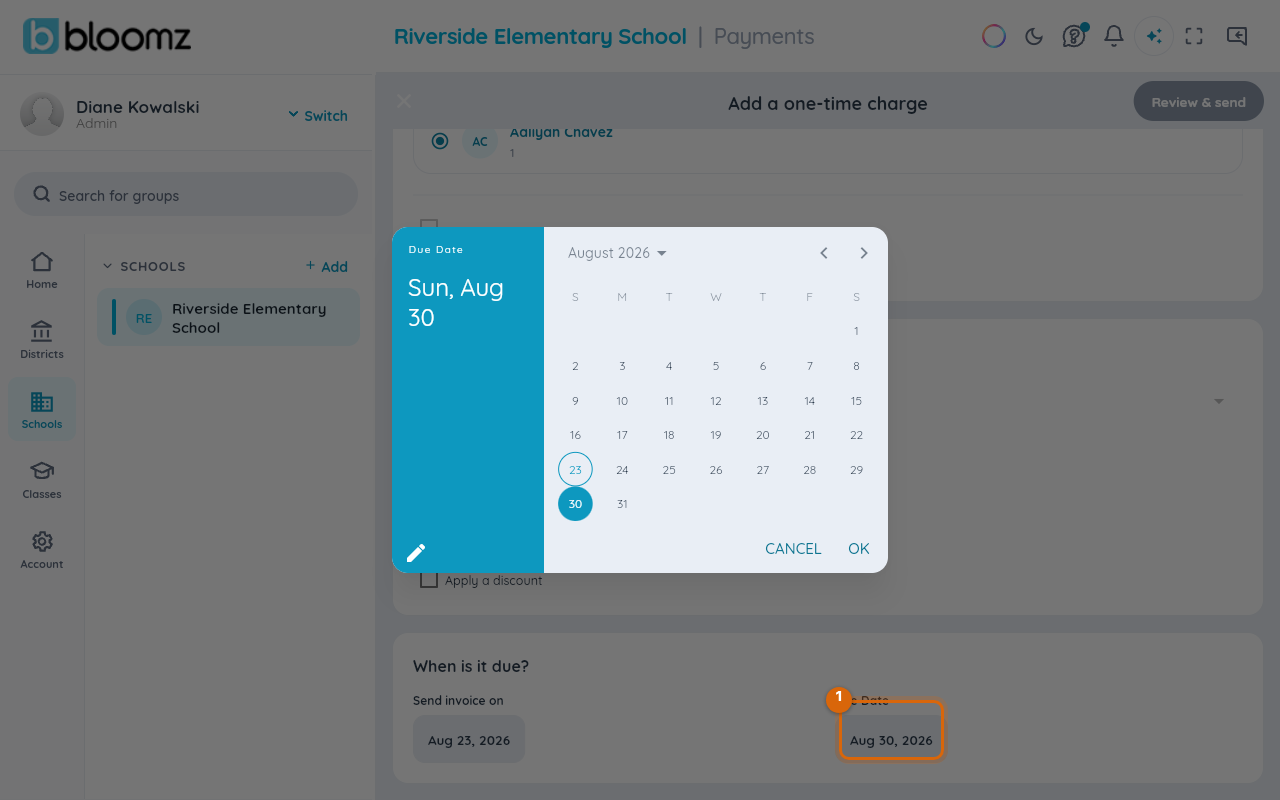
Step 3 — Review the reminder schedule
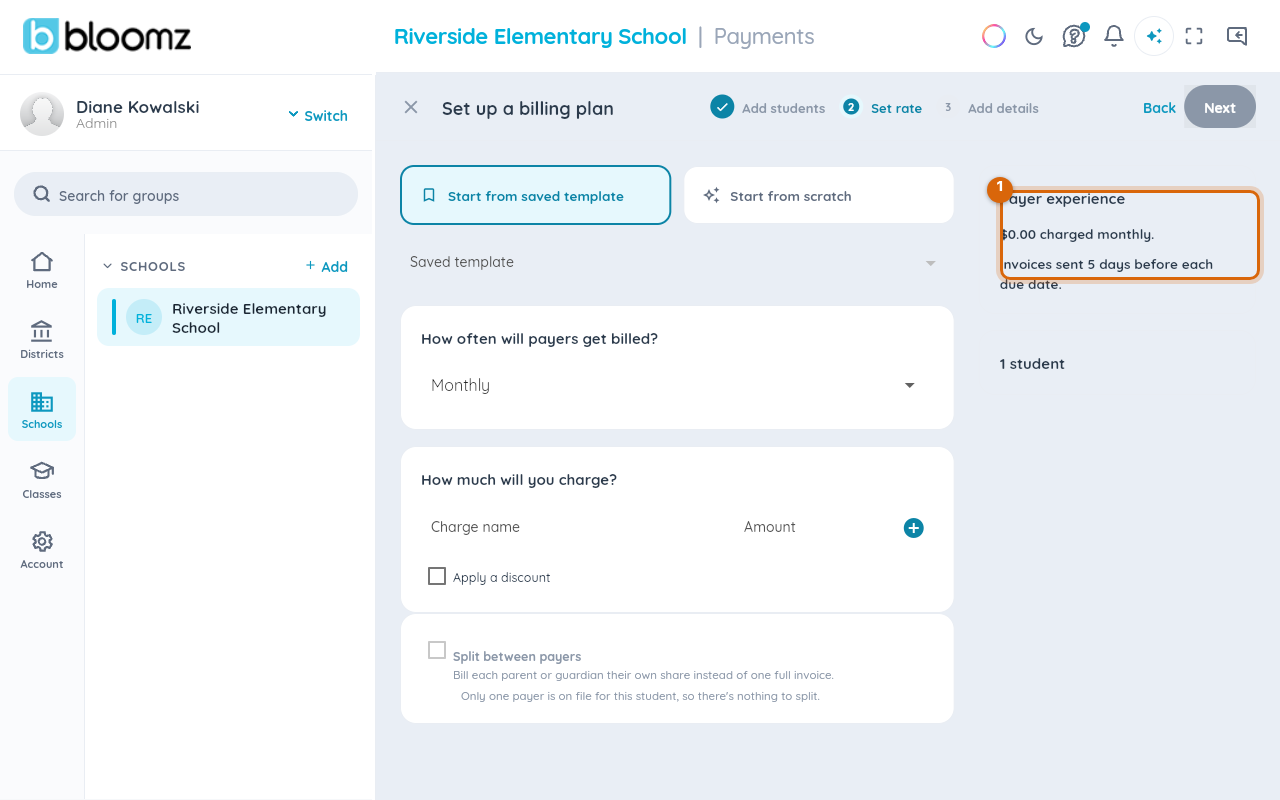
If you're setting the charge up as a recurring billing plan rather than a single one-time charge, the Payer experience panel on the plan wizard's Set Rate step previews exactly when families will be notified — for example, "Invoices sent 5 days before each due date." A one-time charge doesn't show a separate preview screen; its due date (set in the previous step) is what drives the automatic reminder.
Step 4 — Save
Choose Review & send — you're done. There is no reminder screen to configure: from now on, families with an open balance get the reminders automatically, right up until they pay.
Watch out: reminders go to the guardian the charge is billed to — if a charge was split between two guardians, each gets their own reminder for their own share only.
What families see
Reminders arrive as ordinary notifications, the same as any other Bloomz alert — there's no separate reminders inbox for families to check. Each one links straight to the open item so paying takes one tap. Once the balance reaches zero, no further reminders go out for that charge, even if the due date has already passed.