 Bloomz
Start a donation campaign for your school
Bloomz Pay can run your school's fundraising the same way it already runs tuition and fees: a donation campaign posts a goal, takes gifts of any size, and lands every dollar in the same Stripe account and payment history as everything else your families pay for. This article covers the admin side — building a campaign in the Payments console.
Before you start
- Payments must already be turned on for your school. Donation campaigns are a Payments add-on, and are switched on by default the moment Payments itself is — an admin can turn campaigns off from Payments Settings if your school doesn't want them.
- You need school or district admin access to the Payments console.
Step 1 — Open the Donations tab
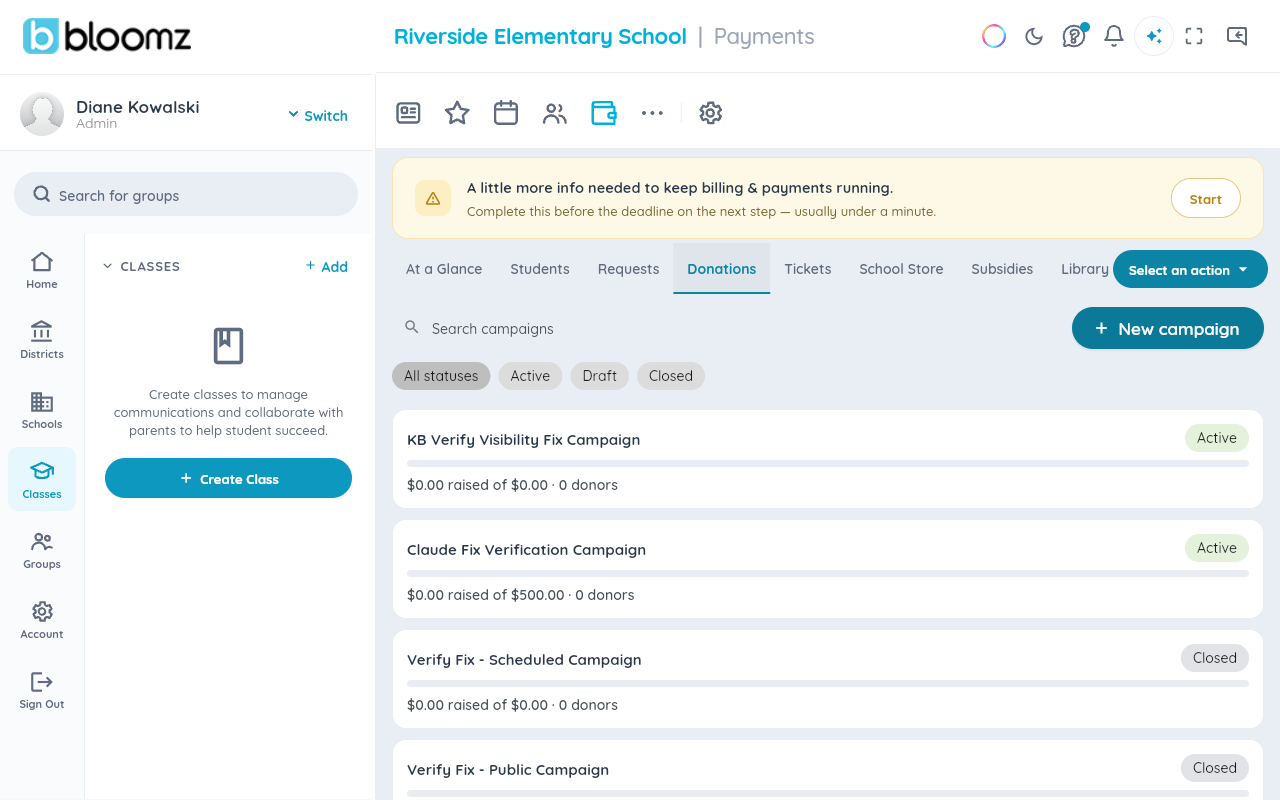
From your school's More menu, choose Payments, then select the Donations tab.
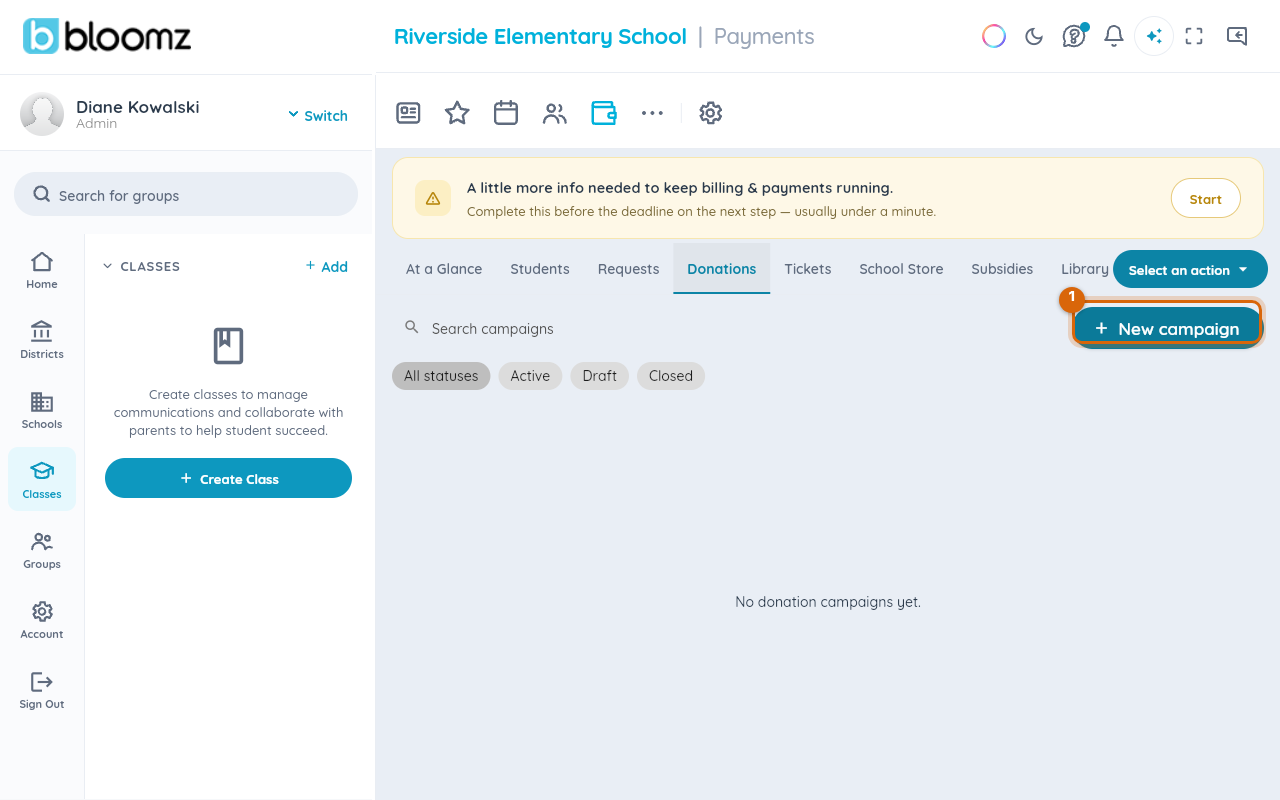
Before you've created anything, this tab reads "No donation campaigns yet" — that's expected at this point.
Step 2 — Start a new campaign
Choose New campaign and fill in a Campaign title, an optional Designation (which billing category the gifts count toward), and an optional dollar Goal.
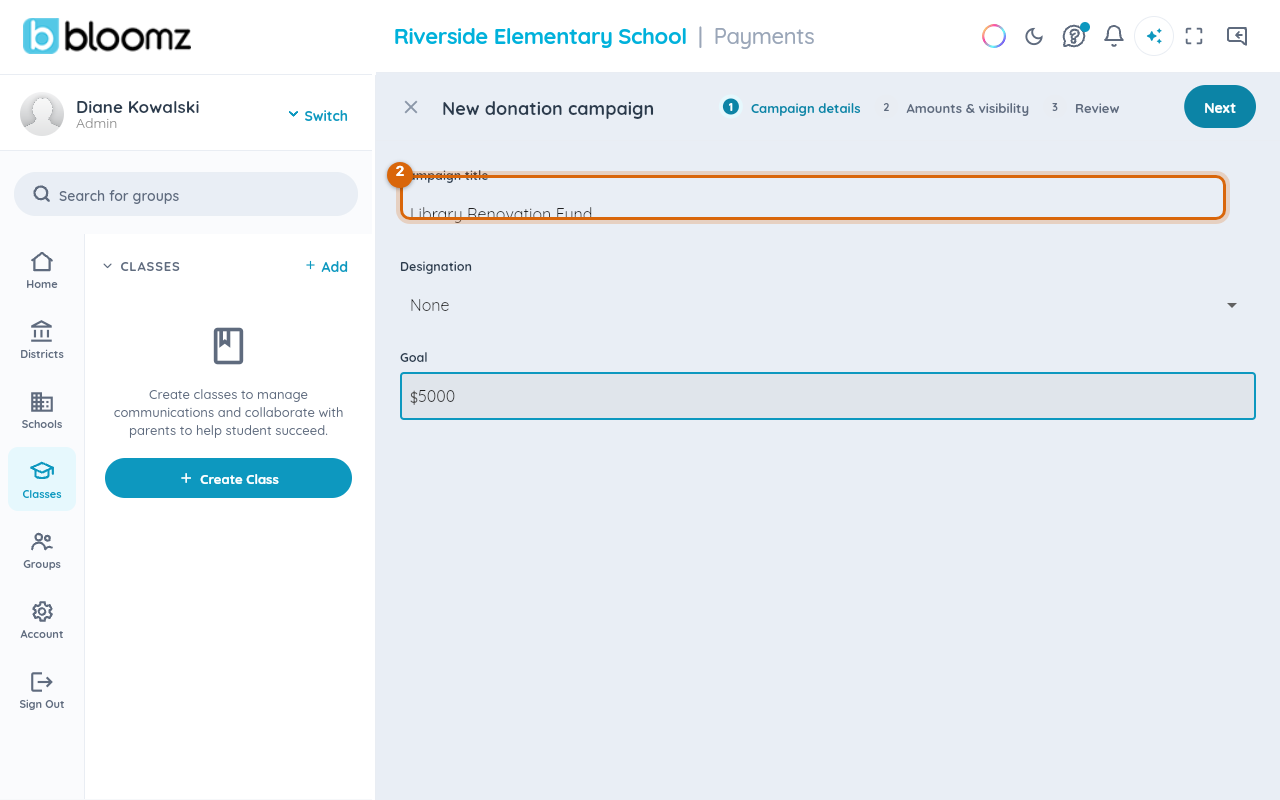
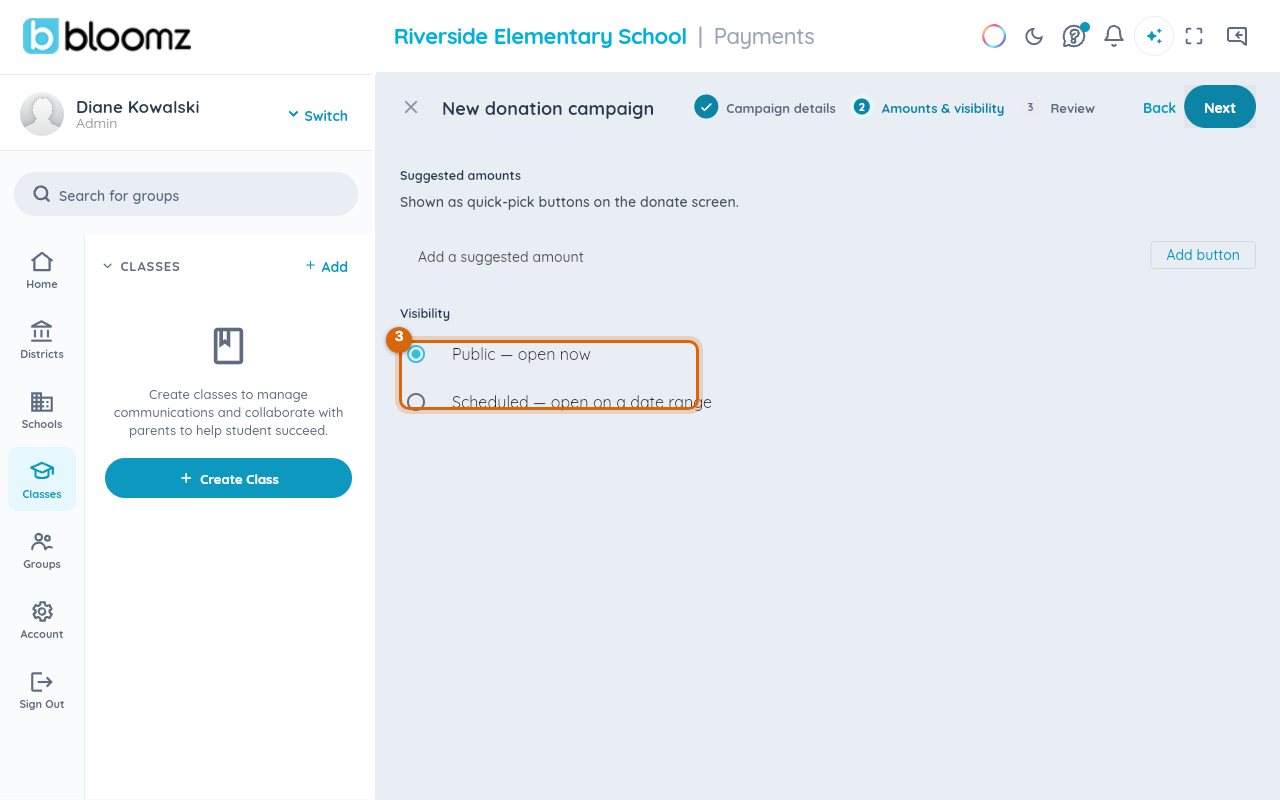
Step 3 — Set amounts and visibility
On the next step, add suggested amounts — the quick-pick buttons donors see on the donate screen — and choose Visibility: Public opens the campaign right away, Scheduled opens it only within a date range you set.
Step 4 — Review and create
Review the summary and choose Create campaign.
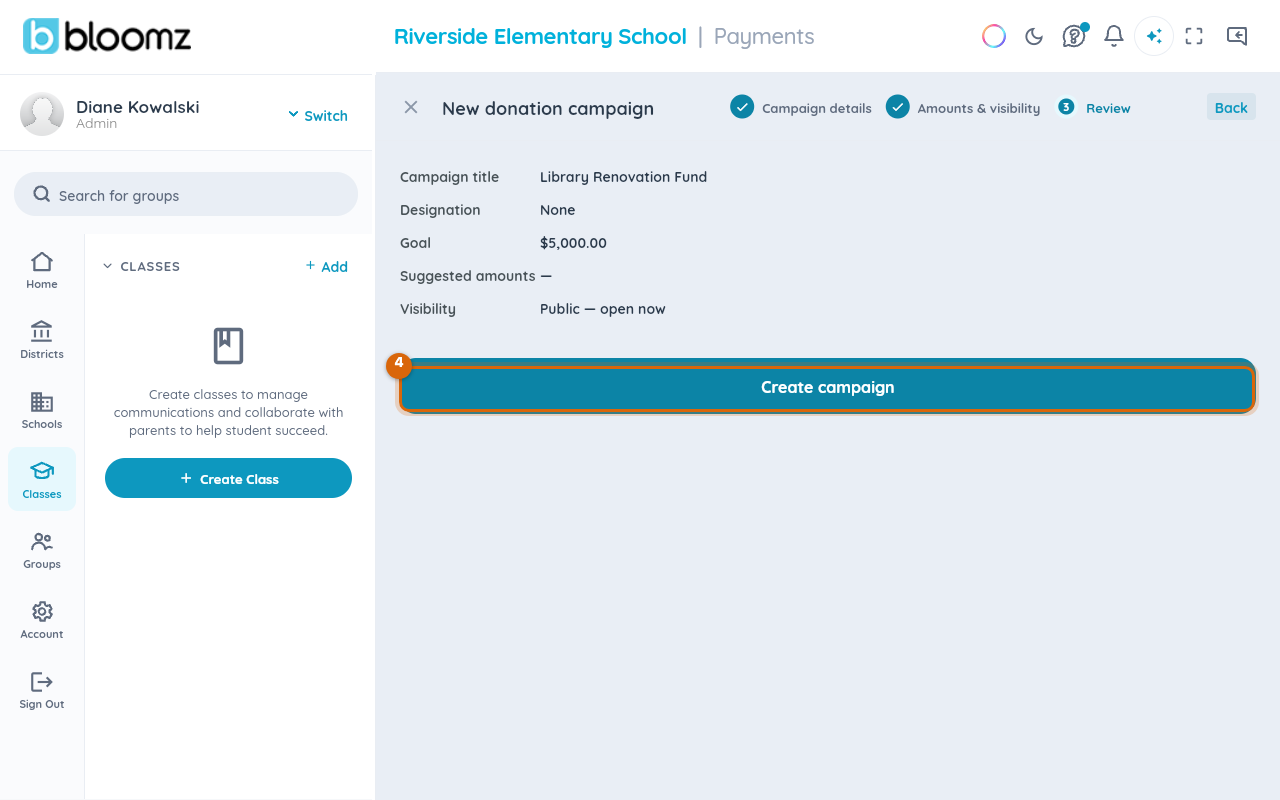
Choosing Create campaign creates it immediately — it appears in the Donations tab right away, with the visibility you chose in Step 3 saved exactly as set (a Public campaign is open the moment you create it).
What families see
Families donate from their own Payments area, under a Give tab, which lists every campaign currently open at their child's school.
Watch out: a family only ever reaches Payments through one of their child's classes, and the Give tab currently looks up campaigns using that class's id instead of resolving up to the school that actually owns them — confirmed live: a parent opening Give from their child's class sees "No active campaigns right now" even at a school with real, active campaigns, because the request it sends is scoped to the class, not the school. This is a different, still-open issue from the one above (which is fixed) — already flagged to engineering. The admin Donations tab in this article is unaffected.
