 Bloomz
Upgrade to Premium
Teacher Premium unlocks extra classroom tools on top of the free plan. Upgrading takes a few minutes: pick a plan, enter payment details, and confirm.
Before you start
- You need a payment method — card or bank (ACH) — to complete an in-app upgrade.
- If your school pays for Premium centrally, check with your admin before upgrading yourself — you may already have it, or a duplicate personal subscription may not be needed.
Step 1 — Open Upgrade to Premium
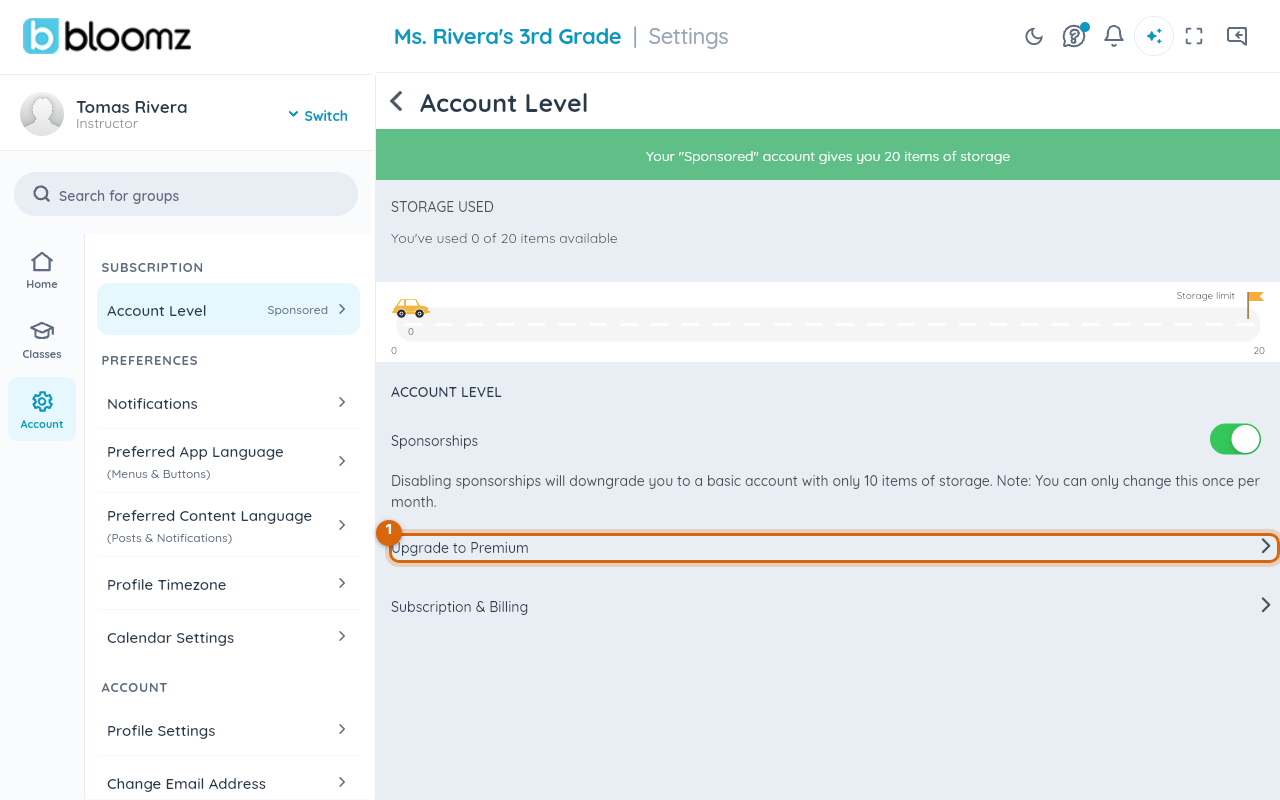
From the main menu, open Account Settings, then Account Level, and select Upgrade to Premium.
Step 2 — Compare the plans
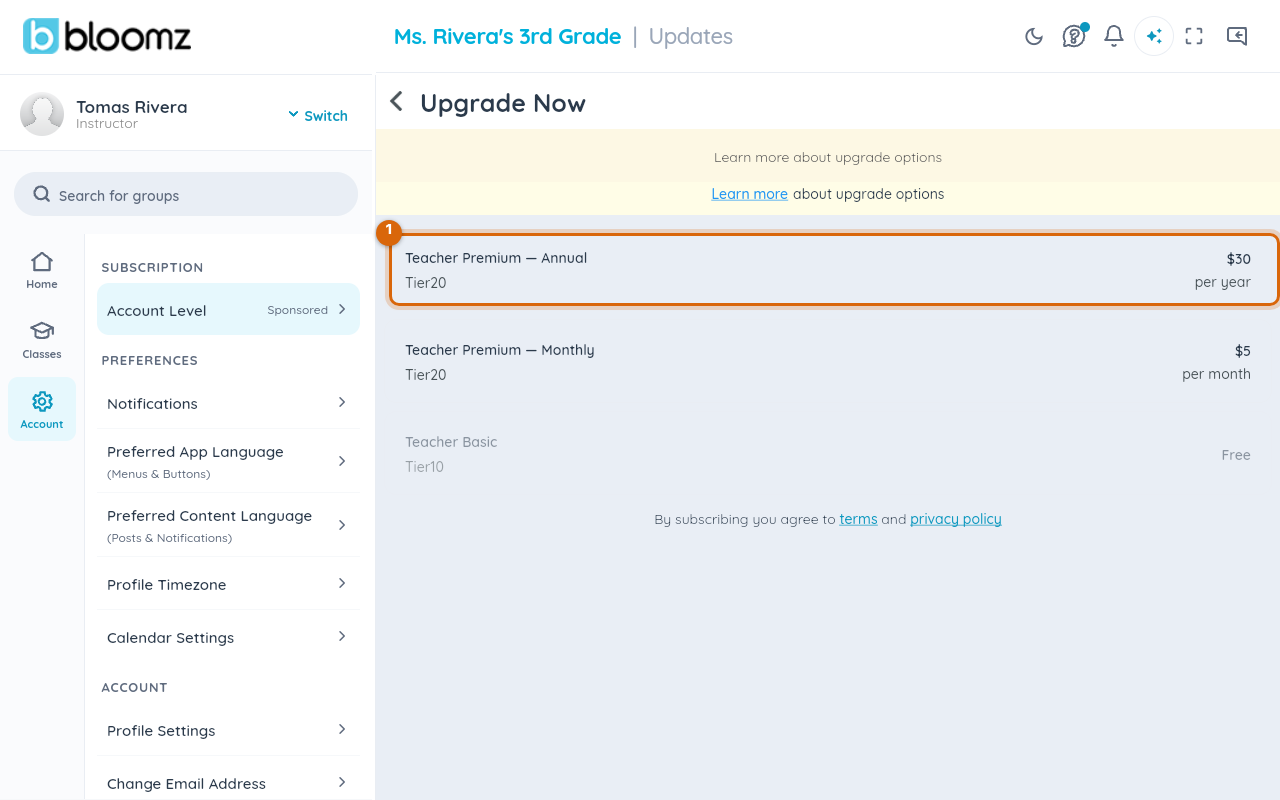
Review the plan options — monthly and annual — with what each unlocks.
Step 3 — Choose a plan
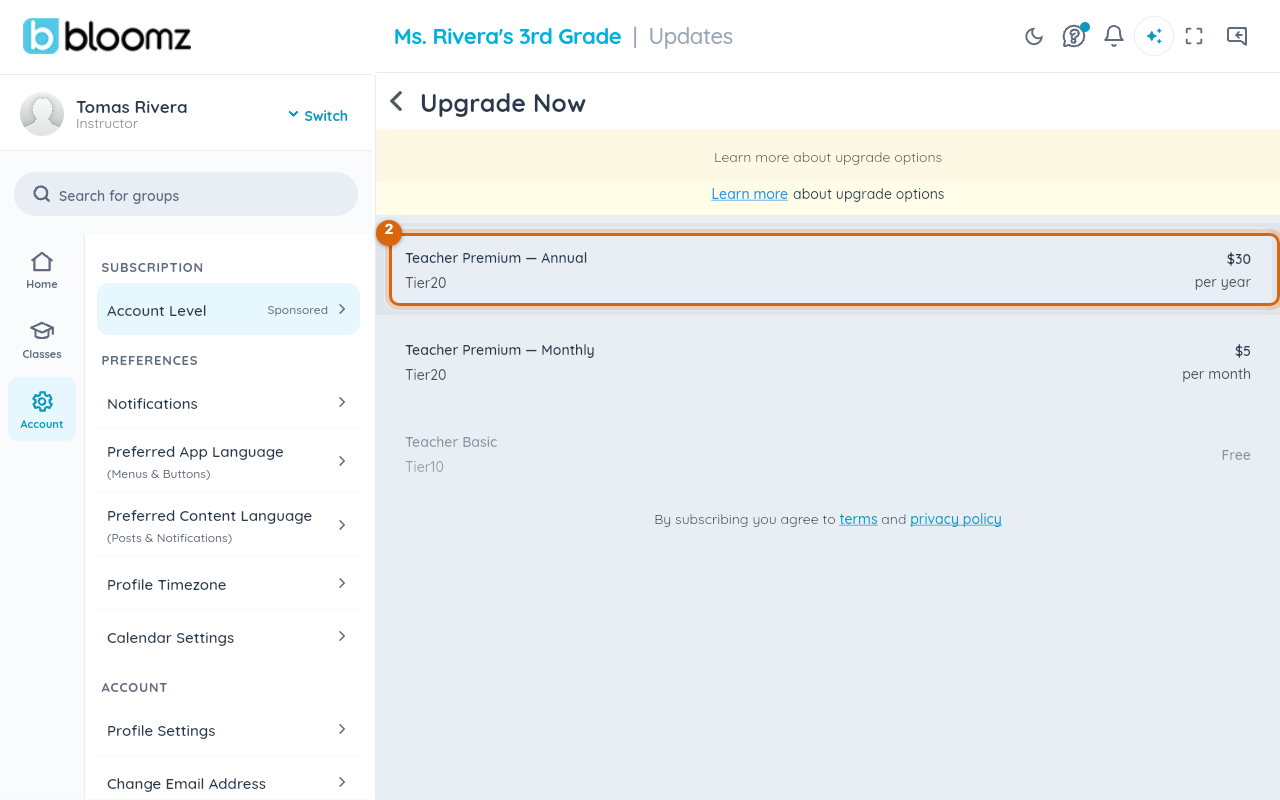
Select the plan you want. Choosing a plan opens the payment form right away — there isn't a separate confirmation step in between.
Step 4 — Enter payment details and confirm
Enter a card or bank account, or choose a payment method you already have saved, then confirm the payment. Premium features unlock immediately.
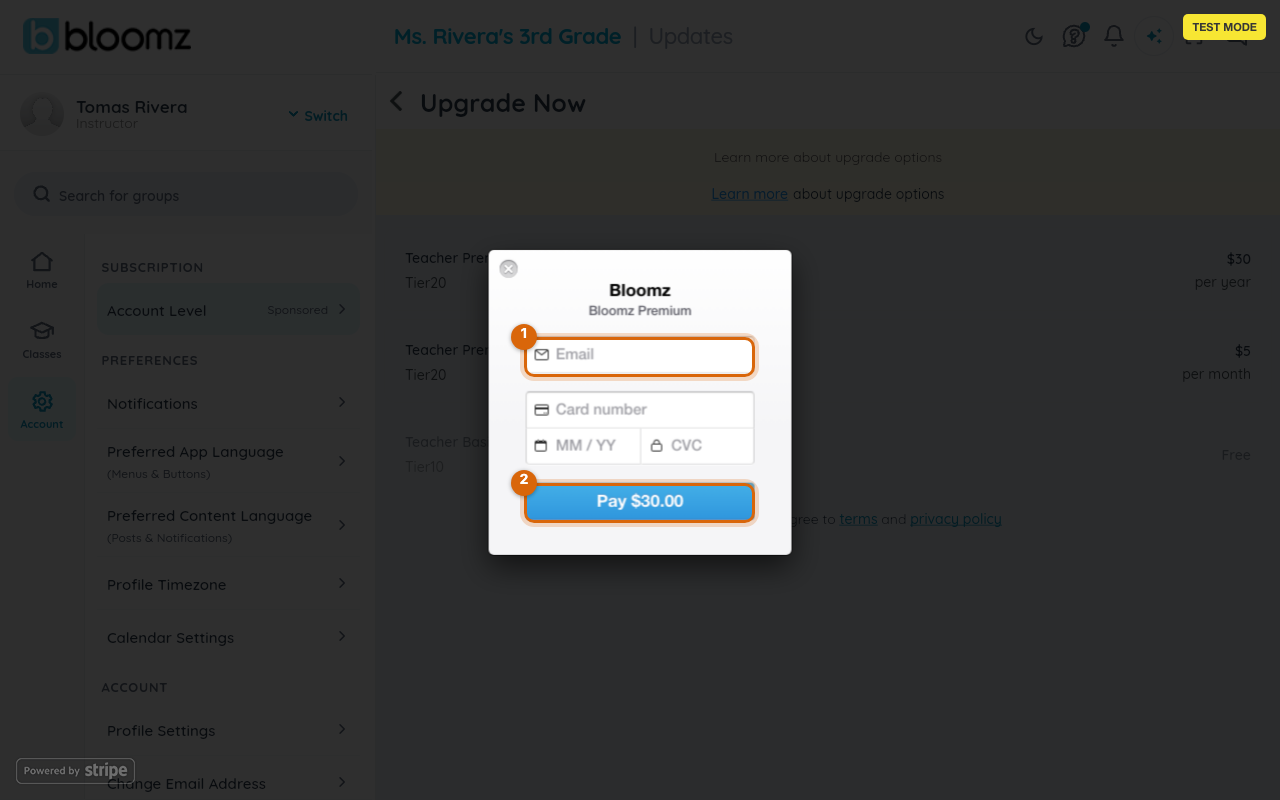
Watch out: an annual plan is billed as one upfront charge, not spread across the year — check which billing period you selected before confirming if you're expecting a smaller monthly charge.
What happens next
You get a confirmation notification and a receipt, and your new plan and its renewal date appear on the Subscription screen (see See your Teacher Premium subscription and payment history).
Related
- See your Teacher Premium subscription and payment history
- You paid for Premium but don't have it yet
- Cancel your subscription