 Bloomz
Build a sign-up sheet now, publish it to families later
Build a volunteer request or a parent-teacher conference sign-up sheet today, and have it go live for families on the morning you choose. Until that moment nobody but you can see it or sign up for it — no more publishing half-built sheets and editing in public, and no more slots claimed while you were still rearranging them. This article is for teachers, staff and room parents who create volunteer requests or conference sheets.
Before you start
Scheduling controls when families see the sheet, which is a different thing from when the volunteering or the conference happens — the event keeps its own date. The schedule control lives in its own Schedule Visibility section, below the event's Starts/Ends fields, in both the volunteer flow and the conference flow, and works the same way in each. It is available while you create the sheet, not just on edit. (Signup Cutoff Date is a related but separate control, set later from the sheet's own SIGN UPS card once it exists — see Set a sign-up cutoff date, or close sign-ups early.)
Step 1 — Find the schedule row while building the sheet
Create your volunteer request or conference sheet as usual. Under Schedule Visibility, the schedule row reads "Publish immediately" — the default, which behaves exactly as sheets always have.
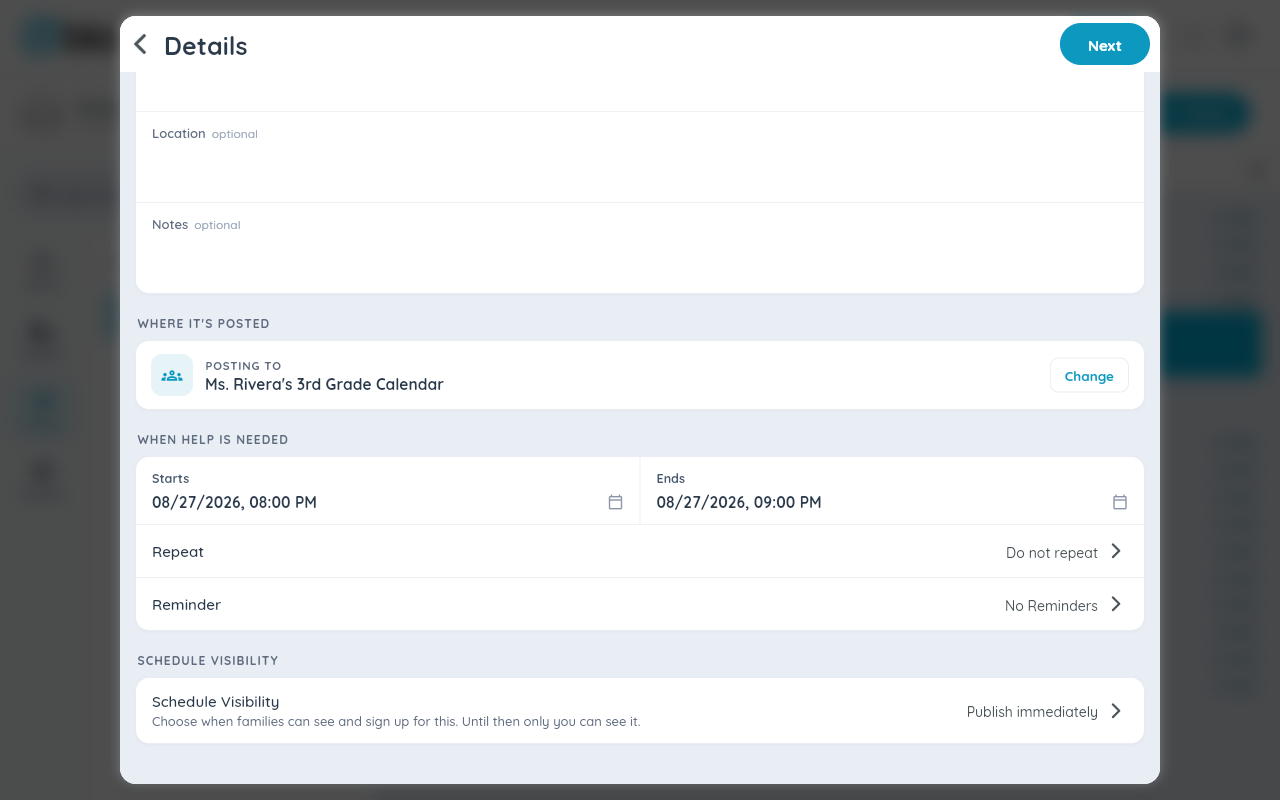
Step 2 — Pick the go-live day
Tap the row to open the date picker and choose the day the sheet should appear. The time defaults to 8:00 AM on that day — "goes live in the morning" is almost always the intent, so you only touch the time if you want a different hour.
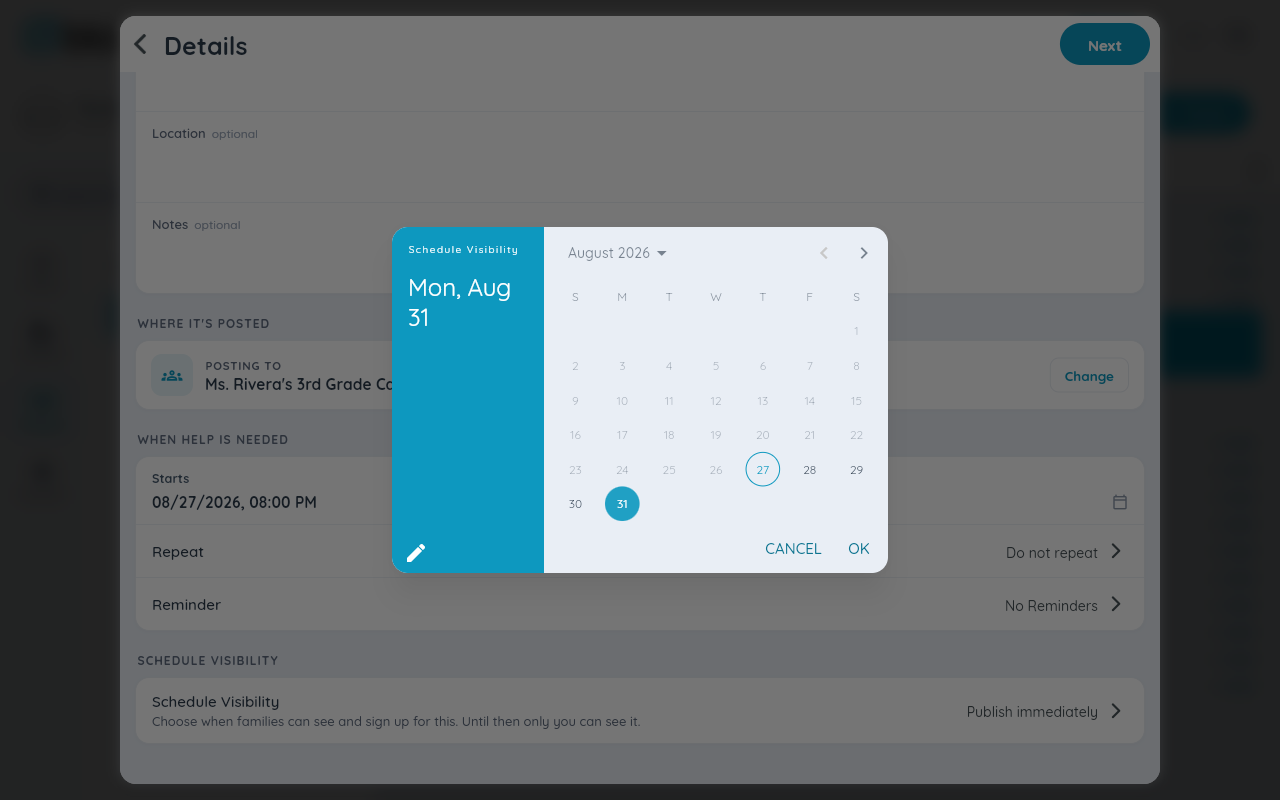
Step 3 — Fine-tune or clear it
Once a day is chosen, a clock icon appears for picking an exact time, and an × clears the schedule entirely — back to publishing immediately. Two schedules are refused outright, because each would leave you with a sheet nobody ever sees:
- a go-live at or after the sign-up cutoff — the sheet would appear already closed, or appear and close in the same instant;
- a go-live in the past — usually a stale value left in the picker while re-editing; it would publish the sheet the moment you save.
Fix the date and save again.
Step 4 — Save, and check that it's still private
Save the sheet. On your own class feed, your post shows "shared privately with you" where a normal, live post would name its real audience — that wording is your confirmation the schedule took, since a pending sheet otherwise looks identical to a live one from where you sit.
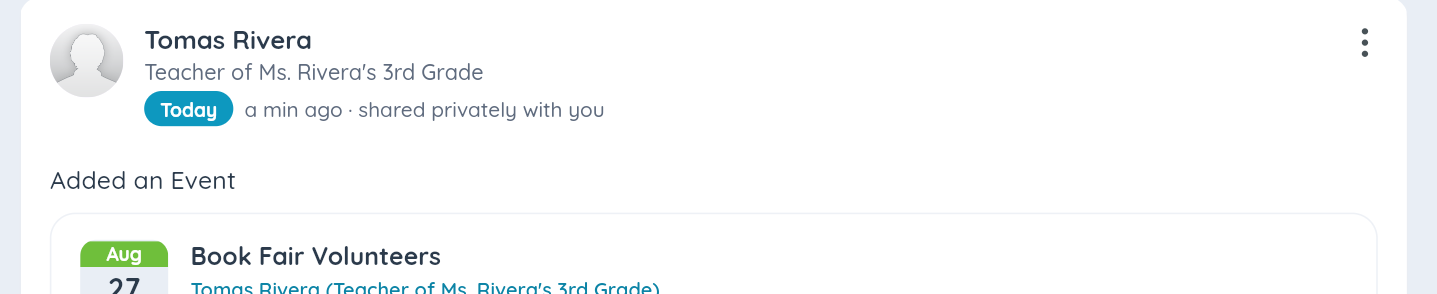
What you should see: on the general class feed and calendar, the sheet stays out of sight for families until go-live — not shown-but-closed. At the go-live moment it appears for everyone and the usual notifications go out, exactly as if you had just posted it.
Watch out: a family member the sheet was sent to may see it in their own feed as an invitation before the scheduled go-live time, even though it stays out of the general class feed and calendar until then. Don't rely on the schedule alone to keep a sheet fully invisible to every named recipient — confirm with your school if this matters for your situation.
Watch out: a family member who opens a stale link to a not-yet-live sheet and tries to sign up is turned away with a message that sign-ups have not opened yet — the server enforces the schedule, so nobody can slip in early. You (or an admin) can still edit the sheet before go-live from its details page, including moving the go-live moment.