 Bloomz
Read the Conferences dashboard — and switch schools as a district admin
If you oversee more than one school, the Signups screen shows every volunteer ask and conference at whichever school you currently have selected — and switching schools is the same left-nav list you use everywhere else in Bloomz.
Before you start
You need a district-admin role with more than one school assigned to your account. If you only ever see one school's data, your account may not be scoped as a district admin — check with your Bloomz account manager.
Step 1 — Open Signups
Select a school under SCHOOLS in the left nav, then select the Signups icon in the top row (or More → Signups under Planning, if the row has no room for it). The All Signups tab lists every volunteer ask and conference for that school, each with a plain fill count and percentage.
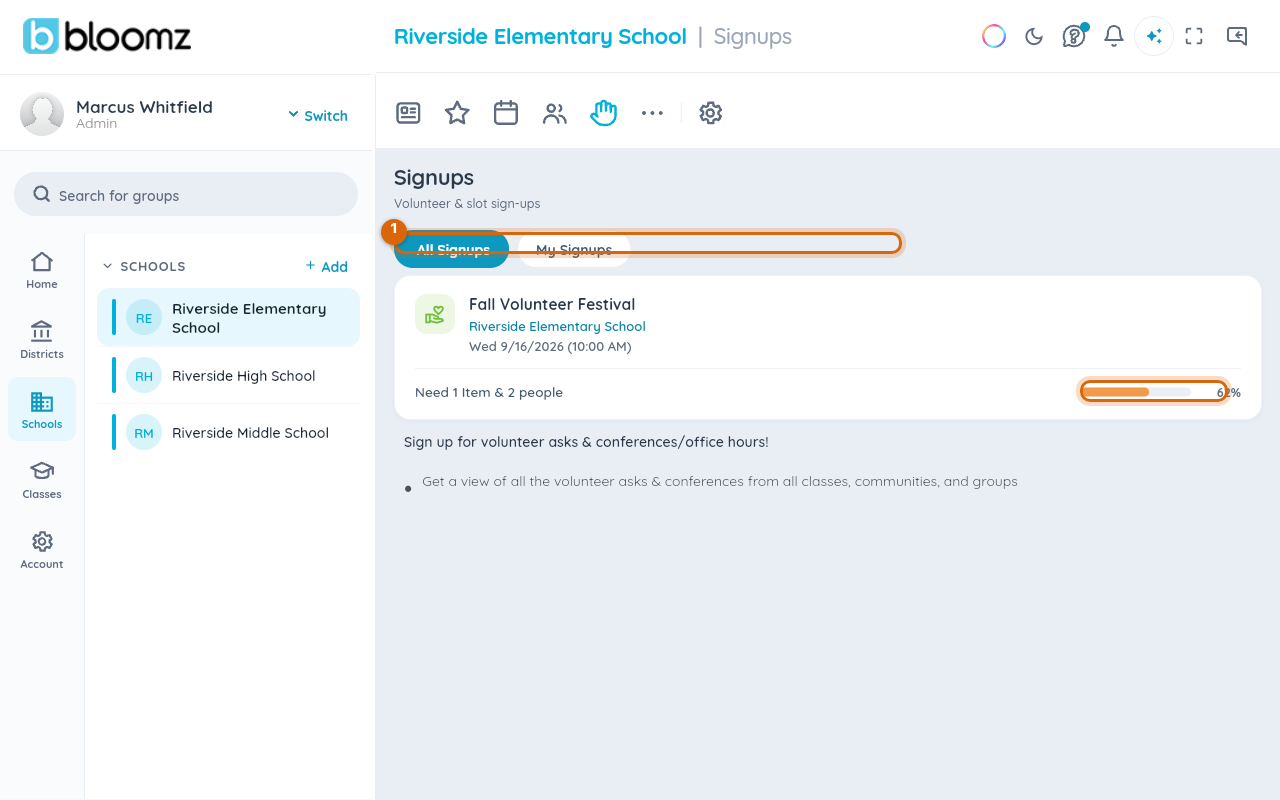
Select My Signups to see only the ones you personally created.
Step 2 — Drill into one
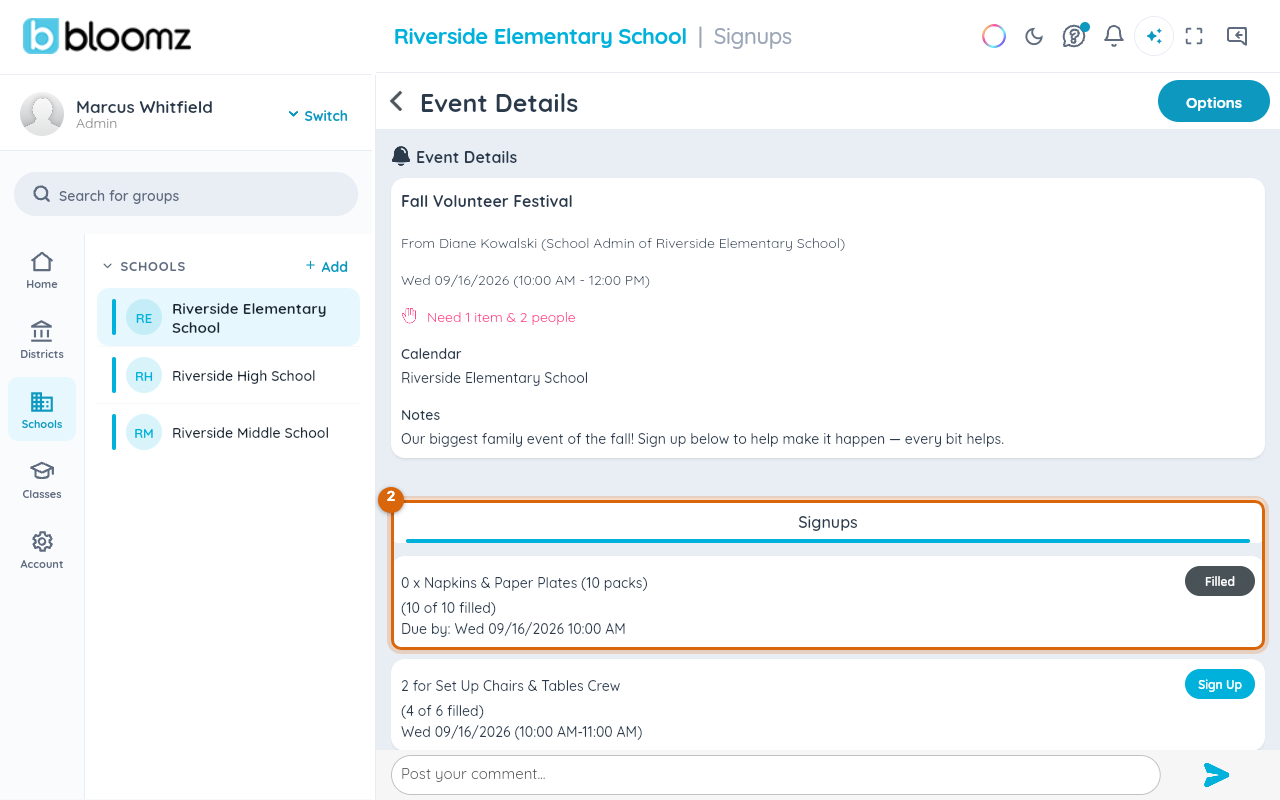
Select any item to open its Event Details — the same screen a teacher or a family sees, listing each task or slot and how full it is.
Step 3 — Switch schools
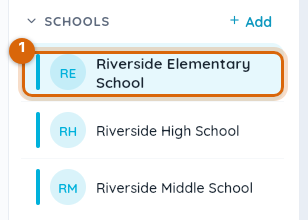
Select a different school under SCHOOLS in the left nav. The whole view — feed, Signups, everything — reloads for that school; you never have to sign out.
Watch out: Signups shows one school at a time — there's no district-wide roll-up and no no-show tracking anywhere in Bloomz. Switching schools replaces the view rather than adding to it, so to compare two schools, note one's numbers before switching to the other.