 Bloomz
Track volunteer hours for your school
Volunteer Hours gives your school one running record of volunteer time — hours logged by hand, hours captured automatically when a volunteer signs out at the front desk, and hours confirmed against calendar volunteer sign-ups — with per-volunteer totals and an optional per-family goal.
Before you start
- Volunteer Hours rides your school's existing Coordination feature (the one behind calendar volunteer sign-ups) — for most schools it's available without turning anything new on.
- Any school staff member can view and log hours; manual entries are recorded in the school's audit trail.
Step 1 — Open Volunteer Hours
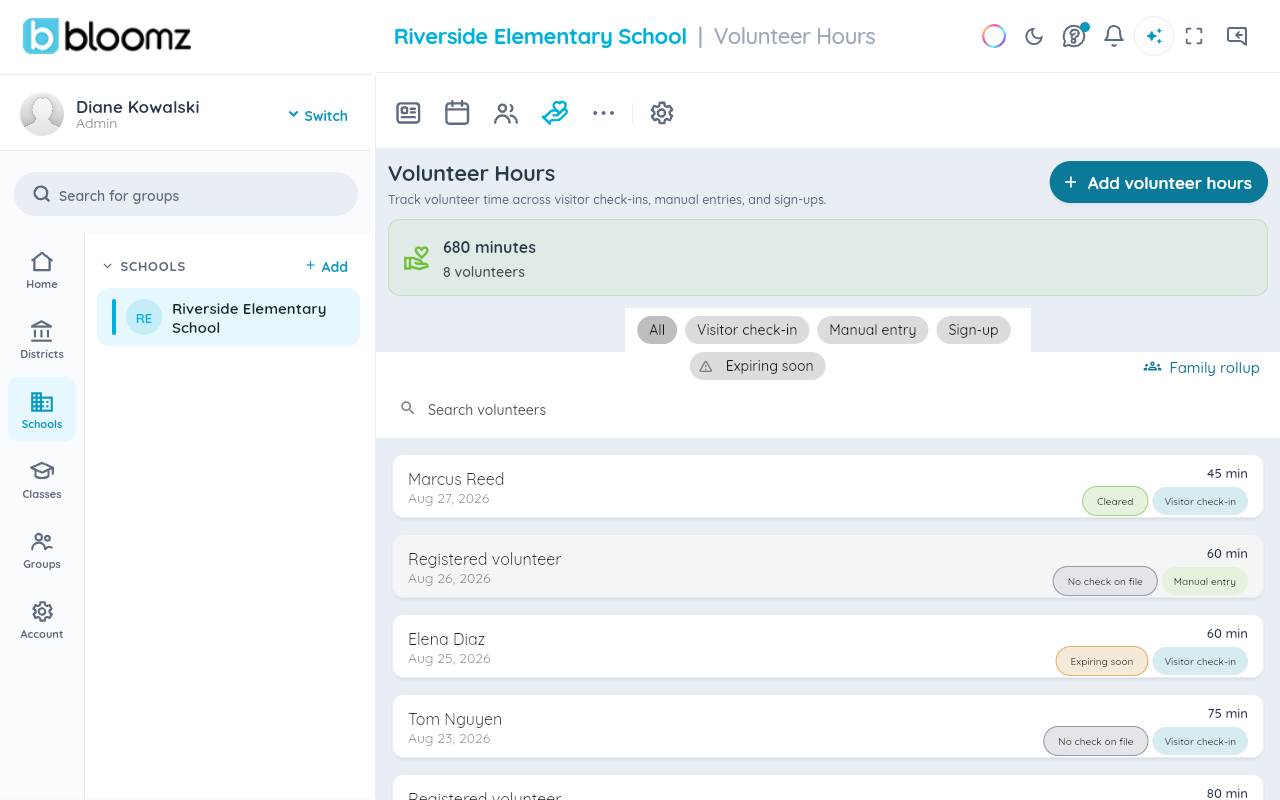
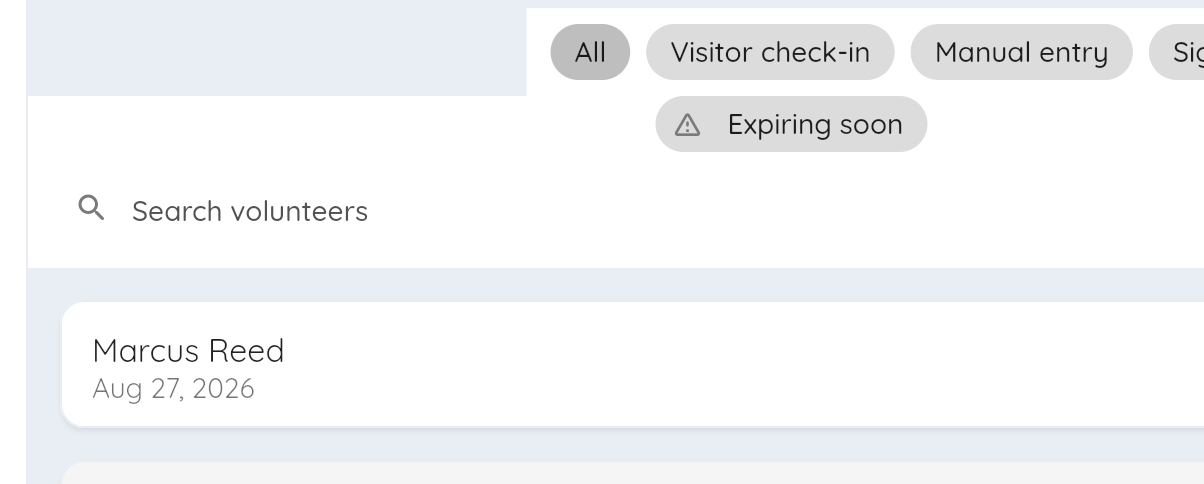
From your school, select More (…) and choose Volunteer Hours under Planning. The page shows a totals summary and the entries list, each entry carrying a source chip — visitor, manual, or signup — with filters and search.
Step 2 — Add hours by hand
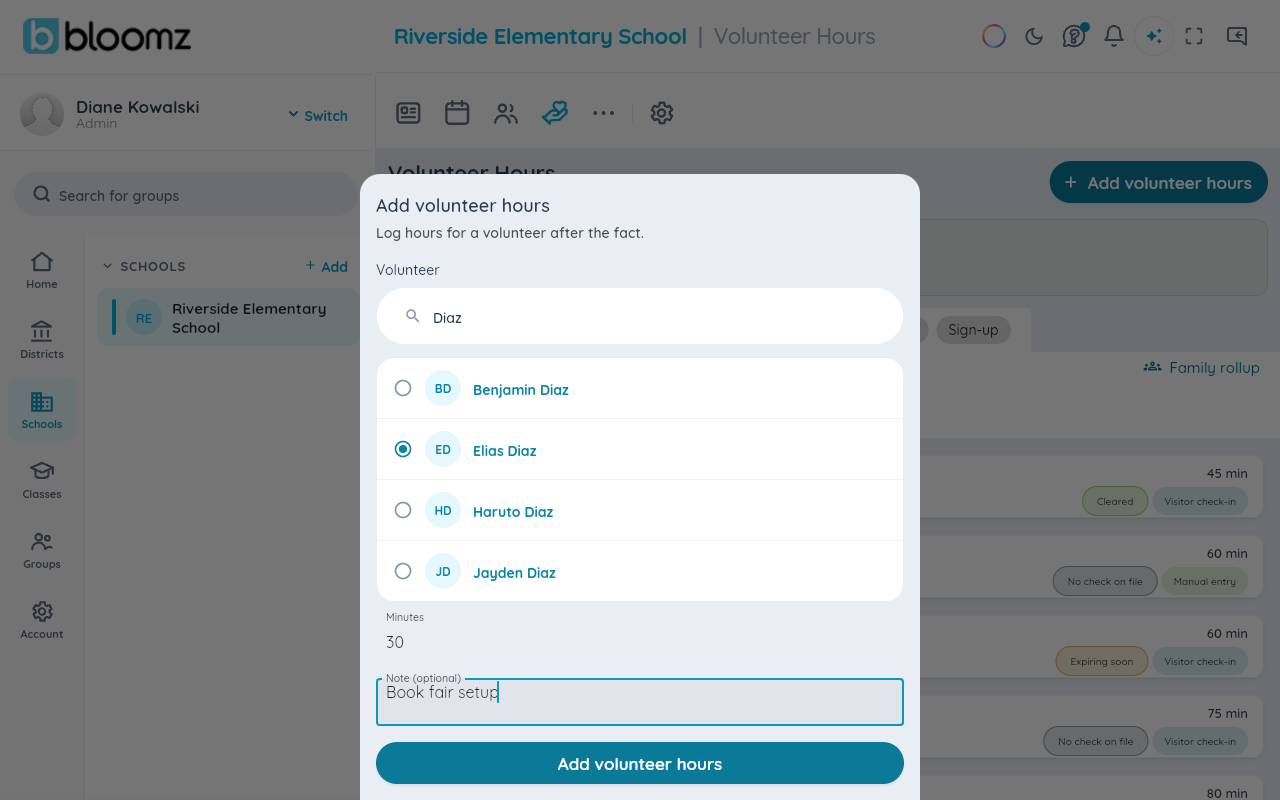
Select Add volunteer hours (also available from the + Create menu). Pick the volunteer from your family roster, enter the minutes, and adjust the date and note if needed. Several separate entries for the same volunteer on the same day are all kept — nothing is merged away.
Step 3 — Confirm hours from a sign-up (the preferred path)
If a volunteer claimed their slot on a calendar Volunteer Help sheet (see Create a volunteer sign-up sheet), confirm their hours from there instead of adding them by hand — it's the primary path now, and it's the one that can't double-count. Open the event, select the volunteer's claimed row, and choose Confirm Volunteer Hours from the options that appear. The sheet pre-fills the slot's own scheduled length as the minutes worked — always editable, never locked — and shows the volunteer's background-check status right there so you can see it while you decide. Confirming a slot that's already been confirmed shows a read-only "already confirmed" state instead of a second entry.
A front-desk visitor whose visit purpose is volunteer is the third, fully-automatic source: their time logs itself when they check out (duration = their visit). None of the three sources — manual, confirmed-from-signup, or visitor check-out — ever double-logs the same slot twice.
Step 4 — See who's claimed, arrived, and been credited for one slot
From that same claimed-row menu, select View Roster to see everyone who claimed that one task — their claim, arrival, and credited status — in one searchable, filterable list, rather than confirming names one at a time without a view of who's left.
Step 5 — Read the family rollup
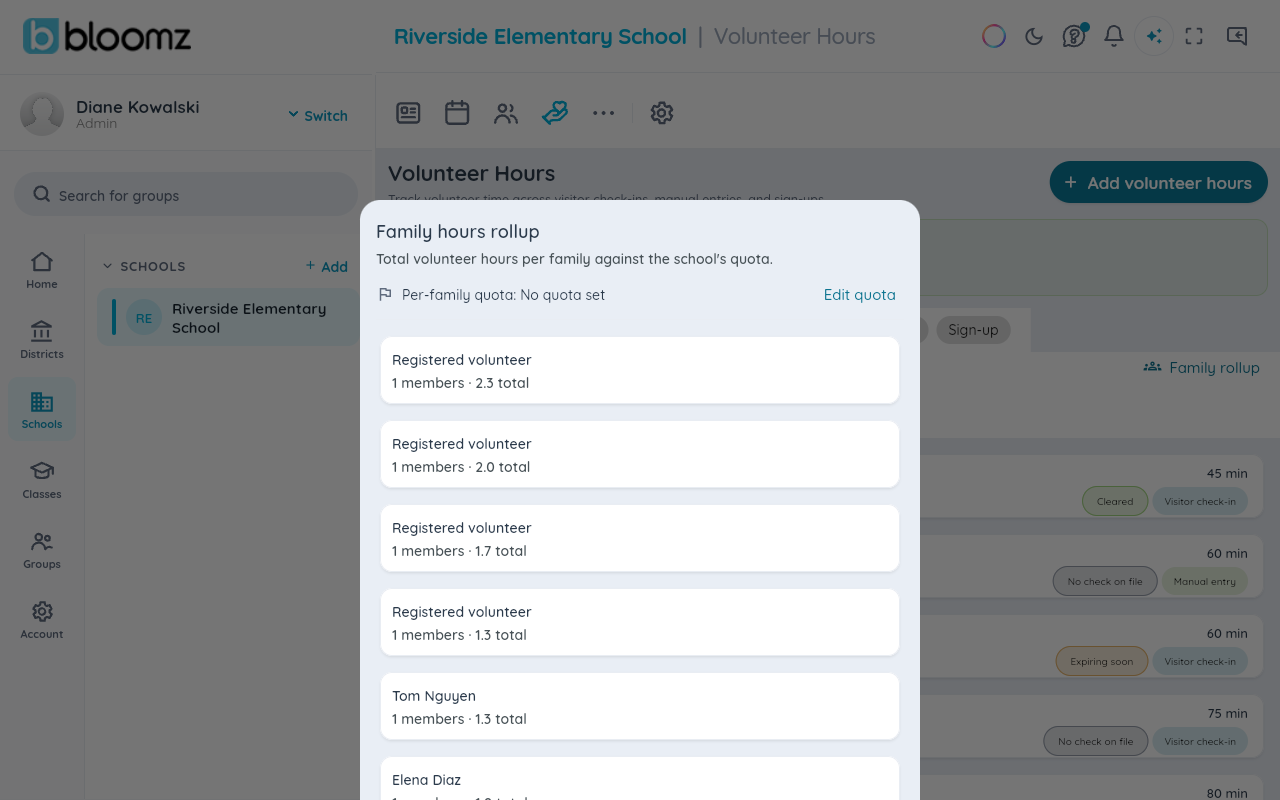
Open the Family rollup to see hours grouped by household — guardians who share a child count as one family. If your school sets an optional per-family hours goal there, each family shows whether it has met the goal; with no goal set, the rollup shows totals without any judgement.
Watch out: a walk-in volunteer with no Bloomz account is tracked by the name typed at the front desk. Repeat visits under the same typed name aggregate together best-effort — it is not a verified identity, so front-desk spelling matters.
What families see
A volunteer sees their own logged hours (and a remaining-quota line, if your school set one) on their own Signup page, right above the open volunteer asks — see Sign up for a volunteer slot. Beyond that, they hear from you the usual ways (sign-up confirmations, messages), not through a full hours dashboard of their own — the Family rollup above stays staff-only.