 Bloomz
Download photos and files
Save a whole album from Bloomz to your phone or computer — for printing, for a keepsake, or just to have offline.
Before you start
You can download anything posted to a class or album you can already see in Bloomz. No special permission is needed beyond normal access to that class.
Step 1 — Open the album
Open your class, select the More (⋯) menu, then Album under MEDIA. Find the album you want to save.
Step 2 — Open its options menu
Select the ⋯ (more) icon on the album's card, then Download Album. This saves every photo in the album at once instead of one at a time.
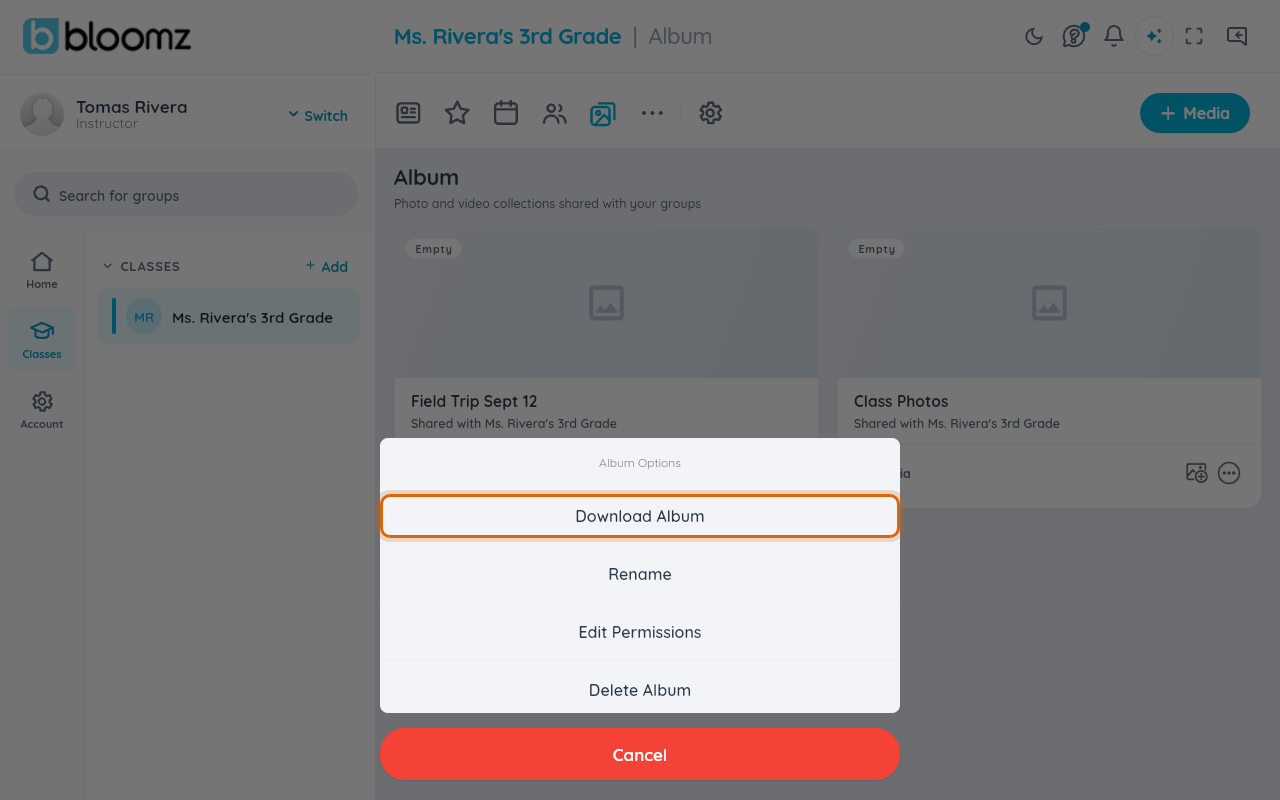
Step 3 — Download it
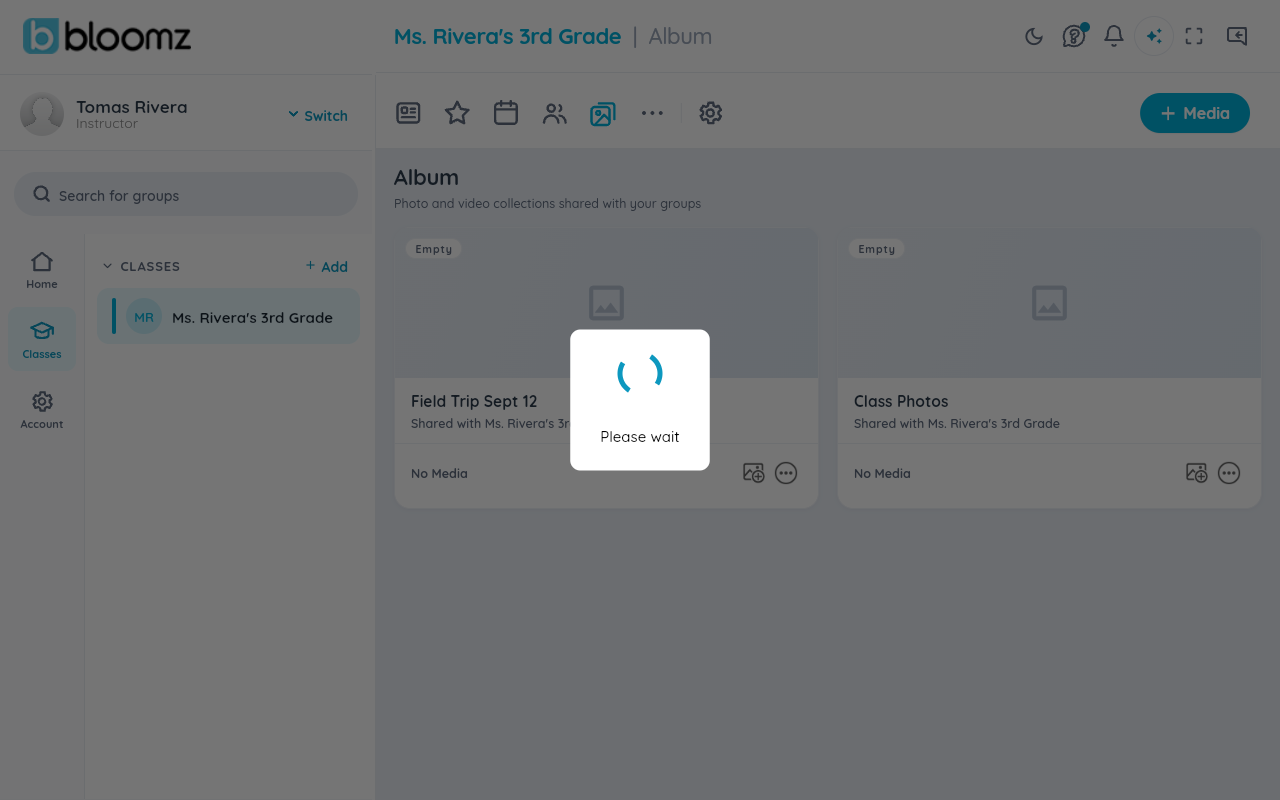
The download starts right away — there's no separate confirmation step. A "Please wait" progress overlay shows while the photos are gathered.
Step 4 — Find the downloaded file
On a phone, check your Photos app or Files app; on a computer, check your browser's downloads folder. Album downloads typically arrive as a single zipped folder you can open to see every photo inside.
Watch out: downloading a large album over a weak connection can take a while — stay on the screen (or keep the app open) until the progress overlay finishes.
Related
- Upload photos to an album
- Jump to a date in the photo library
- Share a document with your class