 Bloomz
Jump to a date in the photo library
Skip the endless scroll. The photo library has a date-jump control that takes you straight to photos from a specific day — handy when you remember roughly when something happened but not which album it's in.
Before you start
This works from a class's Photos library on any plan. You don't need to know the exact album — only an approximate date.
Step 1 — Open the photo library
Open the class, select the More (⋯) menu, then Photos under MEDIA. This shows every photo posted to the class, across all albums, newest first.
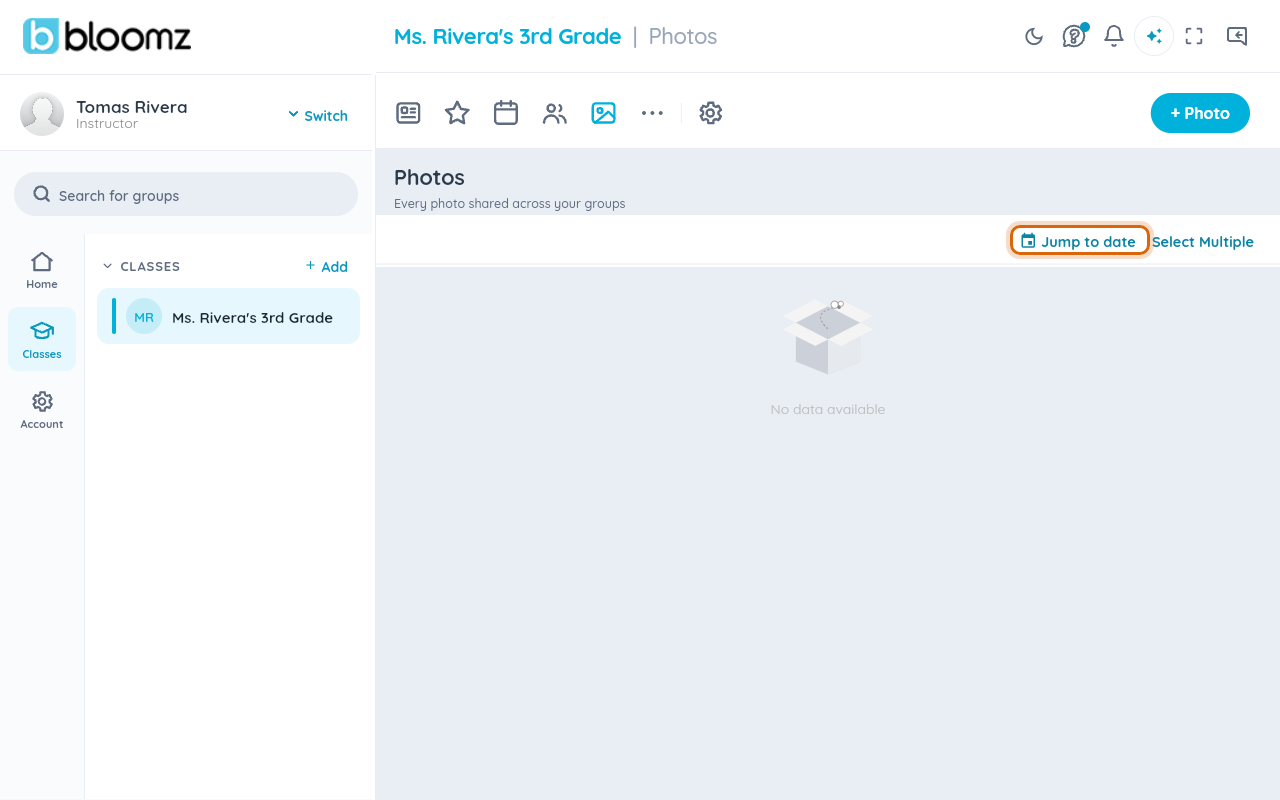
Step 2 — Open the date jump control
Select Jump to date at the top of the library. A date picker opens over the photo grid.

Step 3 — Pick a date
Choose the month and day you're looking for from the calendar, then select OK.
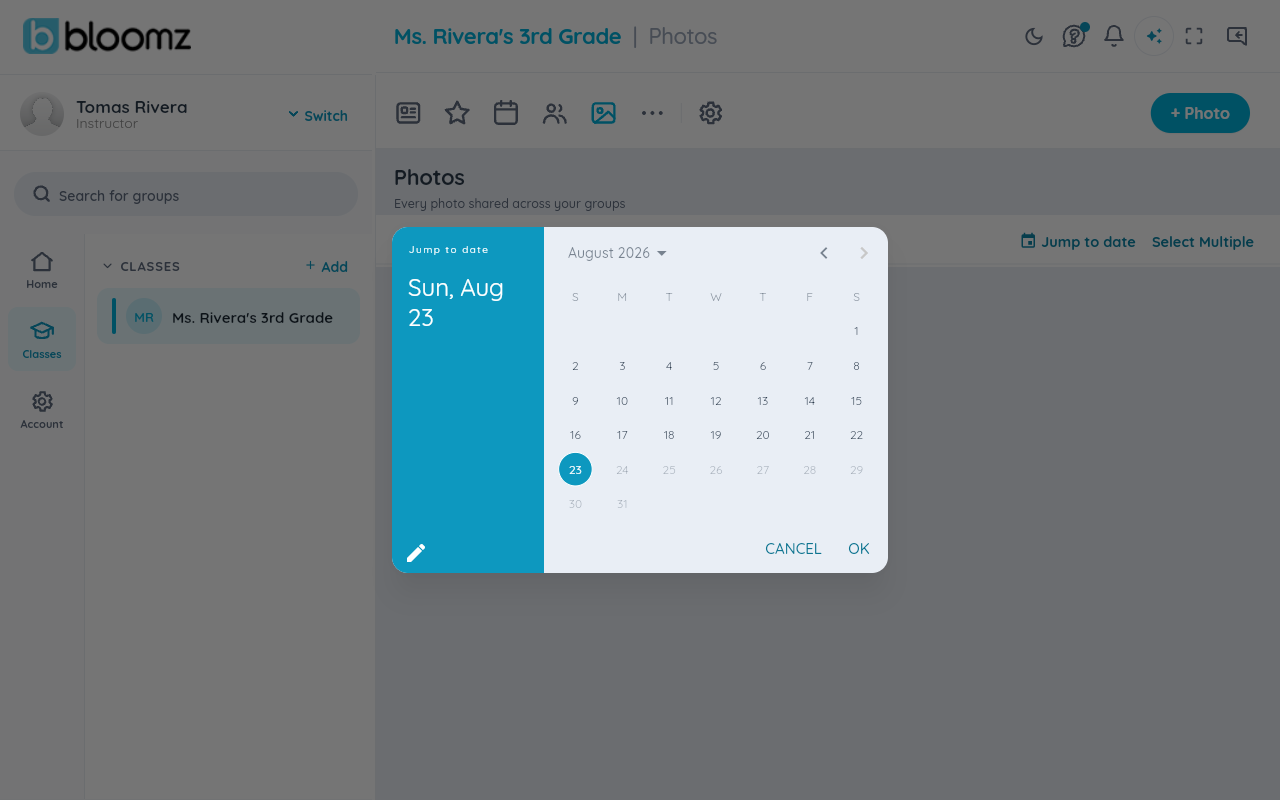
Step 4 — View that day's photos
The library filters to your chosen date, shown as a date chip at the top with a clear (×) control to go back to every photo.
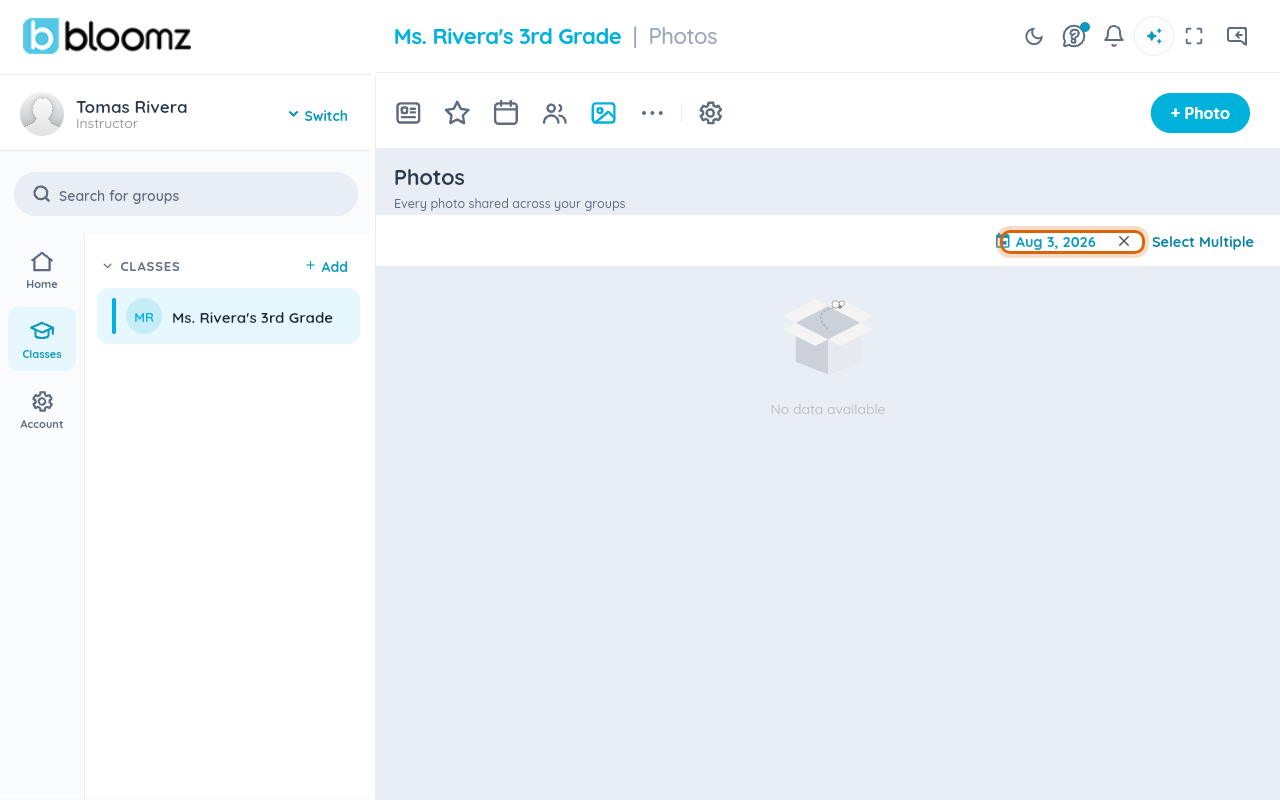
What if there are no photos that day
If nothing was posted on the date you pick, the filtered library is simply empty for that day — select the × on the date chip to clear the filter and see every photo again.
Related
- Upload photos to an album
- Download photos and files
- See your child's messages