 Bloomz
Pay for something from a post, an event or a form
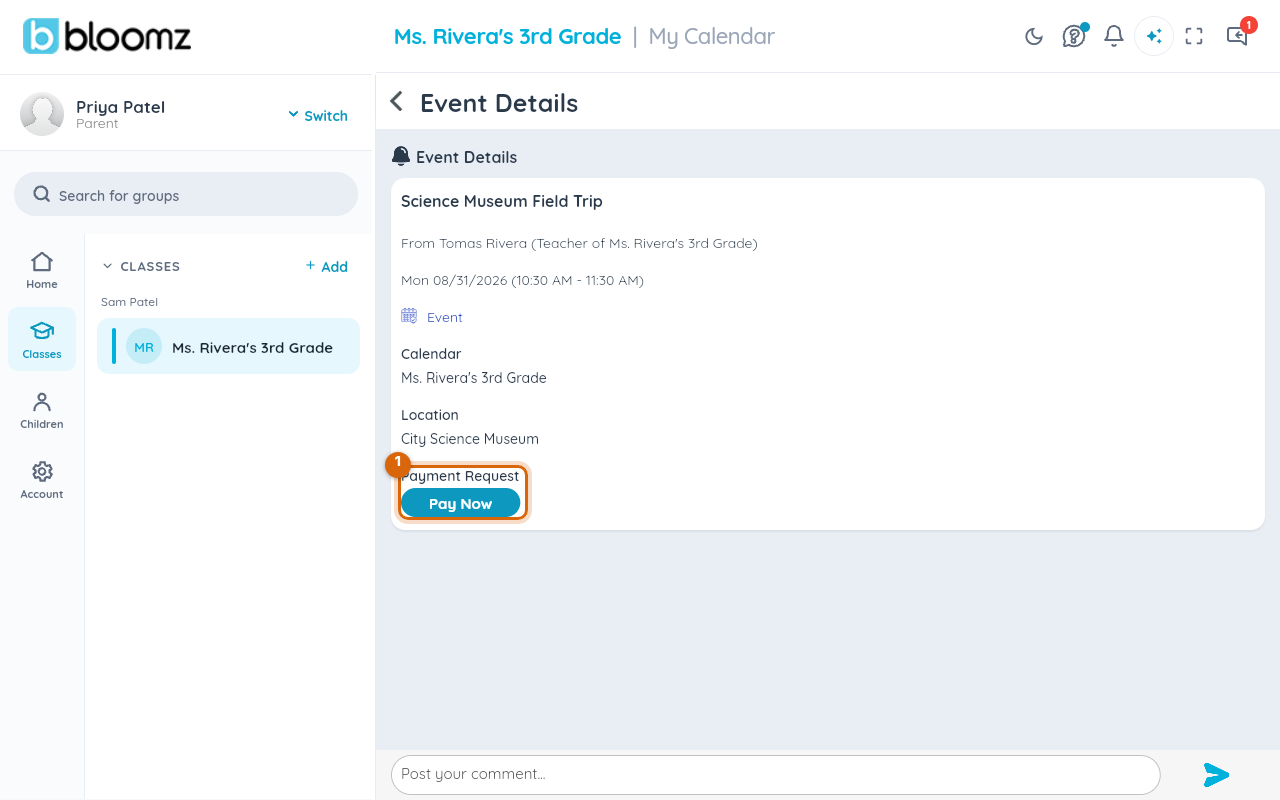
A fee doesn't only show up in your Payments area — a teacher can attach one to a post, an event, or a form. An event shows a Pay Now button right on its detail screen; a fee sent with a post or a form arrives as a payment request you pay from the Payments area.
Before you start
- Your school must have Payments turned on.
- You pay the same way everywhere: with a saved card or bank (ACH) payment method — add one from the Payments area's Autopay tab.
- Every route ends at the same pay sheet described in Pay a school fee — this article is about where each kind of fee shows up.
Step 1 — A fee sent with a post
When a teacher attaches a fee to a post, the post announces it and the fee itself arrives as a payment request: you get a notification, and the amount appears as an open item in your Payments area, where you pay it.
Step 2 — Pay from an event
Open the event and look for the Payment Request section on its detail screen, then choose Pay Now.
Step 3 — A fee sent with a form
A form's fee arrives the same way as a post's: as a payment request in your Payments area. Filling in and submitting the form is usually a separate step from paying the fee — though some forms require the payment before the submission is accepted (the school chooses this when sending the form).
Step 4 — Complete the payment
Whichever route you took, the same pay sheet opens: the amount, and your saved card or bank method.
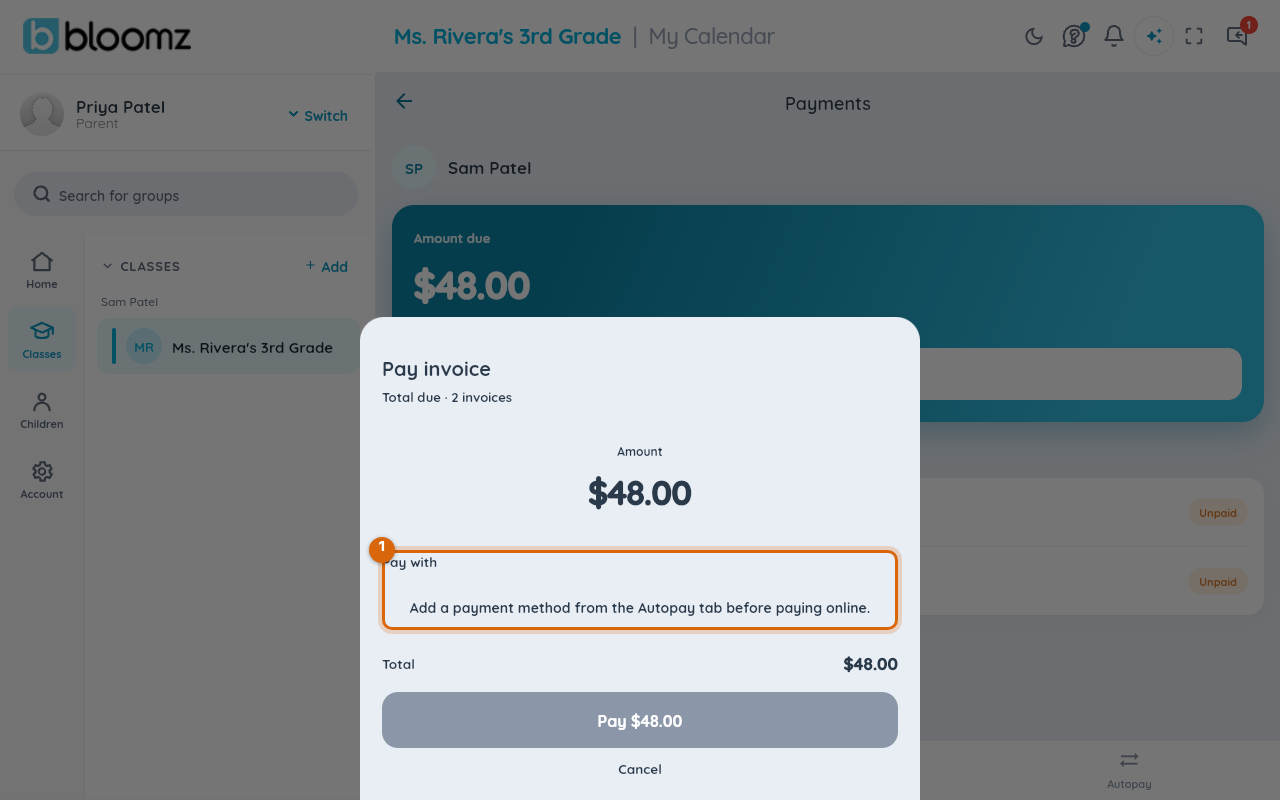
Confirm the payment. You get a receipt notification, and it appears in your payment history in the Payments area — the same as any fee you paid from there directly.
Related
- Pay a school fee
- RSVP to an event
- Fill out and submit a form
- Download a statement or receipt (PDF)