 Bloomz
Schedule a post for several dates
Need the same post to go out on a handful of specific days — not every Monday, just these three dates? Once you've scheduled a post for later, you can stage extra send dates in the same composer, and Bloomz sends an identical copy on each one.
Before you start
This picks up where Schedule a post for later leaves off — start there if you haven't already turned Schedule on and set a first date. If what you actually want is a repeating pattern like "every Friday," see Schedule a post to repeat on more dates instead; this article is for a specific, hand-picked list of days.
Step 1 — Set your first scheduled date
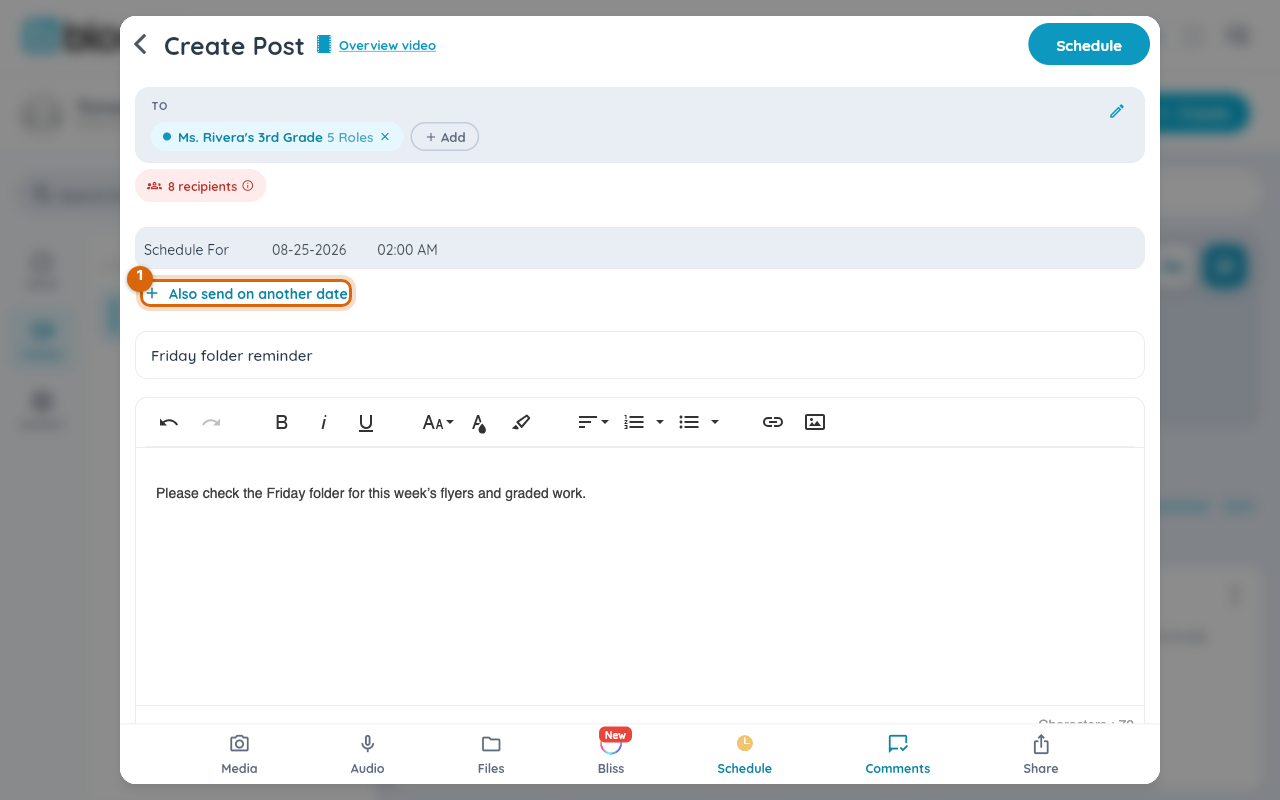
With Schedule turned on and your first date and time set, look for Also send on another date underneath the schedule row.
Step 2 — Add another date
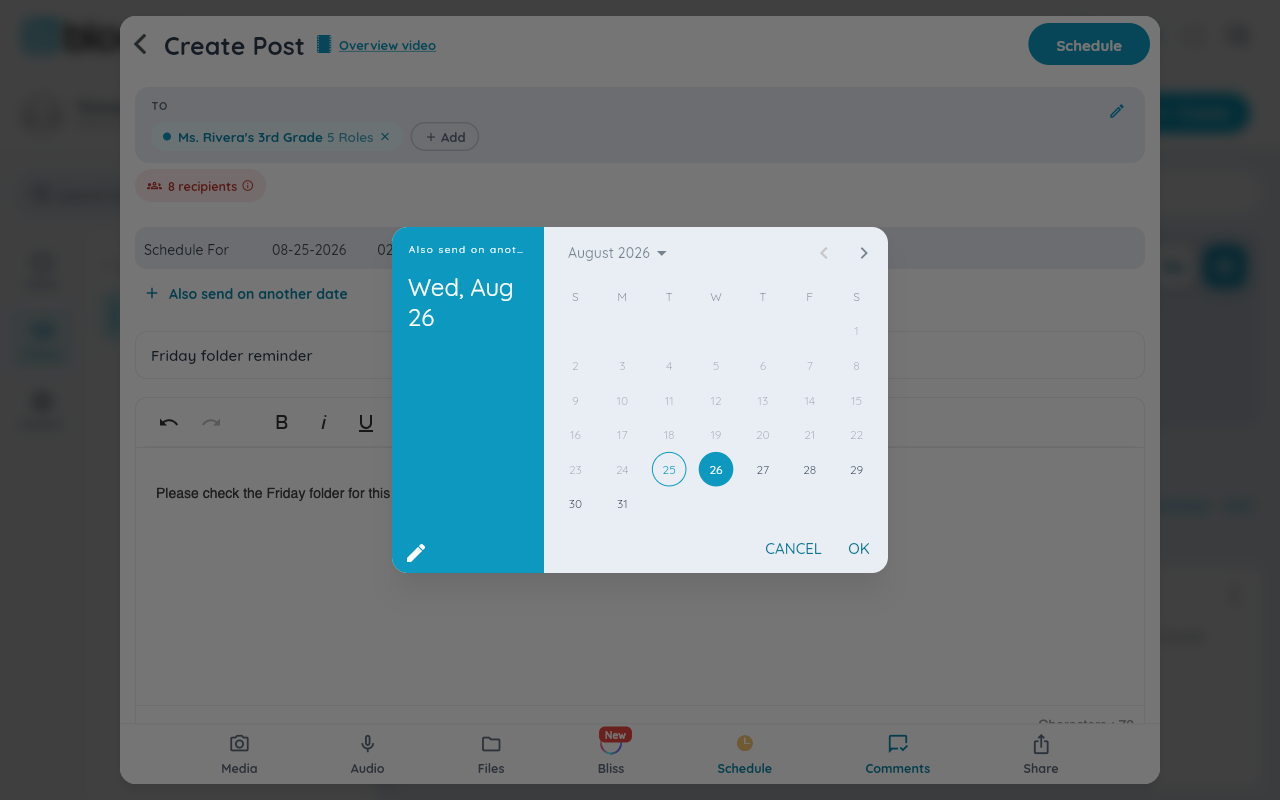
Choose Also send on another date, then pick a date and a time for it. Each extra date gets its own time, so the copies don't all have to go out at the same hour.
Step 3 — Repeat for each date you need
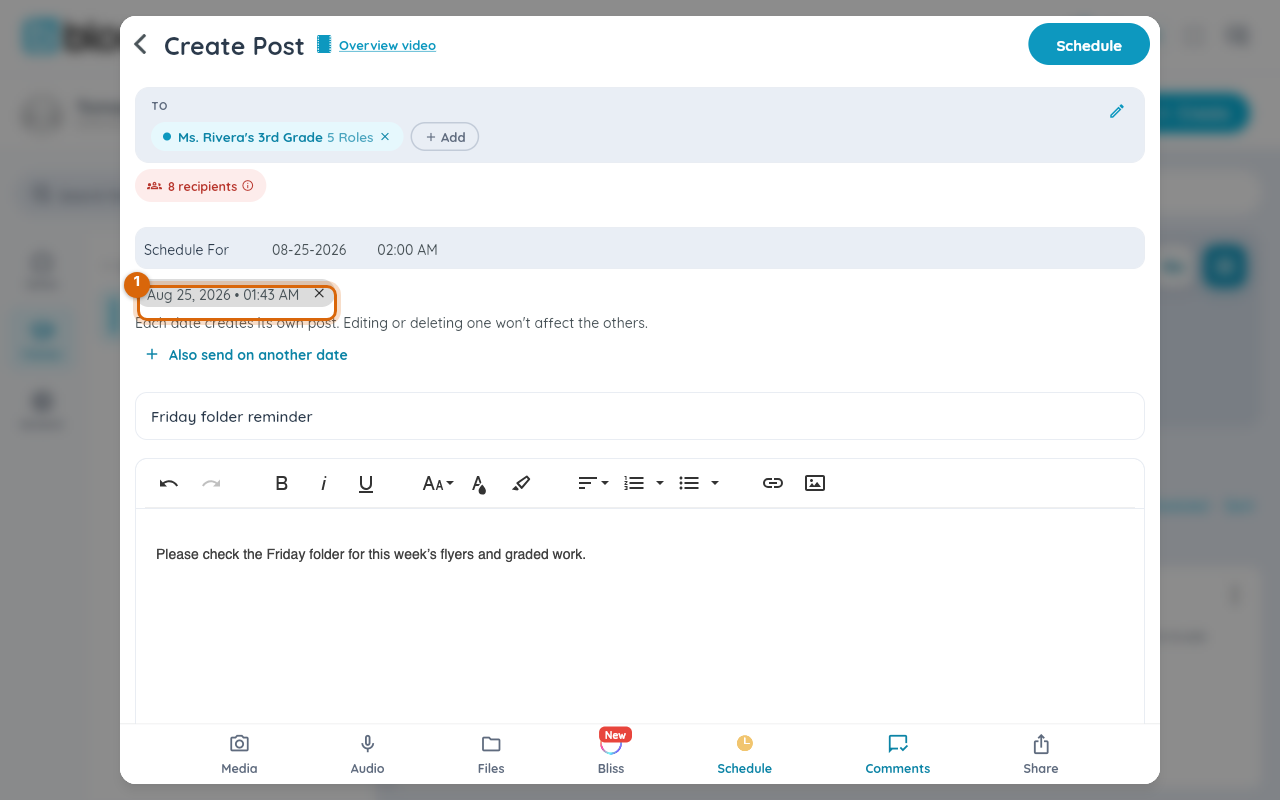
The date you just added appears as a removable chip under the schedule row, with a line confirming it: "Each date creates its own post. Editing or deleting one won't affect the others." Repeat step 2 for every further date; tap a chip's X to drop that date.
Step 4 — Send
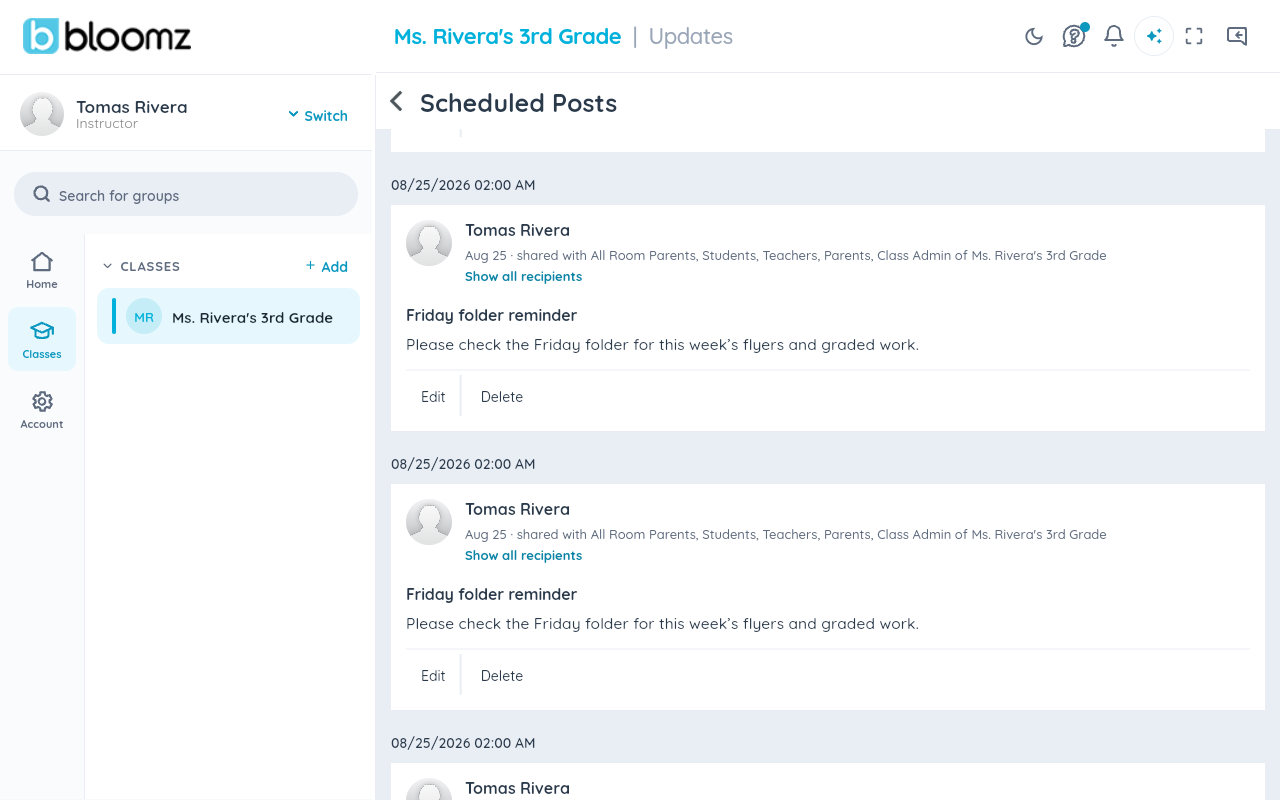
Finish the post and send it. Every date you staged — the first one and each extra one — becomes its own separate entry on the Scheduled Posts screen, all sharing the same title and message.
Step 5 — Manage the dates individually
Each date is a fully independent post. To fix a typo or change one date, edit that copy on the Scheduled Posts screen; to stop just one from going out, delete that copy. The others are unaffected.
Watch out: turning Schedule off clears every staged date, on purpose — re-enabling it later starts from a clean slate rather than silently resurrecting dates you'd forgotten.
Related
- Schedule a post for later
- Schedule a post to repeat on more dates
- See everything you have sent