 Bloomz
Send a voice or video message
Some things are faster said than typed — a quick pronunciation note, a warm "great job today," directions that are easier to hear than read. Voice and video messages let you record a short clip and attach it to a post or a message, the same way you'd attach a photo.
Before you start
Your school needs Voice Video Messages turned on — it's a Premium feature, off by default. Voice clips run up to 60 seconds and video messages up to 45; the recorder stops on its own at the limit, so you don't need to watch the clock.
Step 1 — Open the recorder
In the post or message composer, select Audio in the bottom toolbar, then choose Record Audio (choose Attach Audio instead to add an existing recording rather than a fresh one). For video, select Video Message instead — it opens your device's camera directly.
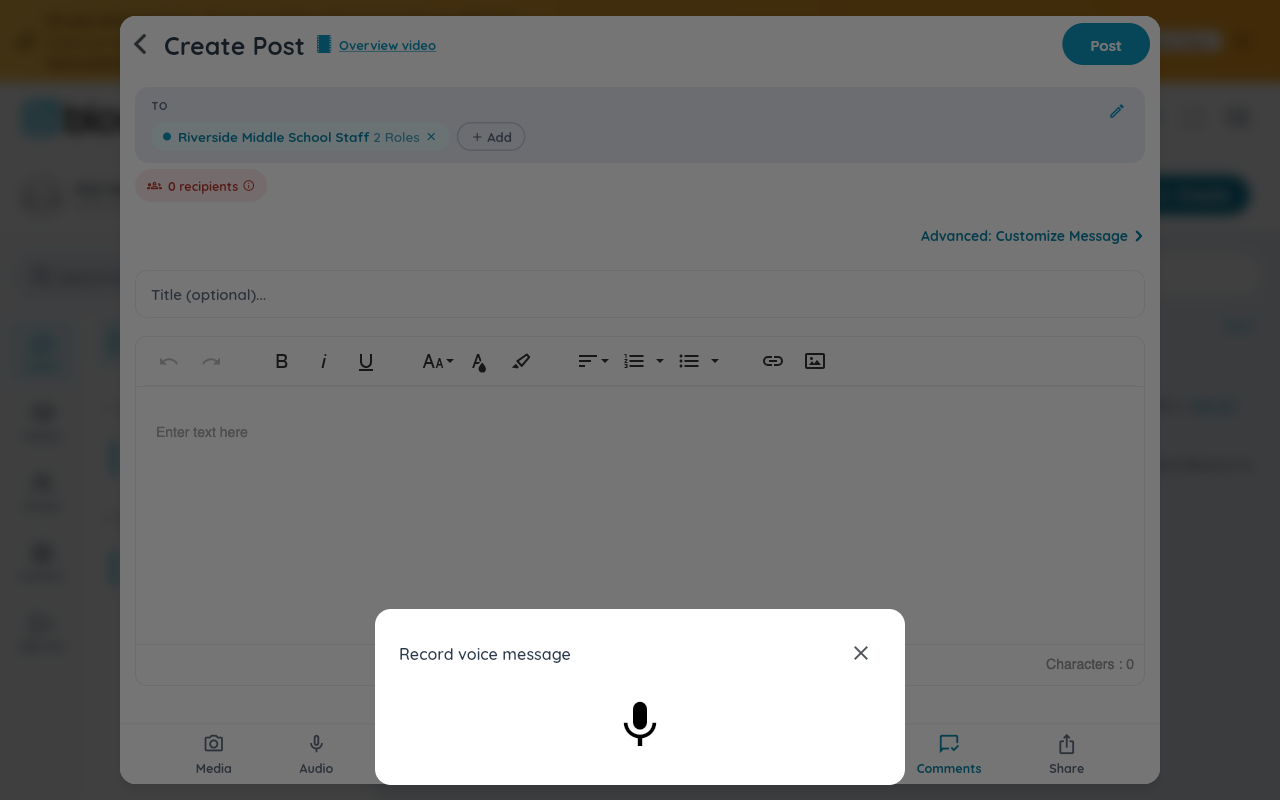
Step 2 — Record
Select the microphone (or camera) button to start. A running timer replaces it while you talk, and recording stops automatically at the time limit if you don't stop it yourself first.
Step 3 — Let it upload, then send
Stop recording, and the clip uploads with a progress indicator right in the composer. Once it's done, finish your post or message and send it the normal way — the clip travels along with it like any other attachment.
Watch out: there's no listen-before-you-send preview. If you're not sure a take came out right, record it again rather than trusting your memory of how it sounded.
What the recipient sees
Voice and video messages arrive as a playback card, in the feed or in the message thread — a play/pause control, a scrubber, and the clip's duration. The clip is playable immediately; a few moments later a Show transcript option appears once Bloomz finishes converting the recording to text, so someone who can't play audio right where they are can still read what was said.
Watch out: transcription and content screening both run in the background, a little after the clip is already visible to recipients — a flagged transcript can be withheld later, but the audio or video itself is never held back while that check runs.
Related
- Share an update with your class
- Send a message to one family instead of the whole class
- Attach photos, files and a voice note to a post