 Bloomz
Attach photos, files and a voice note to a post
A post can carry more than words. The composer's bottom toolbar lets you add photos or video, attach a document, and record a short voice note — mix and match as many as the post needs.
Before you start
Anyone who can create a post can attach to it — the toolbar sits along the bottom of the composer, alongside Schedule, Payment and Share. Photos, files, and a voice note can all live on the same post; there is no need to choose just one.
Step 1 — Open the toolbar
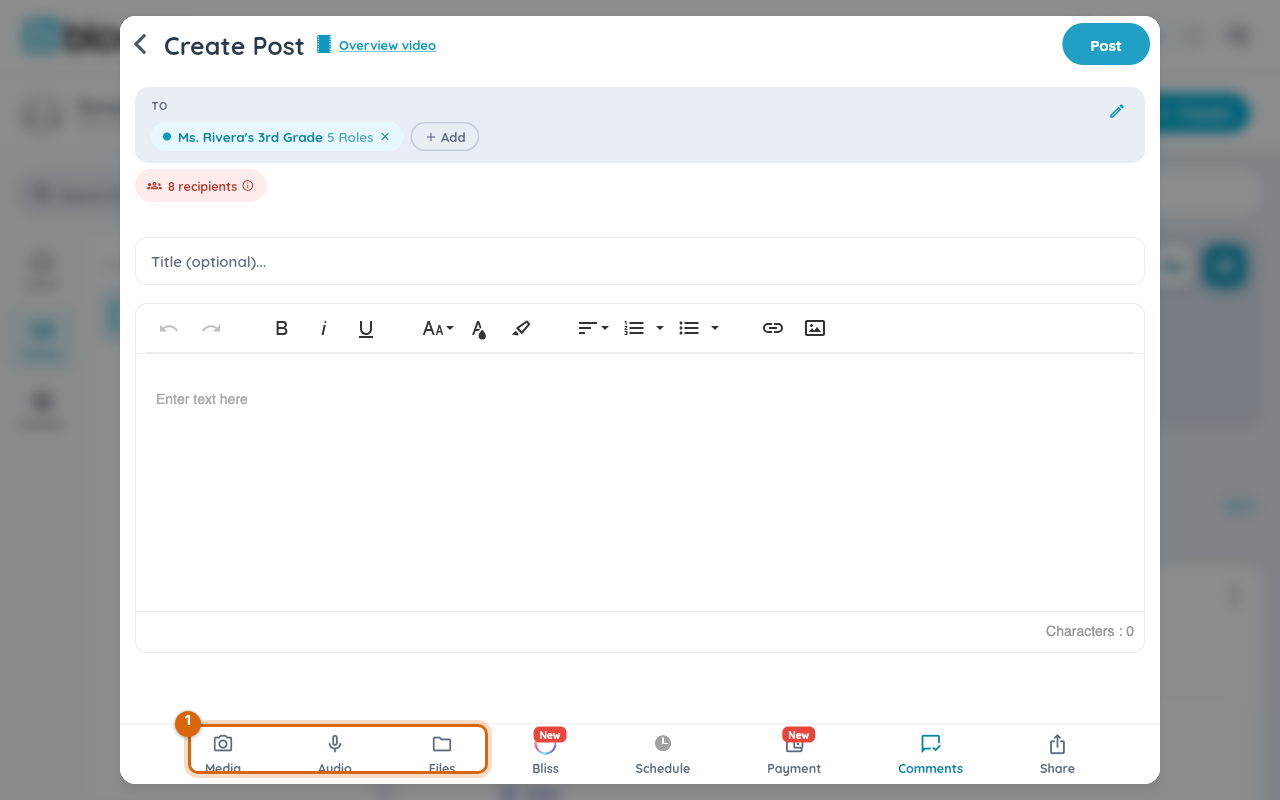
Start a post the usual way and look at the bottom toolbar: Media, Audio, and Files, each with its own icon and label.
Step 2 — Add photos or video
Tap Media and choose Photo or video. This opens your device's own photo picker; selected items attach to the post the same way any file attachment does.
Step 3 — Attach a file
Tap Files and pick a document from your device or cloud storage — useful for a permission slip PDF or a spreadsheet that a photo can't represent.
Watch out: there's a size limit per file, and some file types (executables, for example) are rejected outright. If an attachment won't add, try a smaller file or a common format like PDF or JPG.
Step 4 — Record a voice note
Tap Audio, then Record Audio. Recording starts immediately — the Audio icon is replaced by a red recording indicator and a running timer, so you can see it's live.
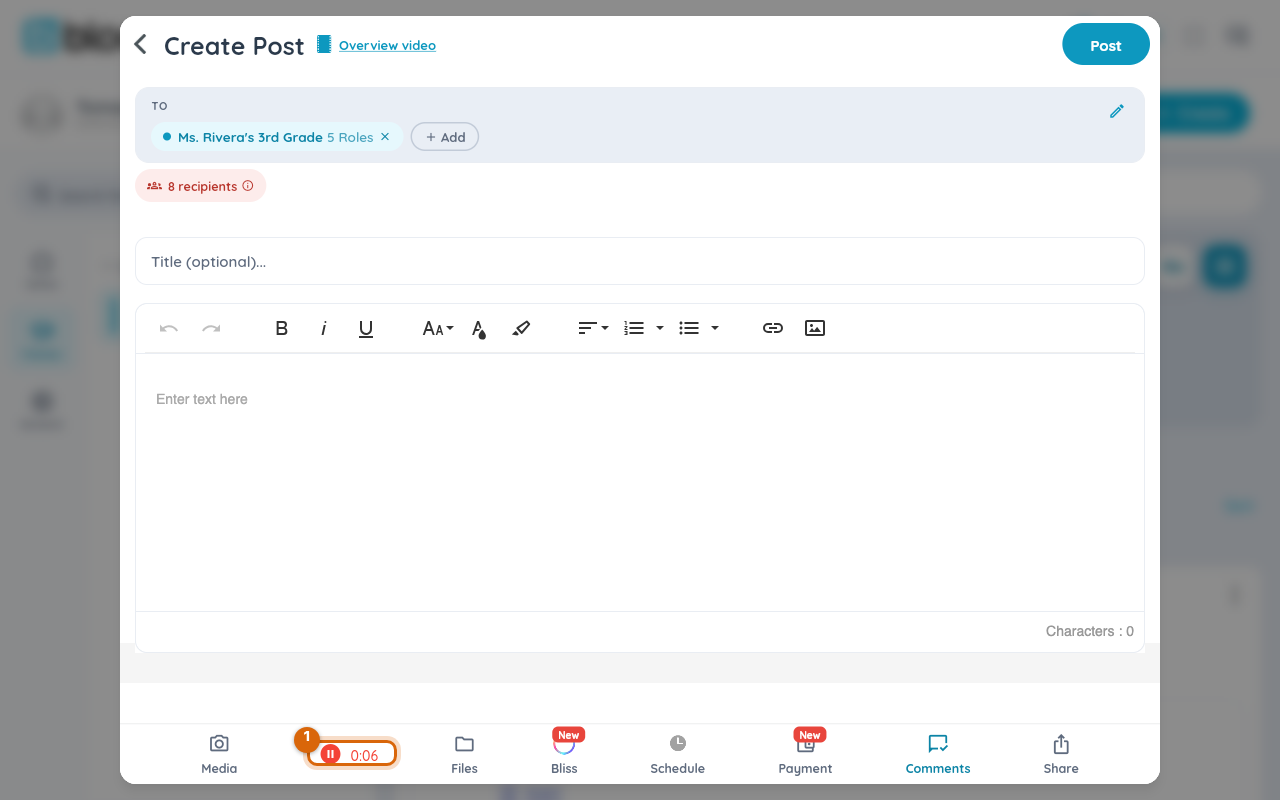
Tap the indicator to stop. If you'd rather attach an existing recording instead of making a new one, choose Attach Audio from the same menu.
Step 5 — Send the post
Finish your message and send. Photos and video appear in the feed as a gallery families can tap through, the file downloads with one tap, and the voice note plays inline.
Watch out: there is no listen-before-you-send preview for a fresh recording — if you're not confident about a take, record again rather than trusting your memory of how it sounded.
Related
- Share an update with your class
- Pick exactly who gets a post (classes, roles, individuals)
- Check how many people will see a post before you send