 Bloomz
Set up a tuition agreement and autopay
Tuition in Bloomz runs on a billing plan the school office sets up for your child: each installment posts as an invoice on the plan's schedule, and with autopay turned on your saved payment method covers each one automatically on its due date.
Before you start
- The school office creates the tuition plan — there is nothing for you to set up or sign inside Bloomz. If you were expecting a plan and see no tuition invoices, ask the school office.
- Autopay uses a saved card or bank (ACH) method; bank transfers usually cost less in processing fees than cards.
- You can turn autopay off again at any time — see Step 4 below.
Step 1 — The school assigns the plan
The office creates the plan against your child's account — amount, frequency, and due day. This is what it looks like on the school side; you don't need to do anything here.
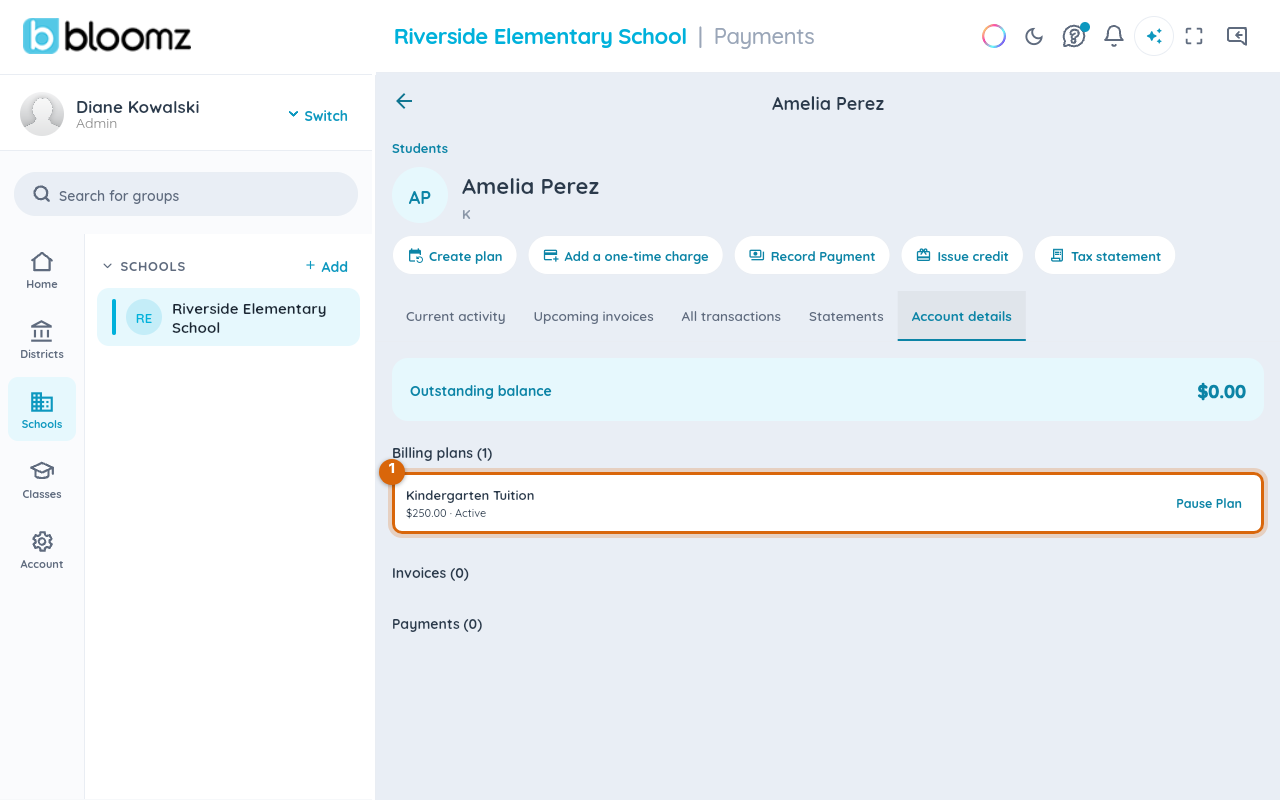
From then on each installment arrives as a normal invoice in your Payments area, due on the plan's due day.
Step 2 — Save a payment method
In the Payments area, open the Autopay tab and add a card or bank account under Payment methods.
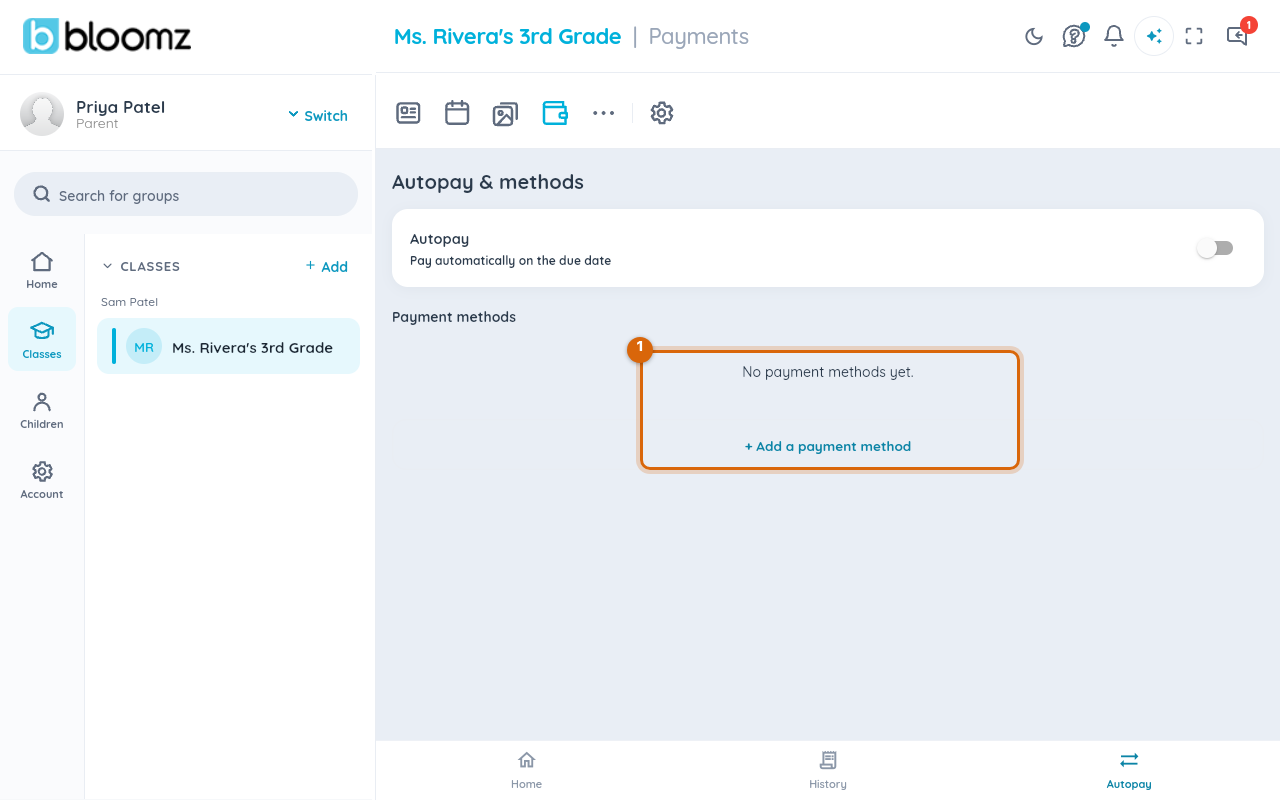
Step 3 — Turn on autopay
On the same Autopay tab, switch on Autopay so each installment is collected automatically with your saved method on its due date.

Watch out: if autopay is off, a missed installment still shows as past due and the school's normal reminders apply — autopay exists specifically to stop that from happening.
Step 4 — Turn autopay off if you need to
Return to the Autopay tab any time and switch Autopay back off; future installments then wait for you to pay them by hand, but past charges already collected are not affected.
Watch out: an autopay charge that fails — insufficient funds, an expired card — can trigger a bank NSF fee on top of the missed payment. See Ask for a refund, and what an NSF fee means for what that fee is and how it's billed.
Related
- Pay a school fee
- Split a bill between two payers
- Ask for a refund, and what an NSF fee means
- Download a statement or receipt (PDF)