 Bloomz
Add alt text to an image you share
Alt text is a short written description of an image, read aloud by screen readers — it's how someone using TalkBack or VoiceOver knows what a photo in your post actually shows. Bloomz gives every image its own alt text field right in the composer, separate from any caption you write.
Before you start
Any post with a photo can carry alt text — there's nothing to turn on. Have your image ready to attach; the alt text field appears once a photo is in the composer.
Step 1 — Attach a photo
In the composer, select Media, then Photo, and choose your image.
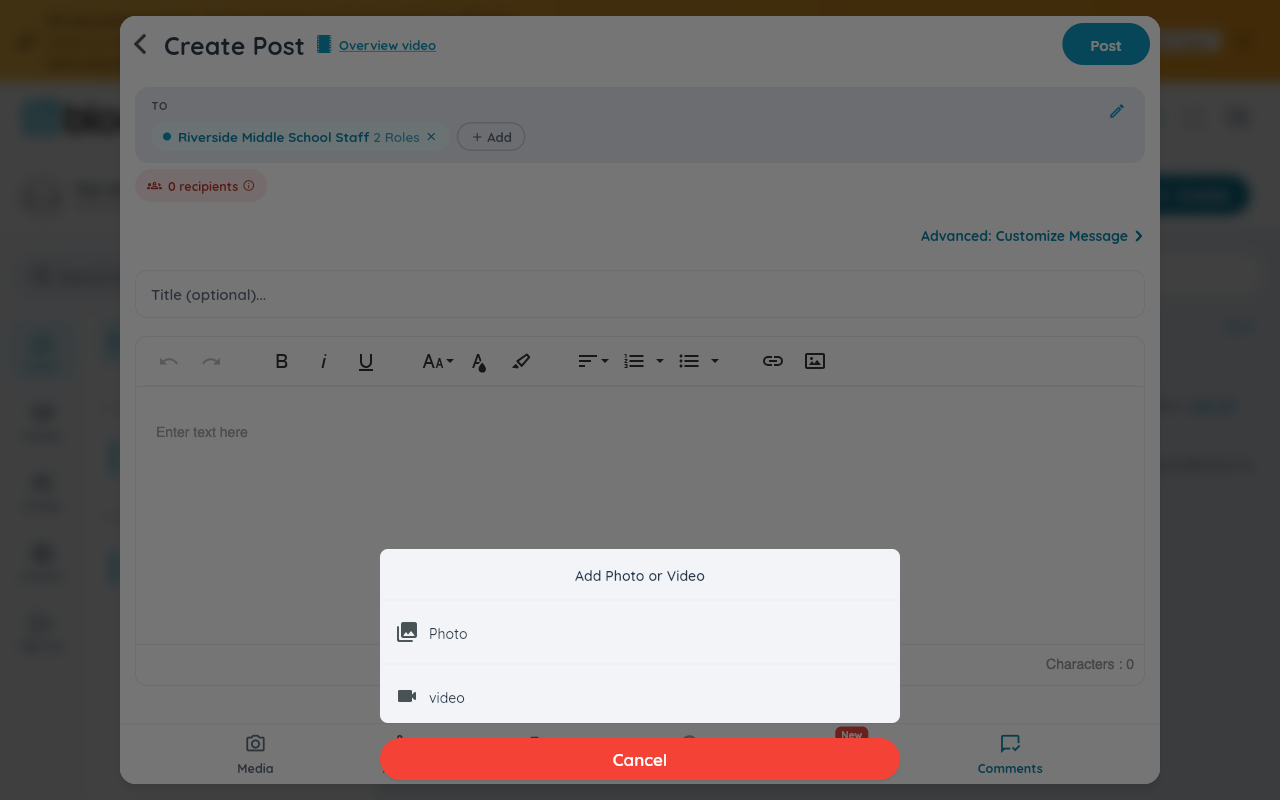
Step 2 — Find the alt text field
Under each photo you've attached, a small text field reads Enter alt text. Describe what the image shows in a sentence or two — what a sighted viewer would notice first, not every visual detail.
Step 3 — Or let Bloomz suggest one
Next to the field, an AI icon can draft alt text from the image itself for you to review and edit rather than write from a blank field — useful when you're attaching several photos at once.
Watch out: the AI suggestion button depends on your district's AI service being available. If it's unreachable, you'll see a brief "Bliss unavailable" message — write the alt text yourself in that case; nothing else about attaching or sending the photo is affected.
What families see
Nothing changes visually — alt text isn't a caption and never appears as visible text under the photo. It's read by a screen reader in place of the image, so a family member who can't see the photo still knows what it shows.
Related
- Attach photos, files and a voice note to a post
- Get AI help writing a post