 Bloomz
CC school staff on an event
There's no separate "CC" step in Bloomz — copying in the front office, a co-teacher, or an instructional aide uses the same Invite picker you use to choose who the event goes to. Check their name alongside your class and they get the event too.
Before you start
You need to be creating or editing an event on a class or group you belong to. The picker (Select Recipients) lists the class as a whole plus every person on it — teachers and each student's parents — with a checkbox next to each. There is no separate "sees it but isn't part of the roster" list; anyone you check becomes an ordinary recipient.
Step 1 — Open the event
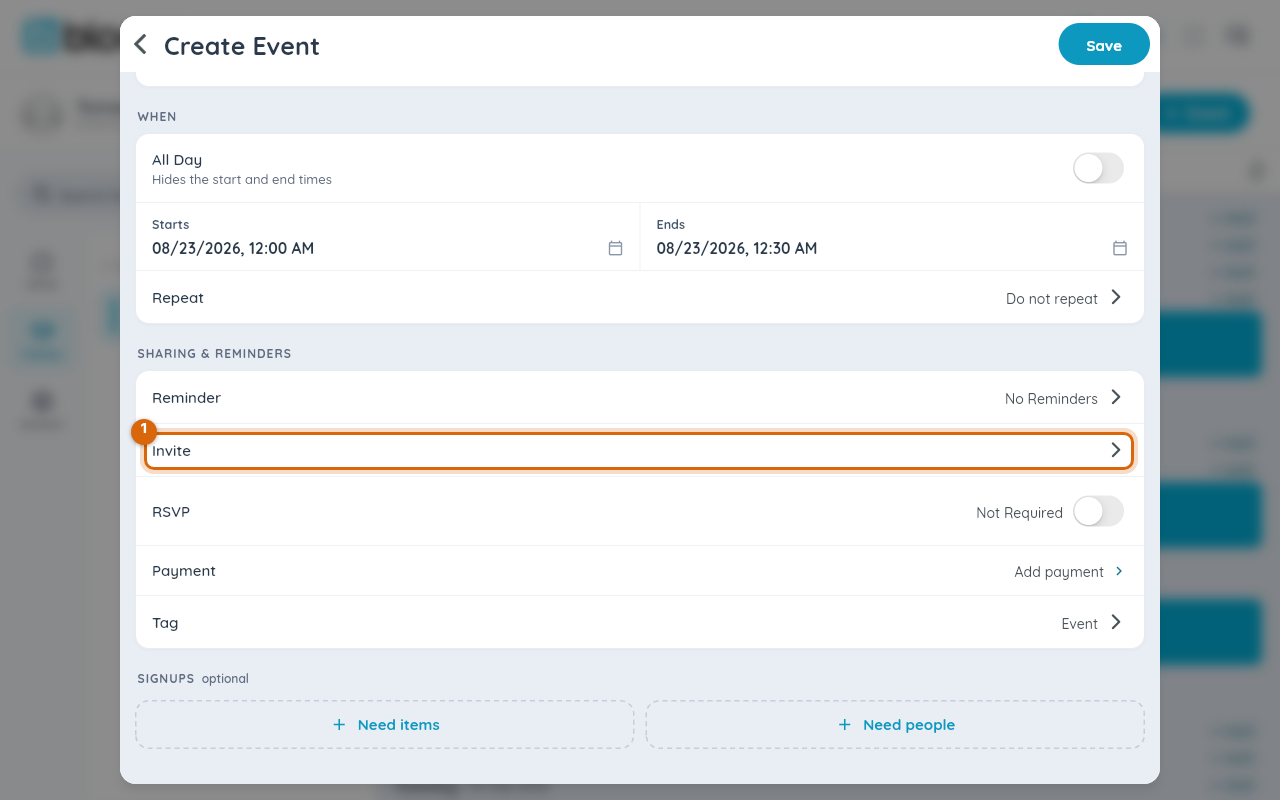
While creating a new event, or editing one you already created, scroll to the Sharing & Reminders section and select Invite.
Step 2 — Open Select Recipients
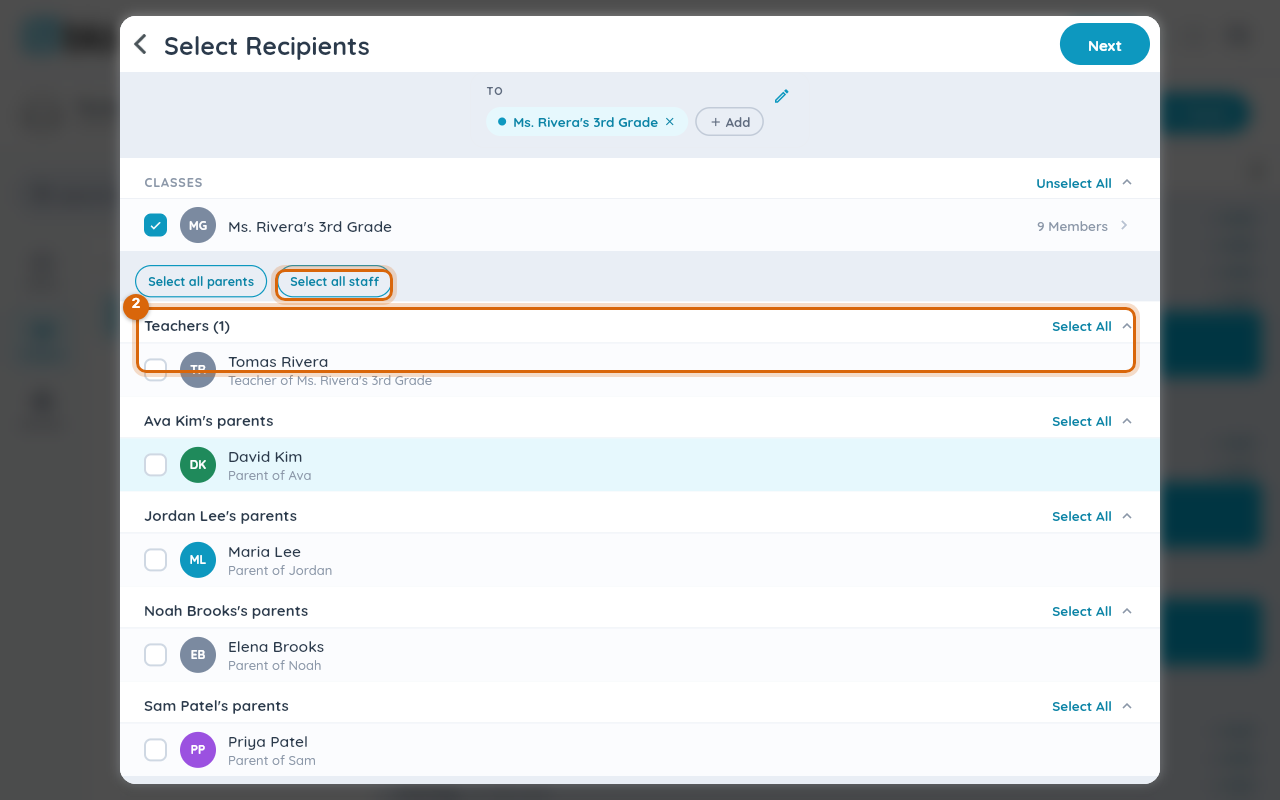
The Select Recipients picker opens with your class already checked. Above the list, Select all parents and Select all staff buttons sit next to a Teachers section and a section per student listing their parents — each with its own checkbox.
Step 3 — Check the staff you want to add
Check any teacher listed under Teachers to add them alongside the class. If the person you want isn't on this class's roster — the front office, a co-teacher on a different class — select + Add and search for them by name.
Step 4 — Confirm and save
Select Next, then finish and save the event as usual. The people you checked show as separate chips next to the class in the To row.

Watch out: anyone you check this way becomes a full recipient, not a silent observer — if the event has RSVP or sign-ups turned on, they're part of that same headcount along with everyone else on the list. There's no way to add someone who sees the event but is excluded from its RSVP or sign-up count.
What added staff see
The event appears in their feed and calendar exactly as it does for the rest of the class — same notes, times, and any attachments.
Related
- Create an event
- Send a reminder for an event or sign-up
- Message your family