 Bloomz
Send a reminder for an event or sign-up
A day before the deadline, give everyone who hasn't responded yet a nudge — Send Reminder pings only the families still missing from your RSVP or sign-up list, not everyone who already answered.
Before you start
You need to be the event's owner or a class admin. This works on any event with RSVP or sign-ups turned on — a general event, Volunteer Help, or Conferences/Office Hours.
Step 1 — Open the event
Open the event from the class calendar or feed.
Step 2 — Find Send Reminder
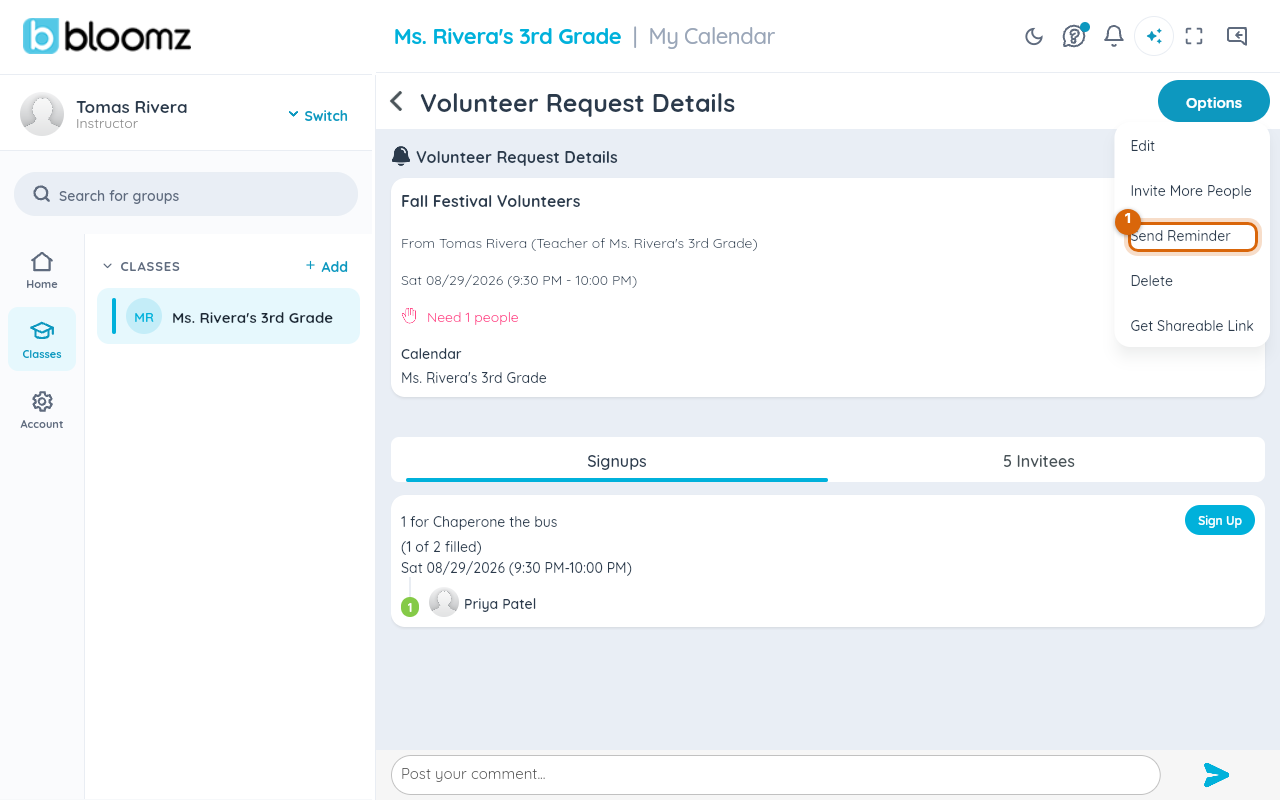
Select Options on the event, then choose Send Reminder.
Step 3 — Confirm
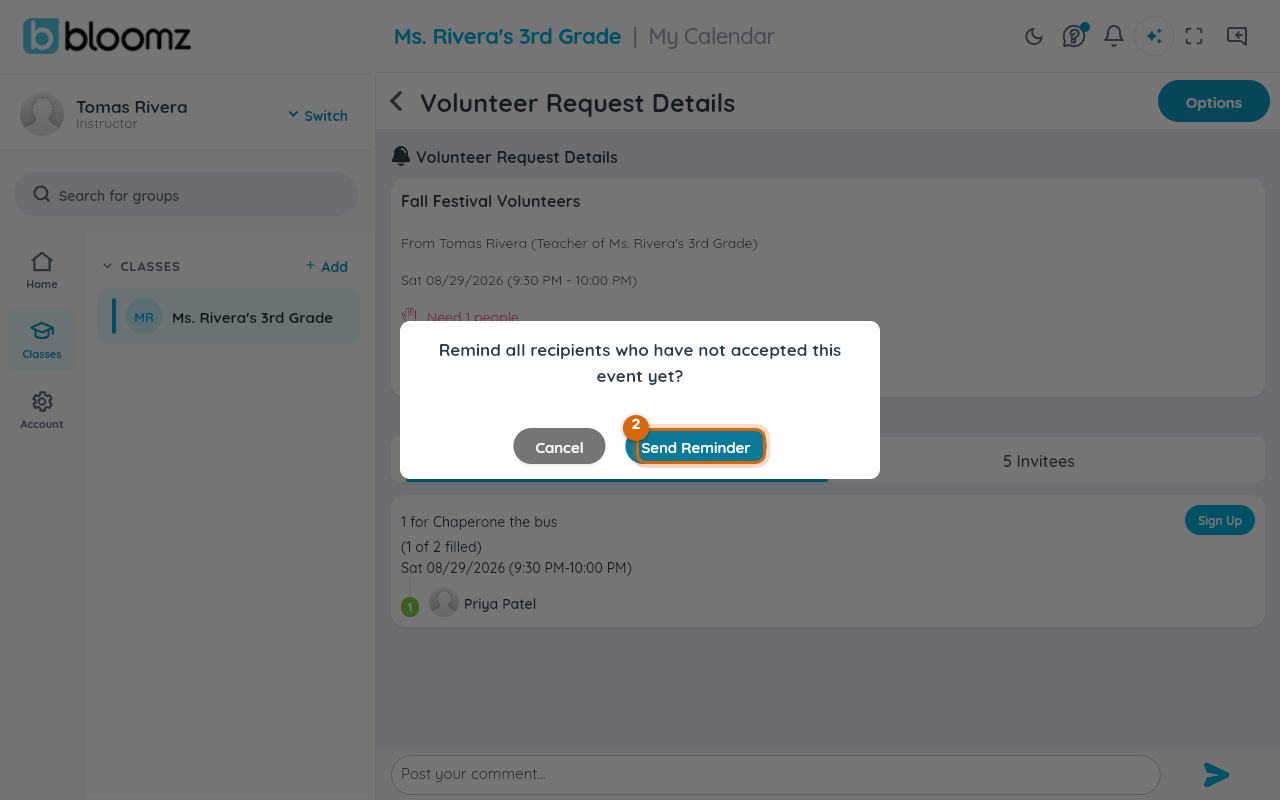
A dialog asks "Remind all recipients who have not accepted this event yet?" Select Send Reminder to confirm, or Cancel to back out.
Step 4 — Done
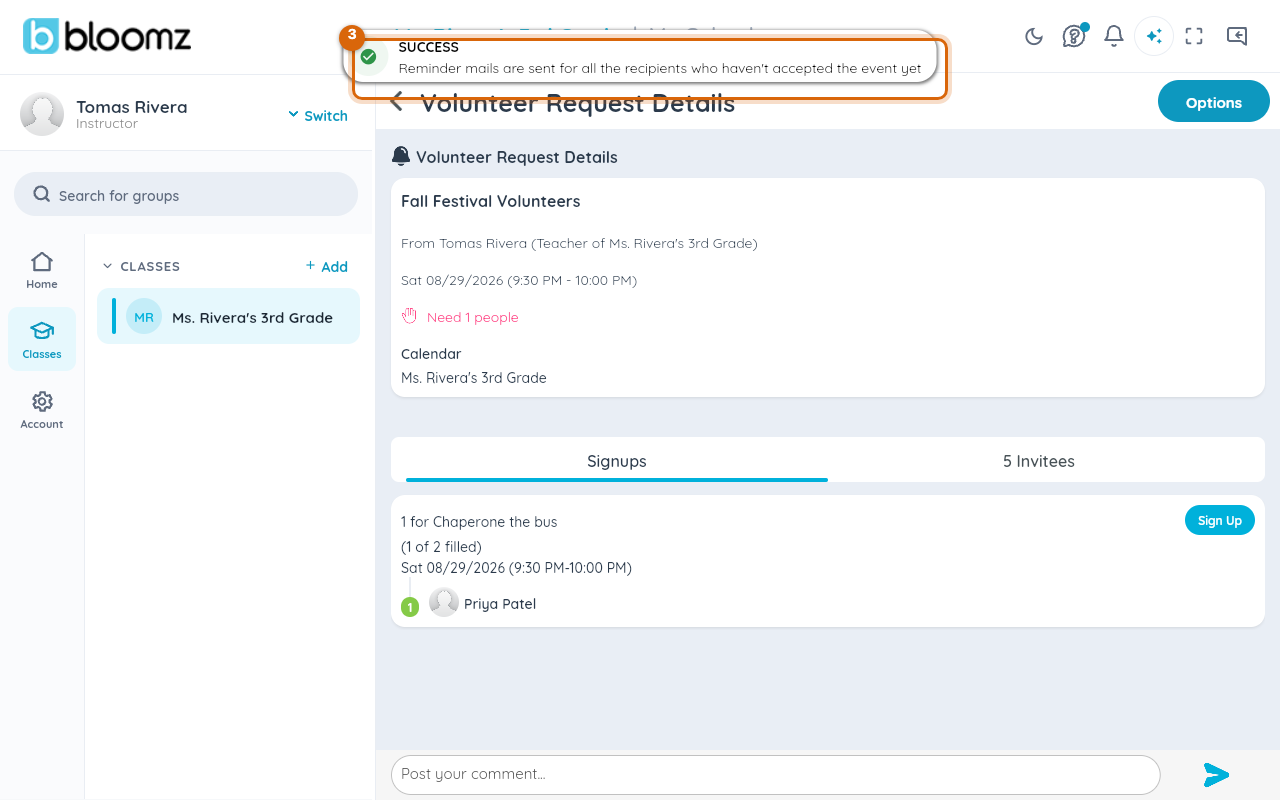
A brief confirmation appears — "Reminder mails are sent for all the recipients who haven't accepted the event yet." Each of those families gets a notification pointing them back to the event; families who already responded are left alone.
Watch out: Send Reminder always goes to everyone still outstanding on the event — there's no way to target just one family from here. If you only need to nudge one person, message them directly instead.
Related
- Create an event
- RSVP to an event
- Sign up for a volunteer slot