 Bloomz
Message a parent, a student or a colleague
Sometimes you need to reach one specific person — a parent about their child, a colleague about a schedule swap — not a whole class. The fastest way to a private, one-to-one conversation is through your class roster, not a general search.
Before you start
You can message anyone in a class or group you belong to — a family in one of your classes, or a colleague at your school. The Messages panel's own + Message button is built for messaging a whole class or a role within it (all Teachers, all Room Parents, and so on) — for exactly one person, the roster is the reliable path.
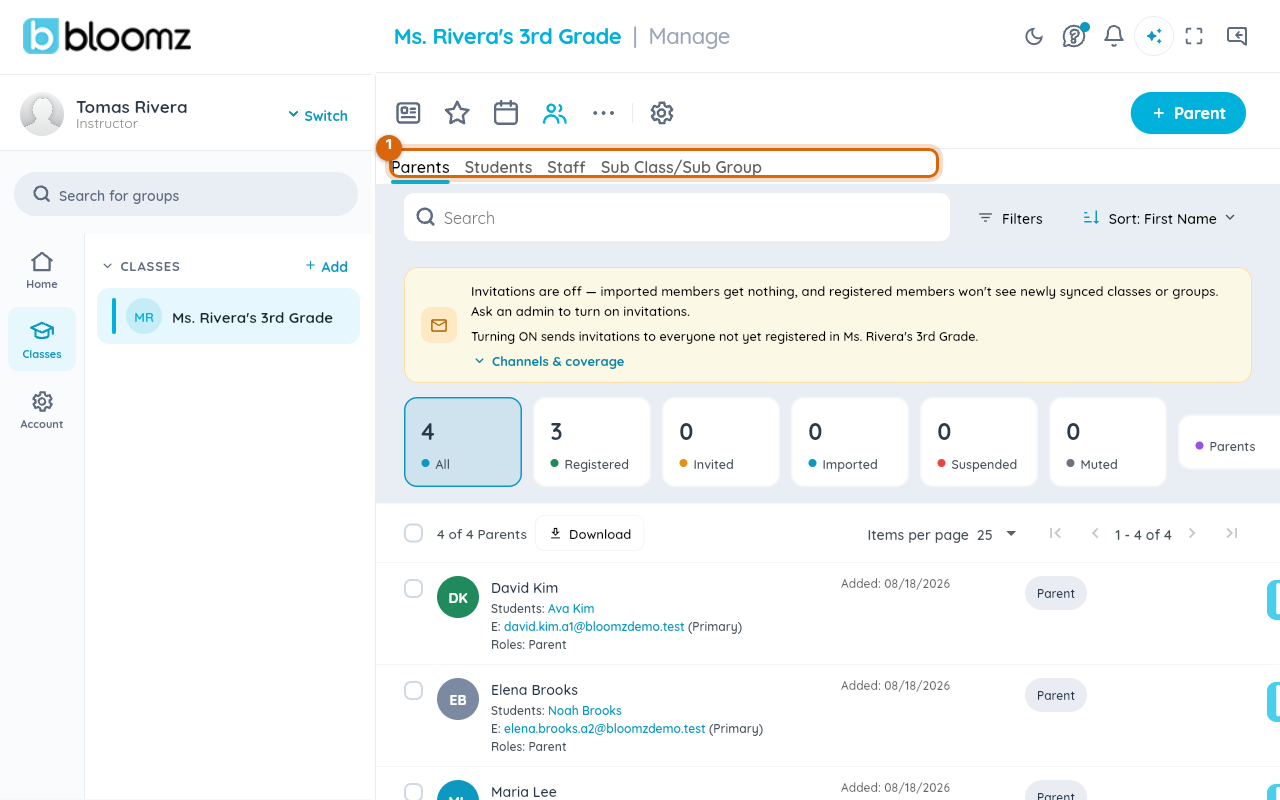
Step 1 — Open the class roster
From your class, select the people icon (Manage) in the toolbar, then the Parents, Students, or Staff tab, depending on who you're looking for.
Step 2 — Open their profile
Select the person's row. Their details open on the right, with three icon buttons above their name fields.
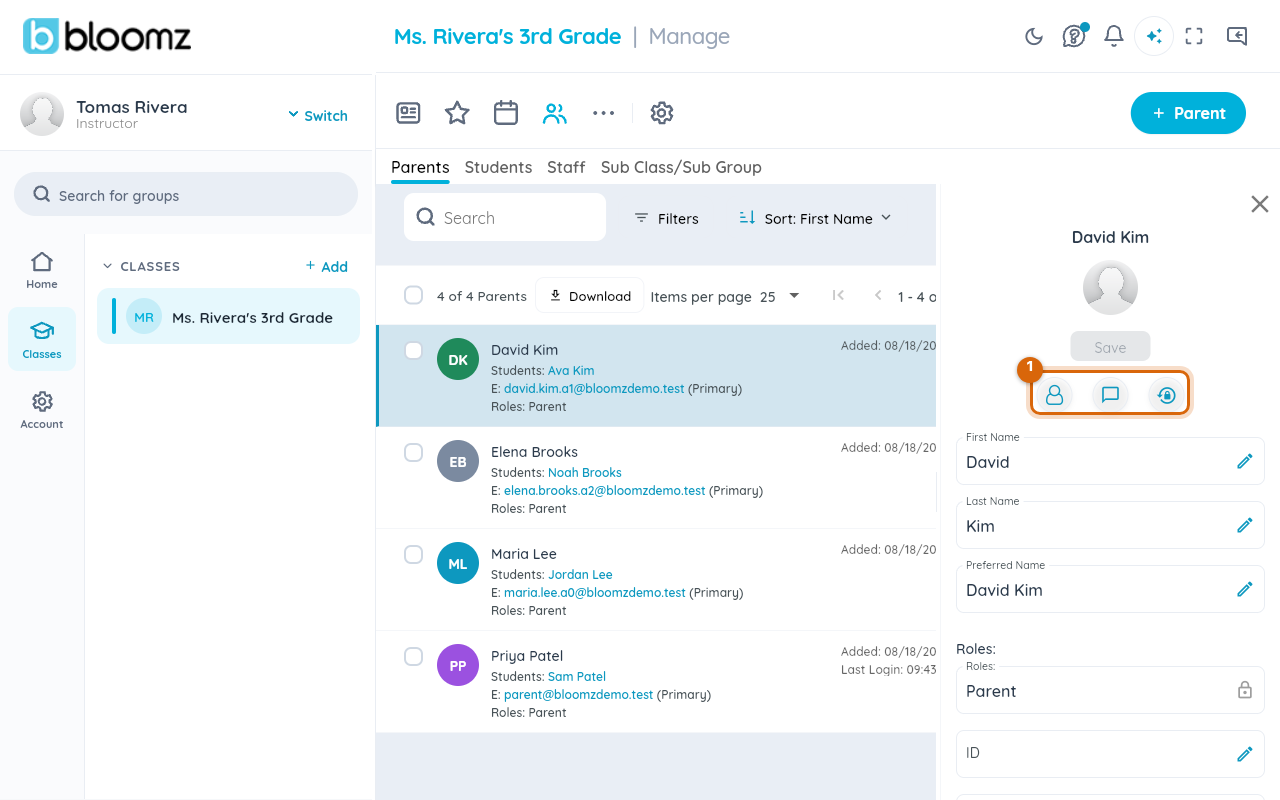
Step 3 — Tap the message icon
Select the speech-bubble icon among the three.

Step 4 — Write and send your message
This opens (or reopens) a direct one-to-one thread with just that person. Type your message and send it.
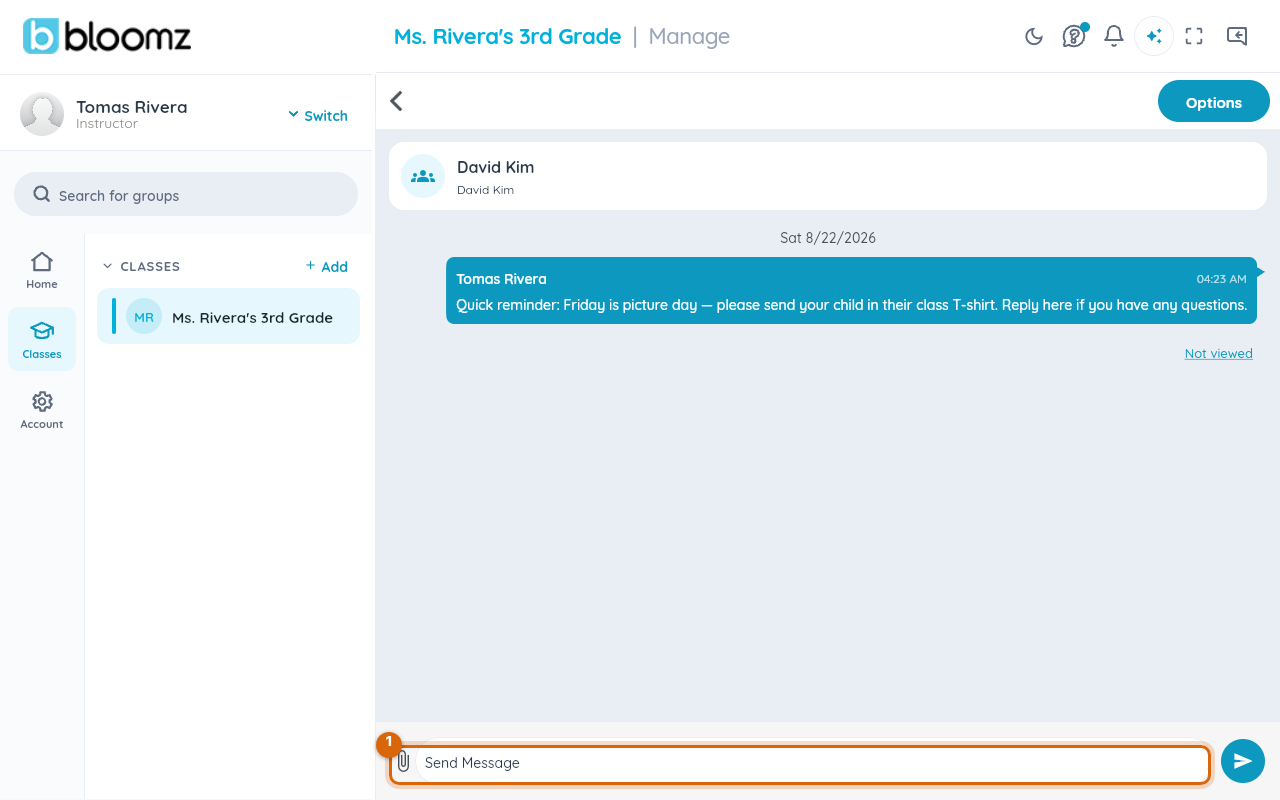
Watch out: if you already have a conversation with that person, this opens the existing thread rather than starting a duplicate one — your message history with them stays in one place.
Related
- Message your family
- Forward a message
- Filter your inbox by class or unread