 Bloomz
Filter your inbox by class or unread
When your message list spans several classes and conversation types, narrowing it to one class — or to just what's unread — gets you to the right thread faster than scrolling.
Before you start
This builds on the unread toggle covered in Search, sort, and clean up your messages; this article goes further into how class scoping works and how it combines with unread-only.
Step 1 — Open Messages from inside a class
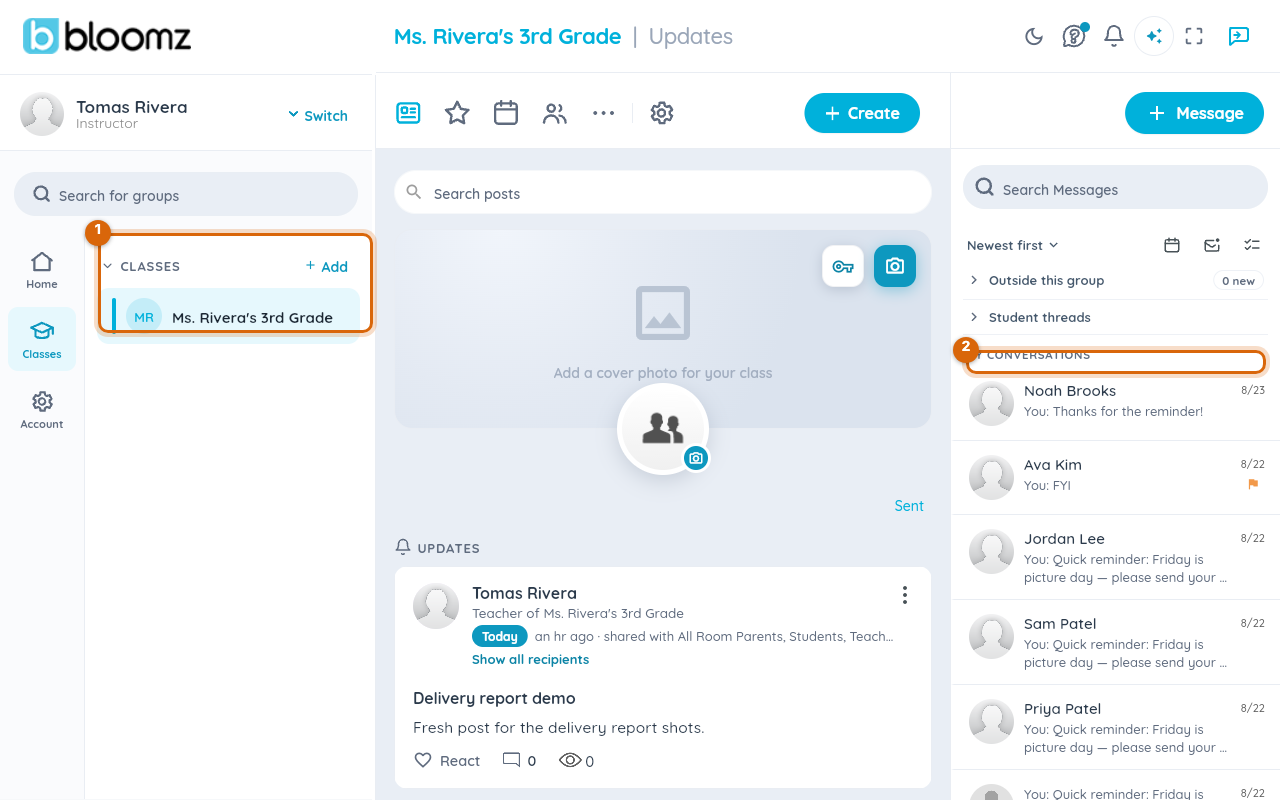
Open a class, then open the Messages panel. MY CONVERSATIONS is scoped to that class automatically — a class's group thread and your one-to-one conversations with its members.
Step 2 — Reach conversations outside the class
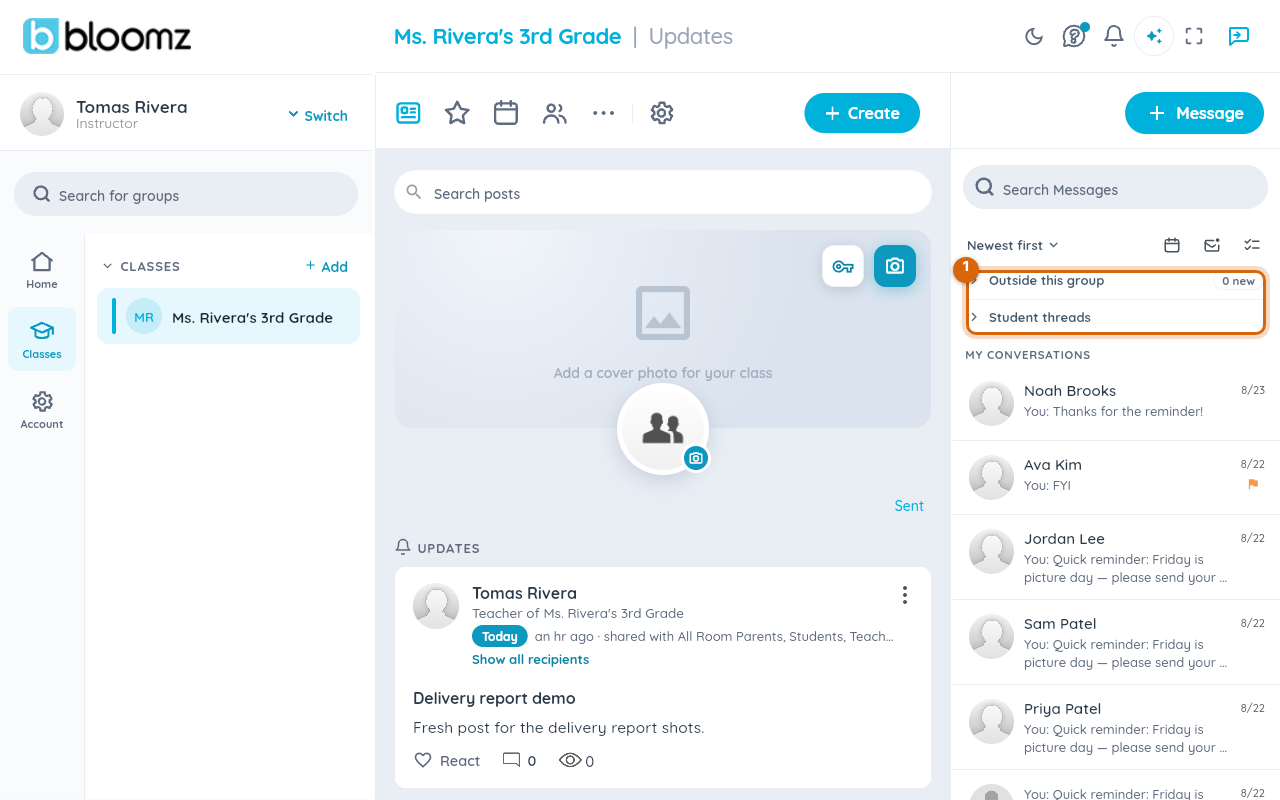
Two collapsed sections sit above MY CONVERSATIONS: Outside this group, for conversations not tied to this class, and Student threads. Expand either one to see those conversations without leaving the class you're in.
Step 3 — Combine with unread-only
Turn on the unread toggle (the envelope icon in the toolbar) to see just the unread conversations within this class scope — handy right before you sit down to answer a specific class's messages.
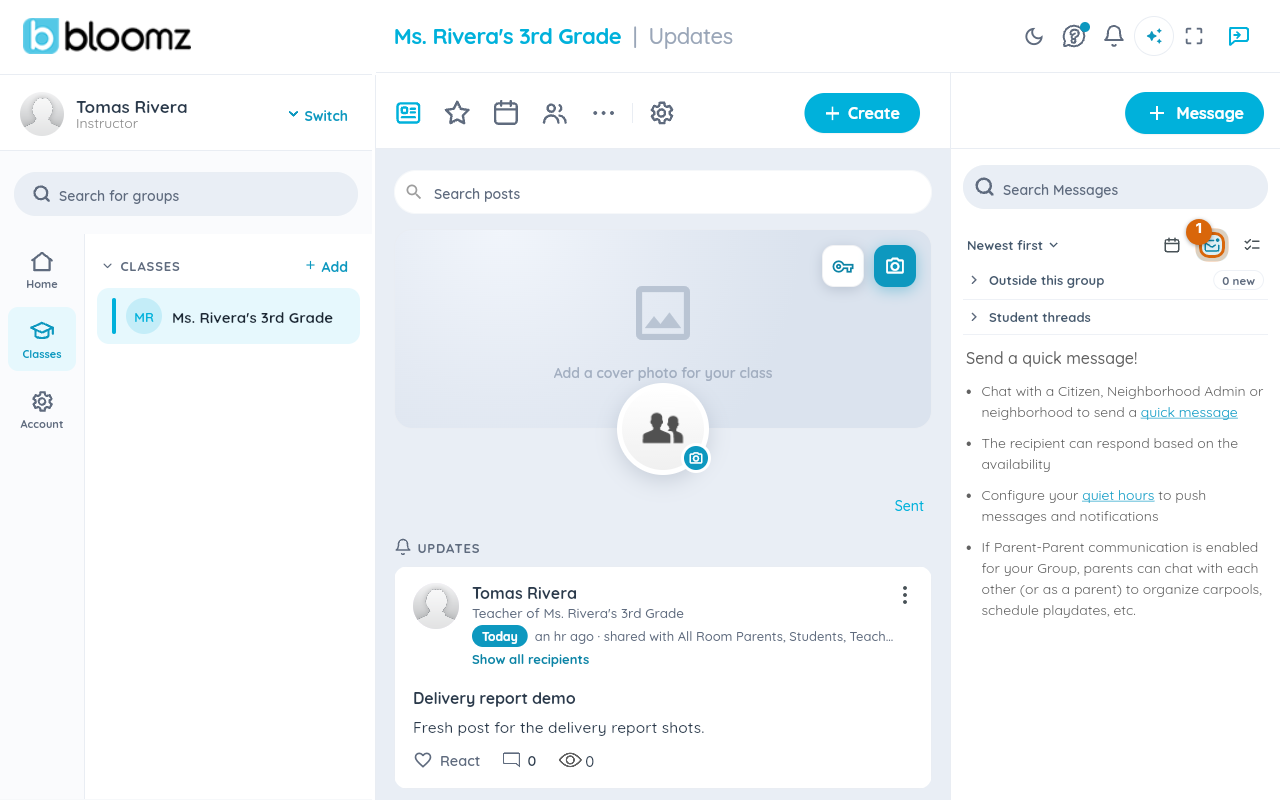
Watch out: with the unread toggle on and nothing unread in this class, the list looks empty even though you may have unread messages elsewhere — check Outside this group or Student threads, or switch classes, before assuming there's nothing new.
Step 4 — Clear the filter
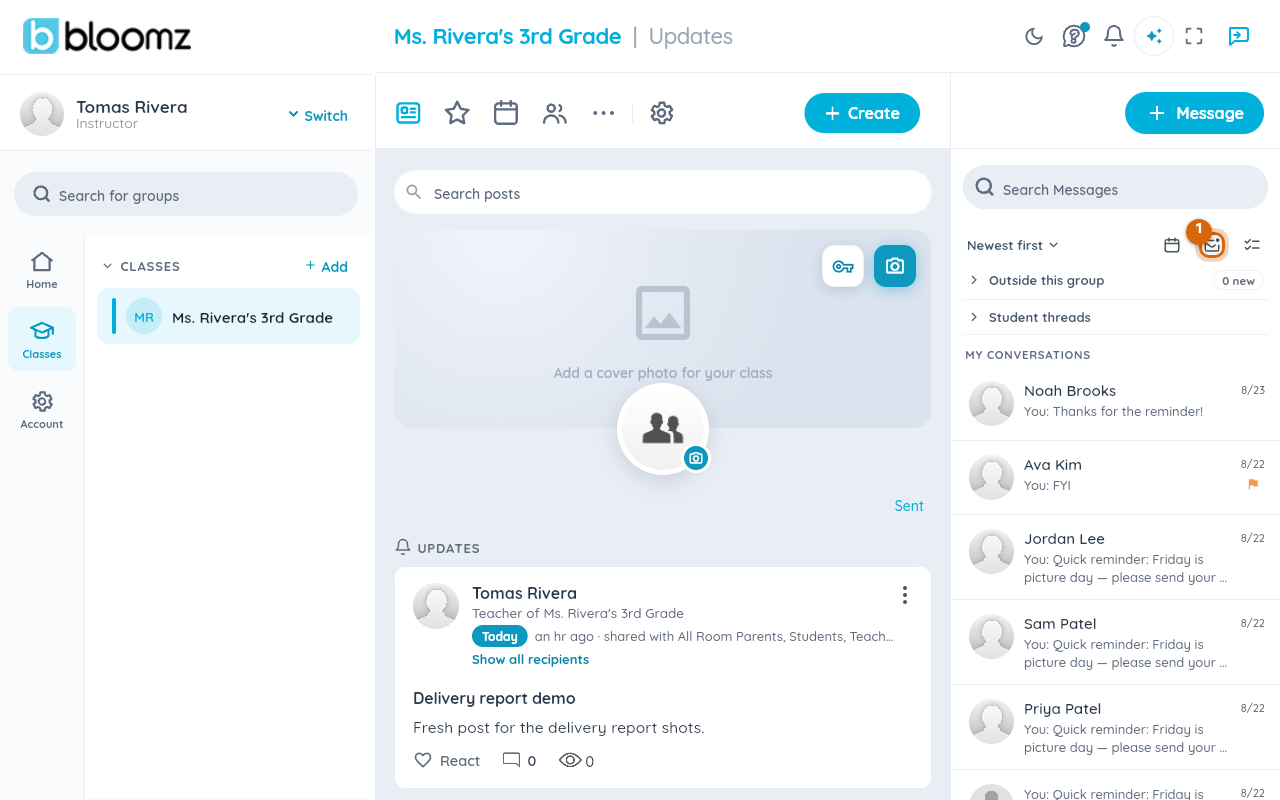
Select the unread icon again to turn it off and see the full class-scoped conversation list again.
Related
- Search, sort, and clean up your messages
- Message a parent, a student or a colleague
- Mute or flag a conversation