 Bloomz
Search, sort, and clean up your messages
Your message list can get long. The toolbar above the conversation list carries the tools that keep it useful: sorting, an unread-only filter, search by text or date, and deleting several conversations at once.
Before you start
Everything in this article lives in the toolbar directly above your conversation list: the sort button on the left, then the calendar filter, the unread-only toggle, and the select control.
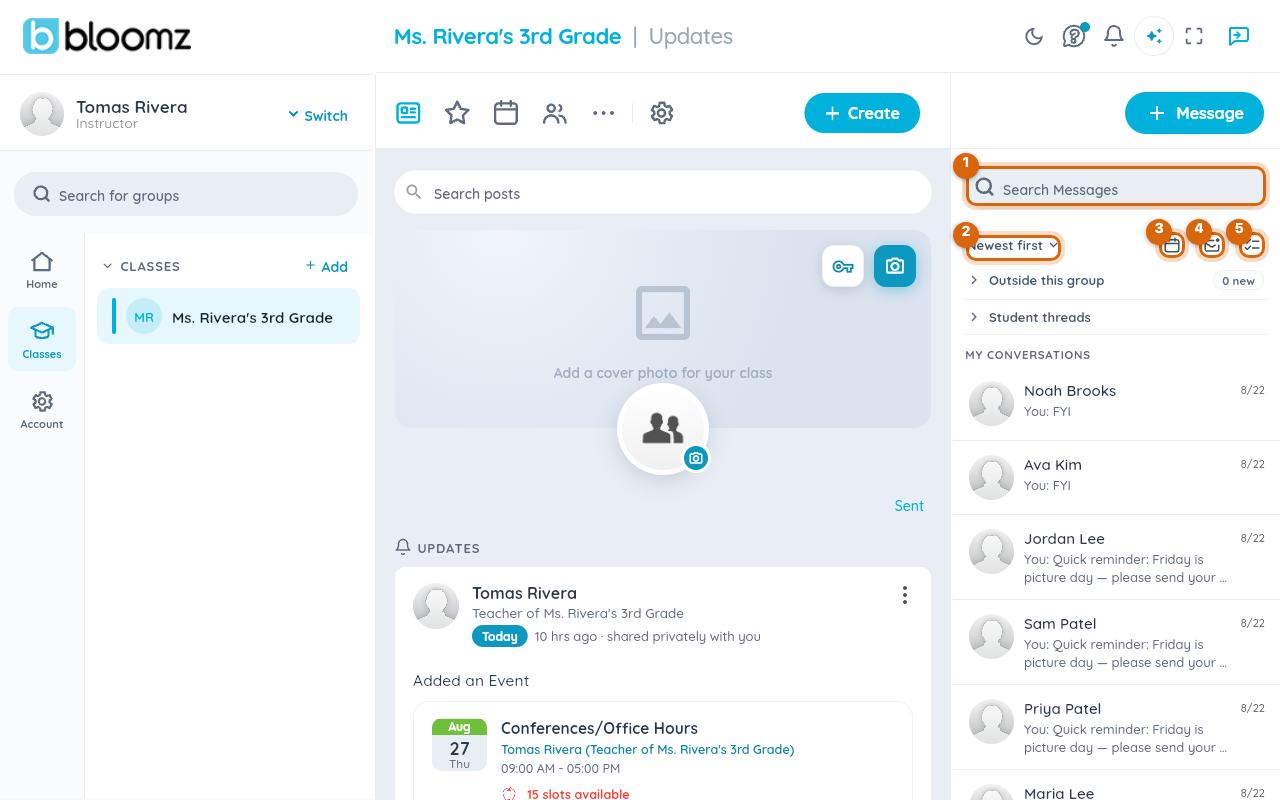
Two limits worth knowing up front:
- Sorting and the unread filter work on the conversations you have loaded so far — which is also all you can see and select.
- Deleting is permission-checked per conversation: you can delete your own conversations, teachers and admins can also delete others', and a class's built-in thread can never be deleted by anyone.
Step 1 — Sort the list
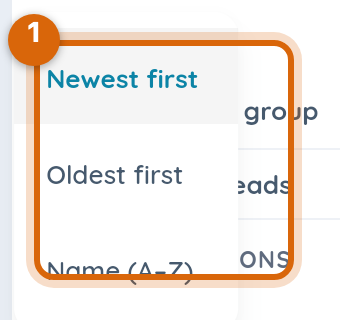
Select the sort button and pick an order: Newest first (the default), Oldest first, or Name A to Z. The list reorders immediately.
Step 2 — Show unread only
Select the unread toggle (the envelope icon) to show just the conversations with something new in them. The icon fills in while the filter is on; select it again to see everything.

Step 3 — Search by text
Type in the search field to find messages by their content. Search matches the messages inside your conversations, not just each conversation's most recent line.

Step 4 — Filter by date
Select the calendar filter and pick a start and end date. This finds conversations with messages sent in that period, and it works on its own with no search text at all — handy for "what did we discuss the week before break?". Combine it with text to search within the range. The end date is inclusive: picking Friday includes all of Friday.
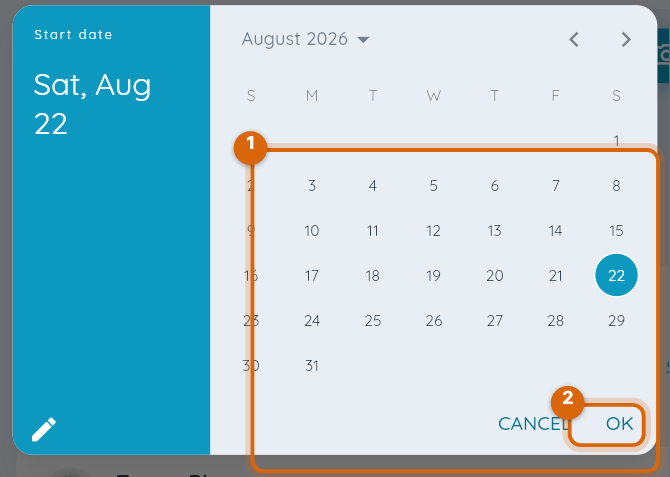
Watch out: clearing your search text does not clear a date range you have set. The list stays filtered to those dates until you clear the date filter too — if the list looks mysteriously short, check the calendar filter first.
Step 5 — Enter selection mode
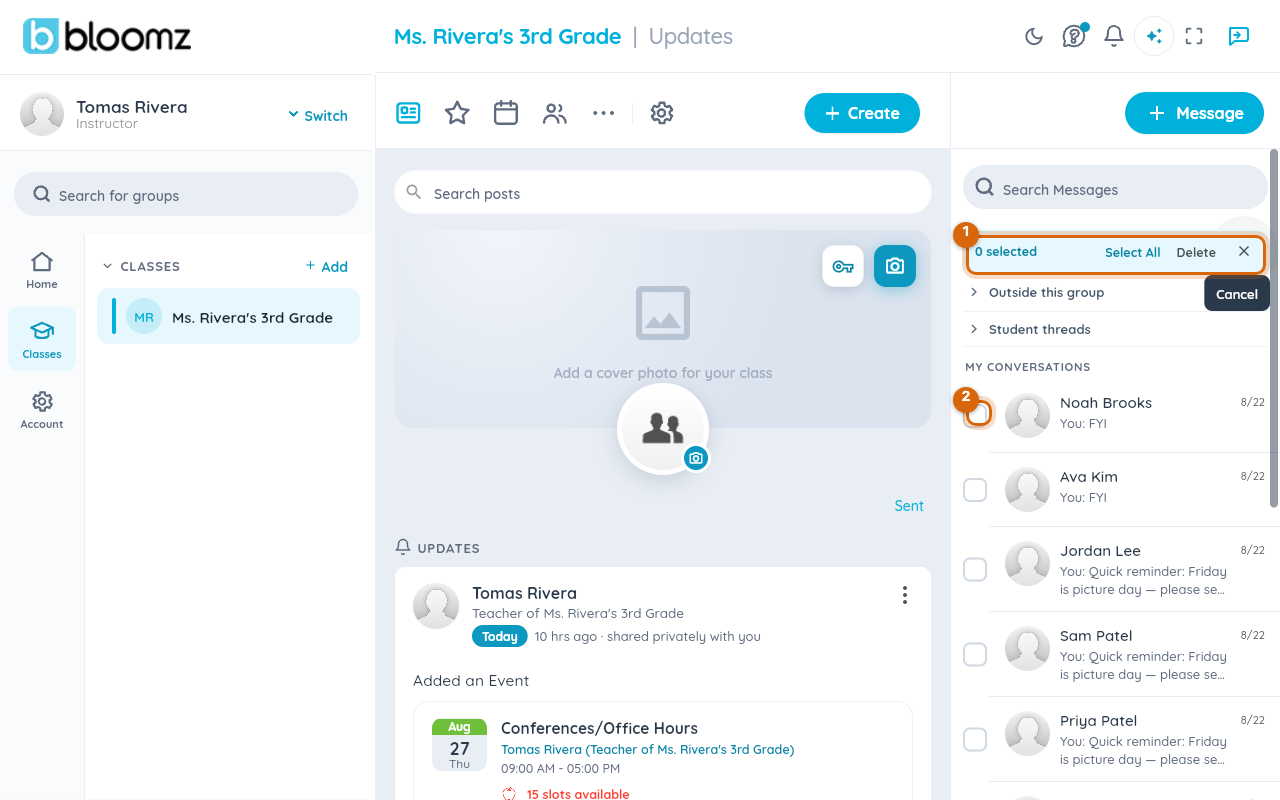
To delete several conversations at once, select the select control in the toolbar. Each row gains a checkbox, and tapping a row now ticks it instead of opening it. The toolbar swaps into a selection bar — sorting or filtering mid-selection would change what your ticks refer to, so those controls step aside until you close the bar.
Step 6 — Tick the conversations to remove
Tick each conversation, or use Select all. The bar counts your selection as you go.
Step 7 — Delete and confirm
Choose Delete in the selection bar, then confirm. Bloomz deletes what it can and tells you the result.

Watch out: not everything you tick is necessarily deletable (see Before you start). The result message distinguishes "all deleted" from "3 of 5 deleted" from "nothing deleted" — and skipped conversations stay visibly in your list rather than disappearing and coming back on the next refresh.
Related
- Forward a message
- Message your family
- See your child's messages