 Bloomz
Mute or flag a conversation
Two different problems, two different controls: flag a conversation to mark it for follow-up so you don't lose track of it in a busy inbox, or mute one to stop its notifications without leaving it.
Before you start
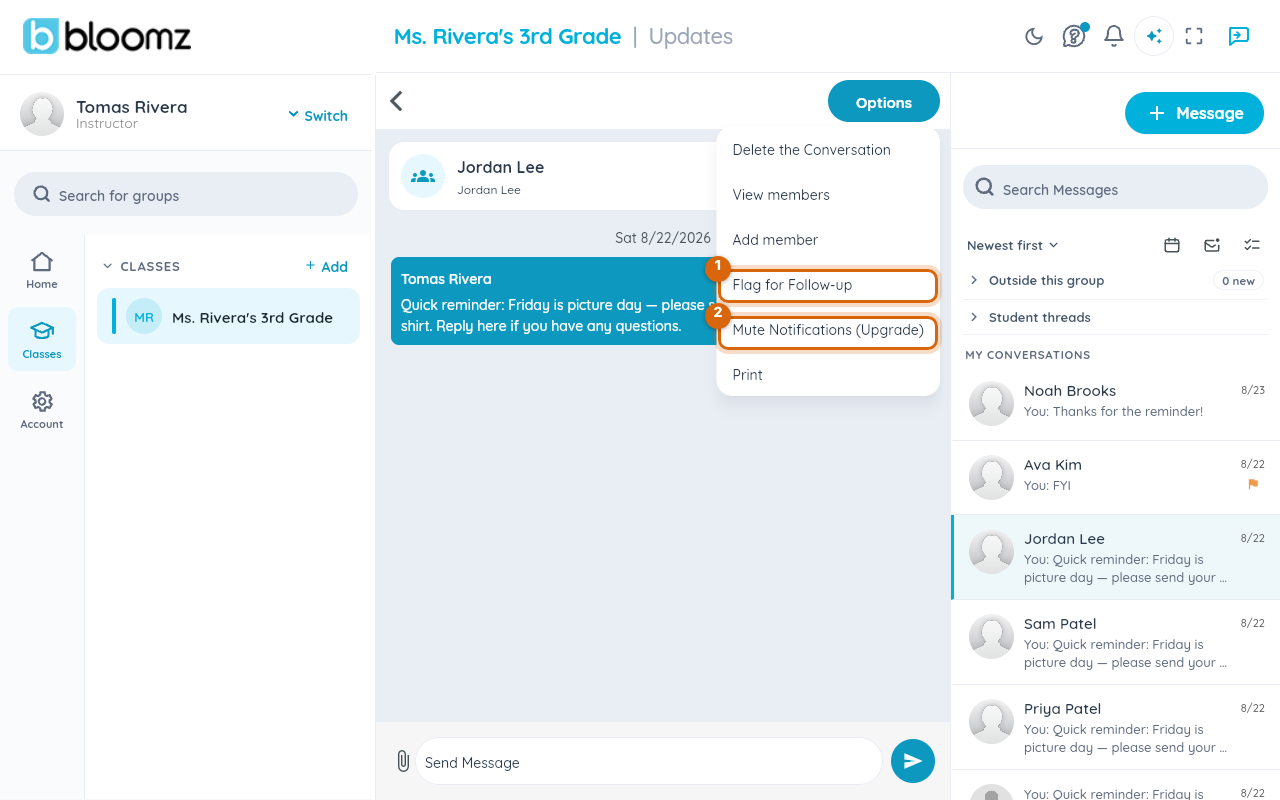
Both live in the same conversation options menu. Flag for Follow-up is available to everyone; Mute Notifications is marked (Upgrade) and requires a paid plan feature on this account — flagging is what most teachers reach for.
Step 1 — Open the conversation's options menu
Open the conversation, then select Options. The menu shows Delete the Conversation, View members, Add member, Flag for Follow-up, Mute Notifications, and Print.
Step 2 — Flag the conversation for follow-up
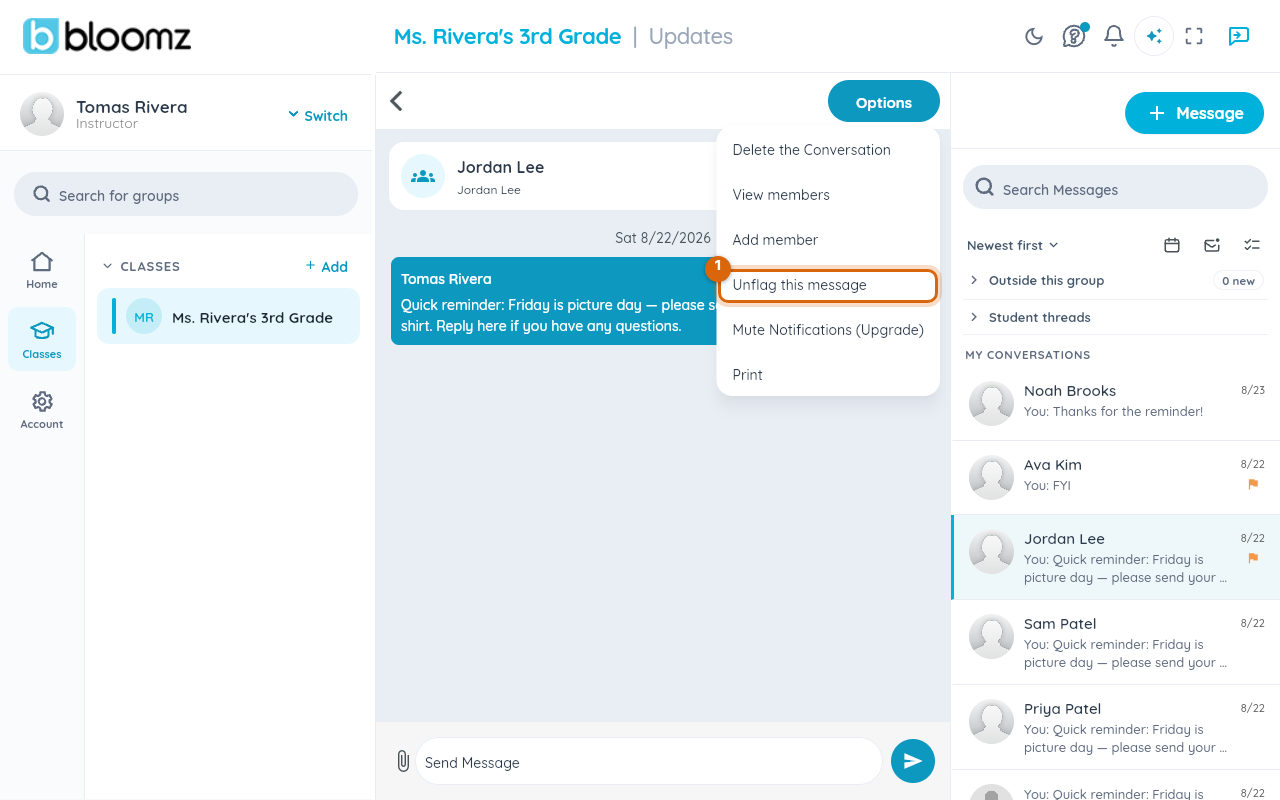
Select Flag for Follow-up. A small flag icon appears on the conversation in your list right away, so it stands out even after you've scrolled past it, and the menu item itself relabels to Unflag this message.
Step 3 — Spot flagged threads in your list
The flag icon sits right on the conversation row — so you can tell at a glance which threads need follow-up without opening each one.
Step 4 — Unflag when you're done
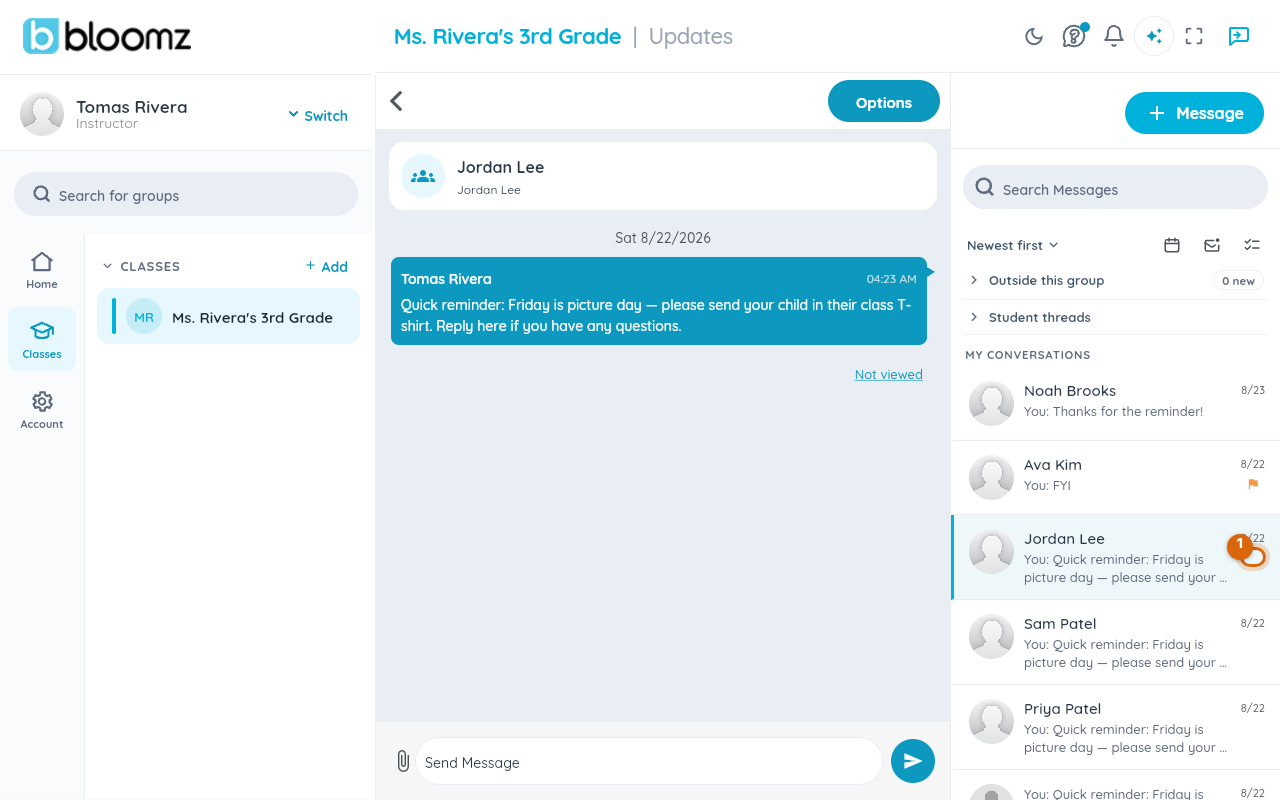
Open the options menu again and select Unflag this message to clear it — a conversation is either flagged or not; there's no separate "resolved" state.
Step 5 — Muting requires an upgrade
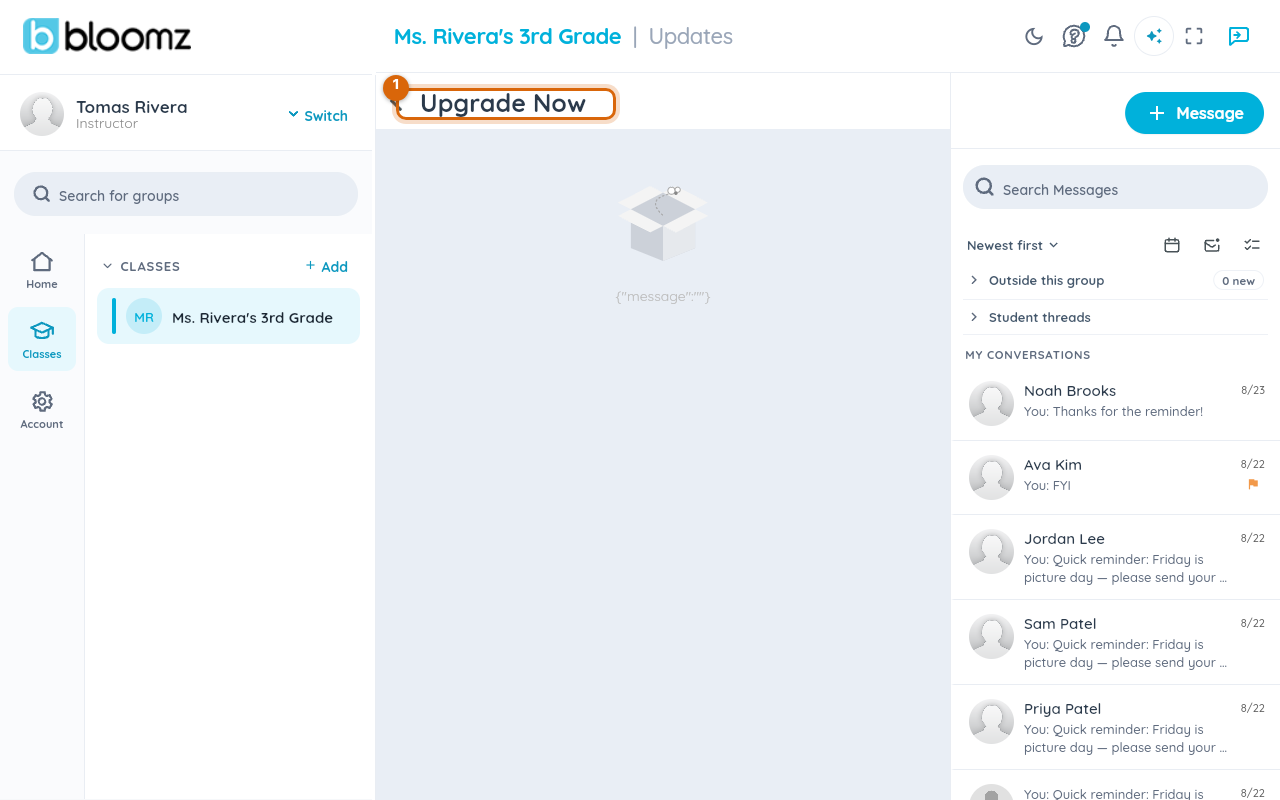
Selecting Mute Notifications on this plan opens an Upgrade Now screen rather than muting the thread — it's a premium feature, not something every account can turn on for free.
Watch out: if your school's plan does include Mute, remember it silences notifications, not messages — you can still miss something urgent in a muted thread if you don't check it. For a conversation you truly don't want, delete it instead of just muting it.
Related
- Search, sort, and clean up your messages
- Filter your inbox by class or unread
- Message a parent, a student or a colleague