 Bloomz
Respond to an SEL check-in prompt for your class
Ask your whole class to check in on how they're feeling, and see at a glance who still hasn't. Bloomz doesn't hand a class teacher a raw list of everyone's mood and notes — a concerning check-in routes to school staff through Thrive, where your school has it turned on — but requesting and tracking a check-in only takes a moment from the class itself.
Before you start
Check-ins refresh through the day as students submit them. A request only notifies the students who haven't checked in yet, so it's safe to send more than once in a day.
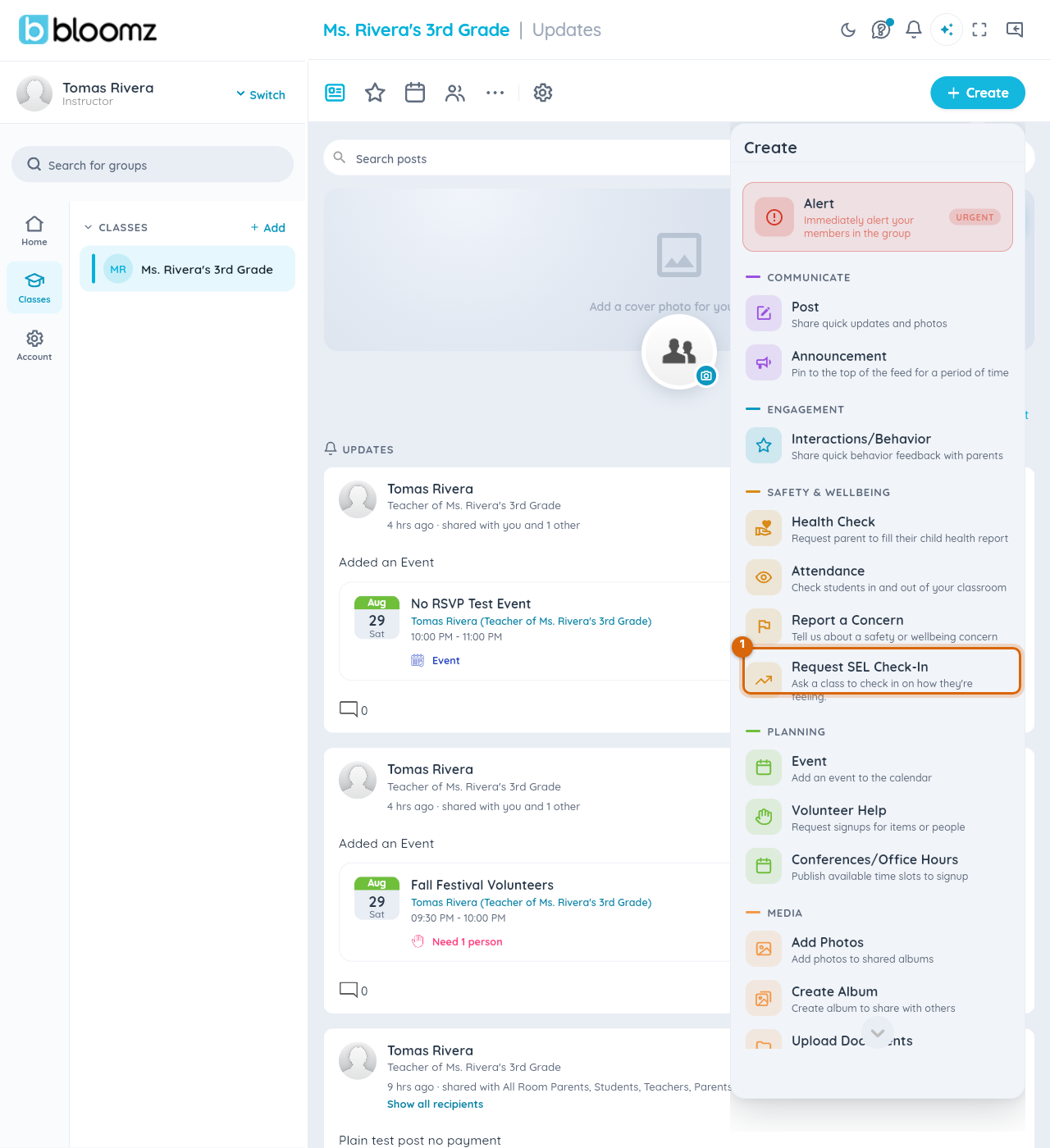
Step 1 — Open your class and select Create
From your class, select + Create.
Step 2 — Find Request SEL Check-In
Scroll to Safety & Wellbeing and select Request SEL Check-In — "Ask a class to check in on how they're feeling."
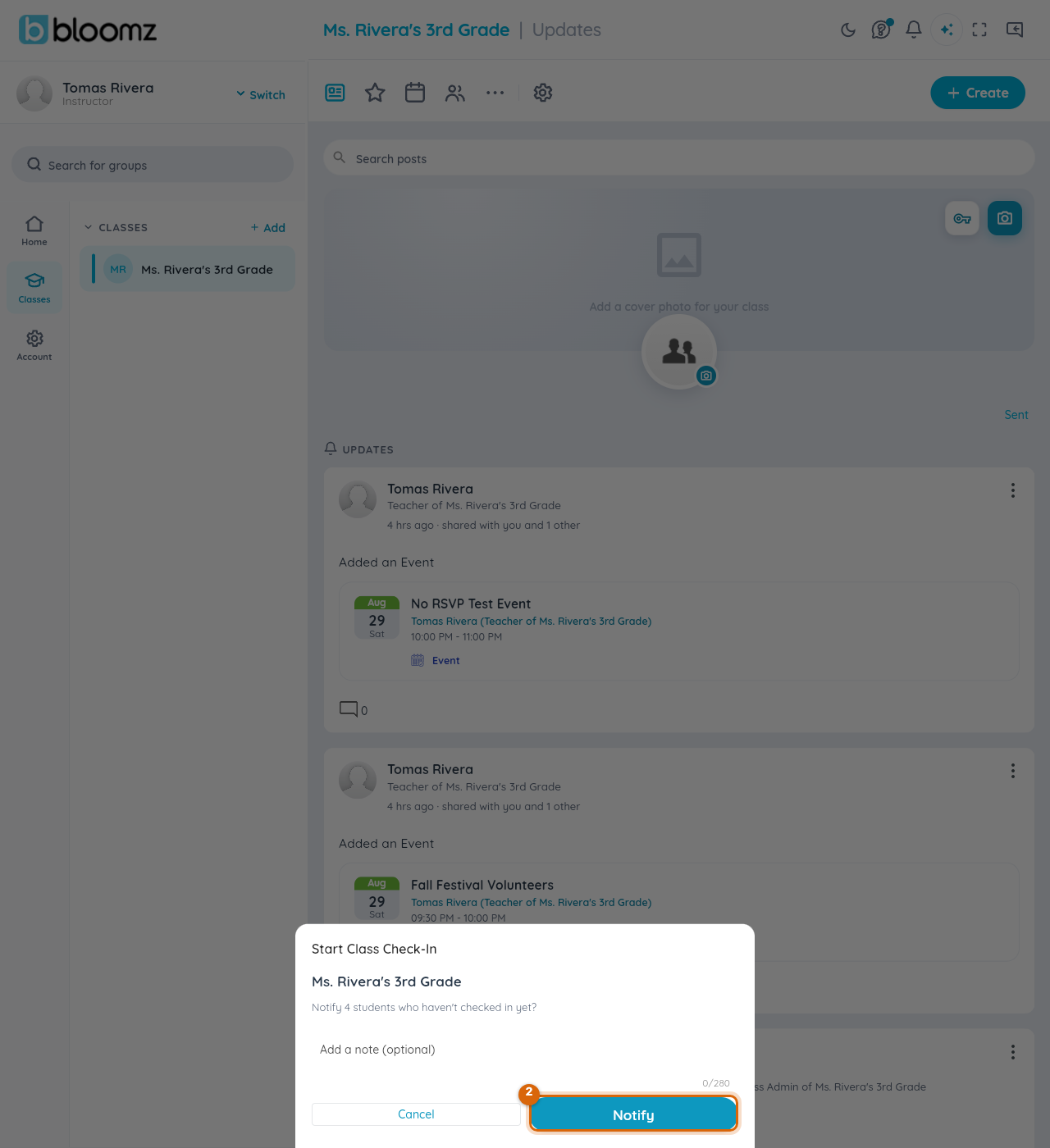
Step 3 — Review who hasn't checked in
Bloomz shows how many students haven't checked in yet today. Add an optional note if you want, then select Notify to nudge just those students.
Step 4 — Follow up on concerning responses
Where your school has Thrive turned on, a check-in that flags something concerning — a difficult feeling, a worrying note — surfaces to school staff (counselors, admins) on the school's SEL flagged students list, not just to you as the teacher.
Watch out: if a student's note suggests they may be in danger, follow your school's usual safety protocol right away instead of relying on the app alone.
Related
- Complete your daily SEL check-in
- Find a student on the Thrive watchlist
- Support struggling students with Thrive