 Bloomz
See your child's Weekly Family Summary
Instead of piecing your child's week together from separate posts, grades and attendance notices, a Weekly Family Summary rolls the school week into one short digest — what was due, what came home in their portfolio, and how attendance went — right on your child's profile.
Before you start
Your school or district turns this on; it is off by default. When it is on, the summary drafts itself automatically once a week (your district picks the day and time) — there is nothing for you to request or set up. Some districts have a teacher review and approve each summary before it sends to families; others send it automatically as soon as it drafts. Either way, what you see is the finished, approved digest.
Step 1 — Open your child's profile
From Home, select your child under their class in the left rail (or from Children, then their class), the same way you'd check their portfolio or attendance.
Step 2 — Find the This week card
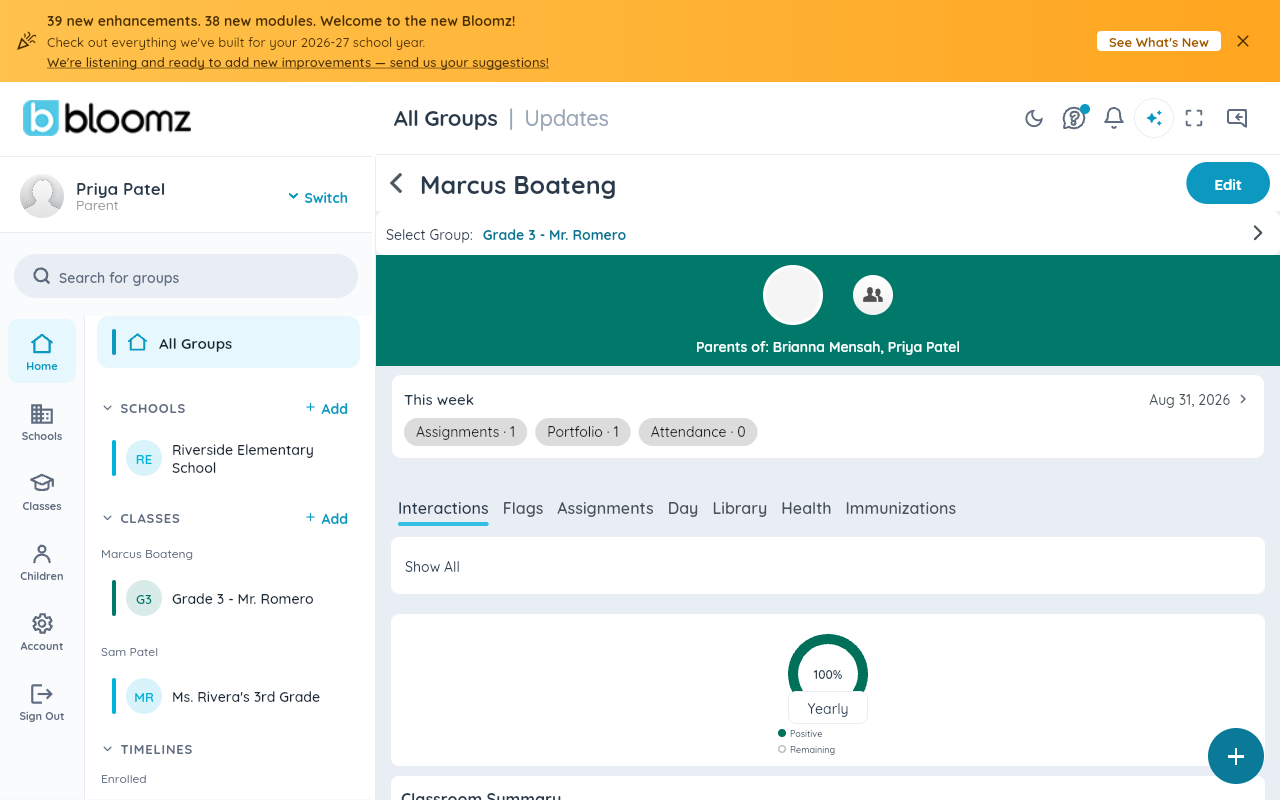
Near the top of the profile, above the Interactions/Flags/Assignments tabs, the This week card shows the date of the current school week and a row of chips — one per section your district has turned on, such as Assignments, Portfolio and Attendance — each with a count.
Step 3 — Read what the counts mean
- Assignments — how many of this week's assignments still need attention (missing or not yet turned in), not simply how many were assigned.
- Portfolio — how many new portfolio posts were shared home this week.
- Attendance — unexcused absences and tardies for the week; a clean week shows 0.
A card with no chips at all means your district has this feature on but no sections configured yet — check back once your school has finished setting it up.
Watch out: the This week card always reflects the most recently drafted week. If your school reviews summaries before sending, a brand-new week's card can briefly show a number before you've had a chance to see the full write-up — selecting the card opens the full summary in your own language once it is available. If nothing opens, your school's summary reader is being finished up right now; ask your teacher for the same information in the meantime.
Related
- See your child's messages
- See your child's hall passes
- Read your school's engagement dashboard