 Bloomz
Translate a post or message
Written in a language you don't read? When a post or message arrives in a different language from the one you've set for Bloomz, a Translate option appears right on it.
Before you start
Translate only appears when Bloomz detects the item is in a different language than your own preference. It translates just that one post or message — it doesn't change your account language, and it doesn't translate everything in your feed at once.
Step 1 — Spot the Translate option
On a post written in another language, look for Translate beneath the text.
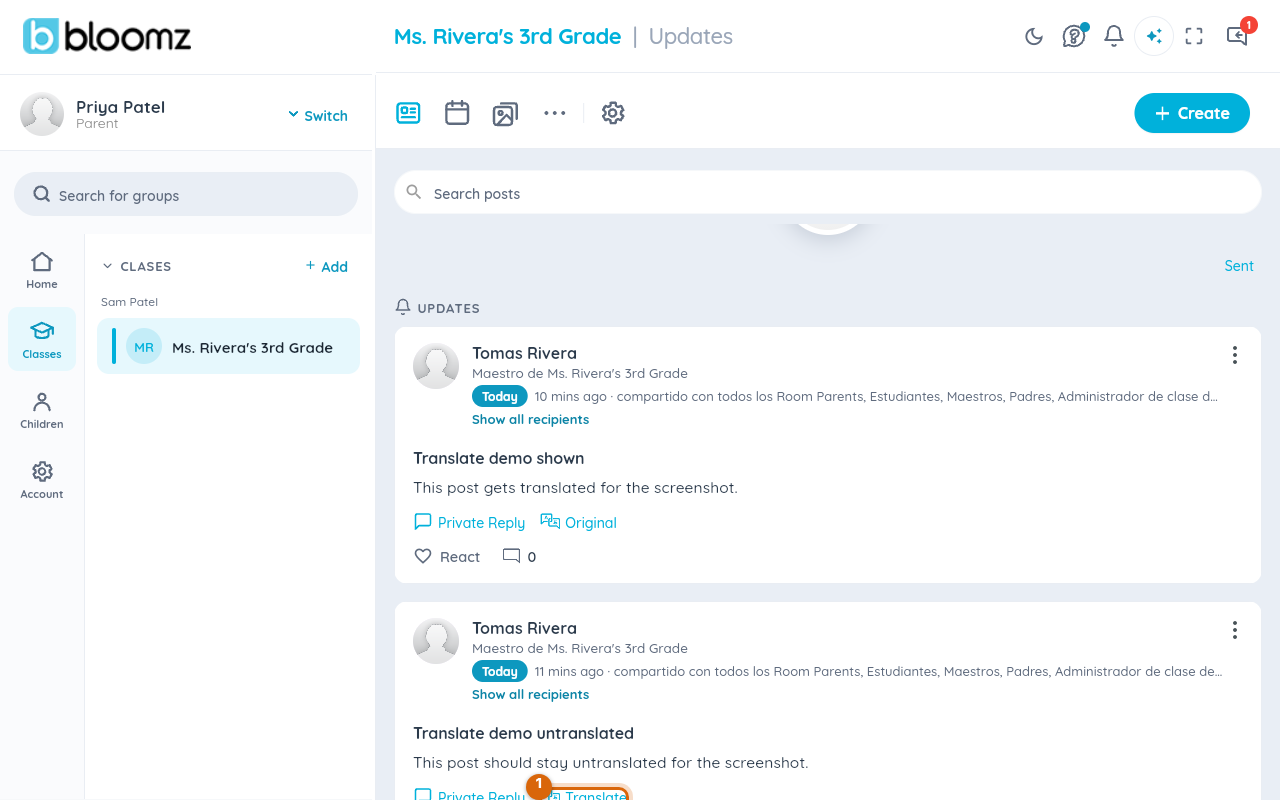
Step 2 — Tap Translate
Tap it. The text is replaced with a translation into your preferred language, and the link itself changes to Original.
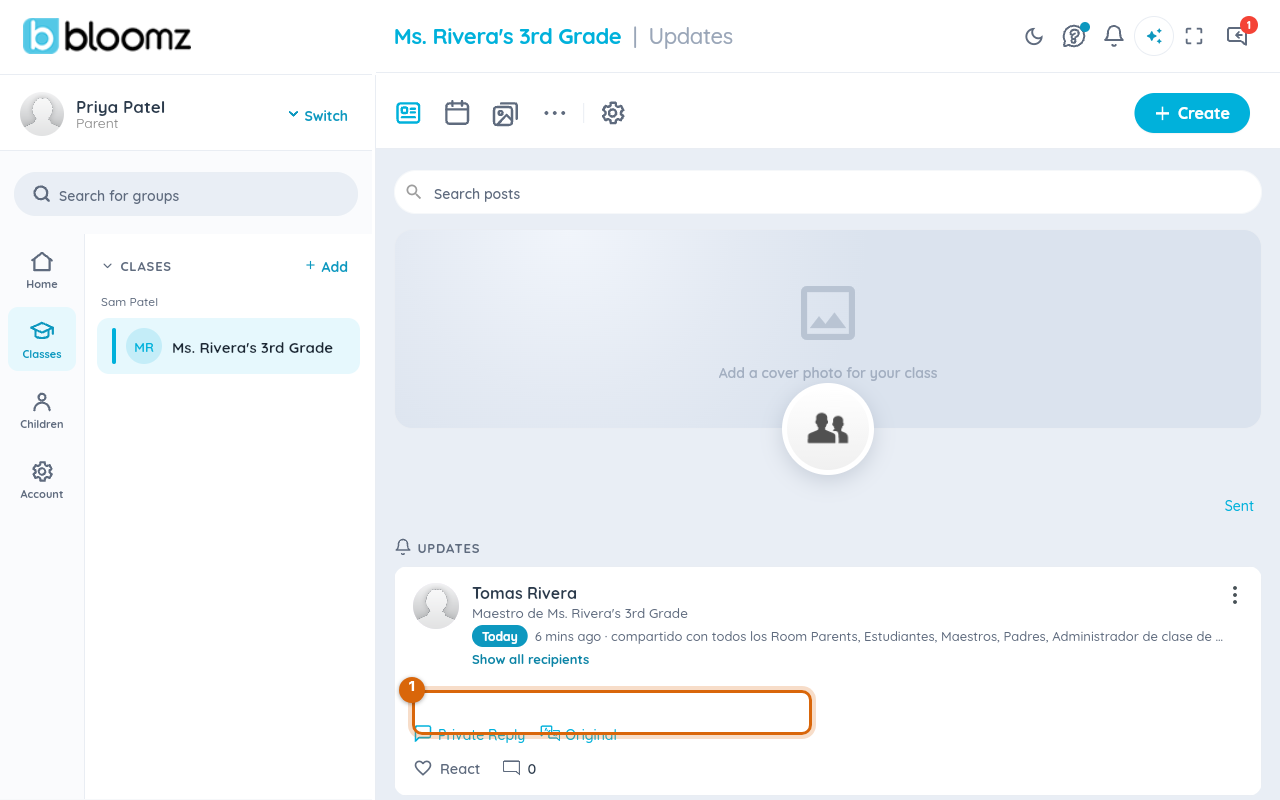
Step 3 — Tap Original to switch back
Tap Original at any time to flip back to the text exactly as the sender wrote it.

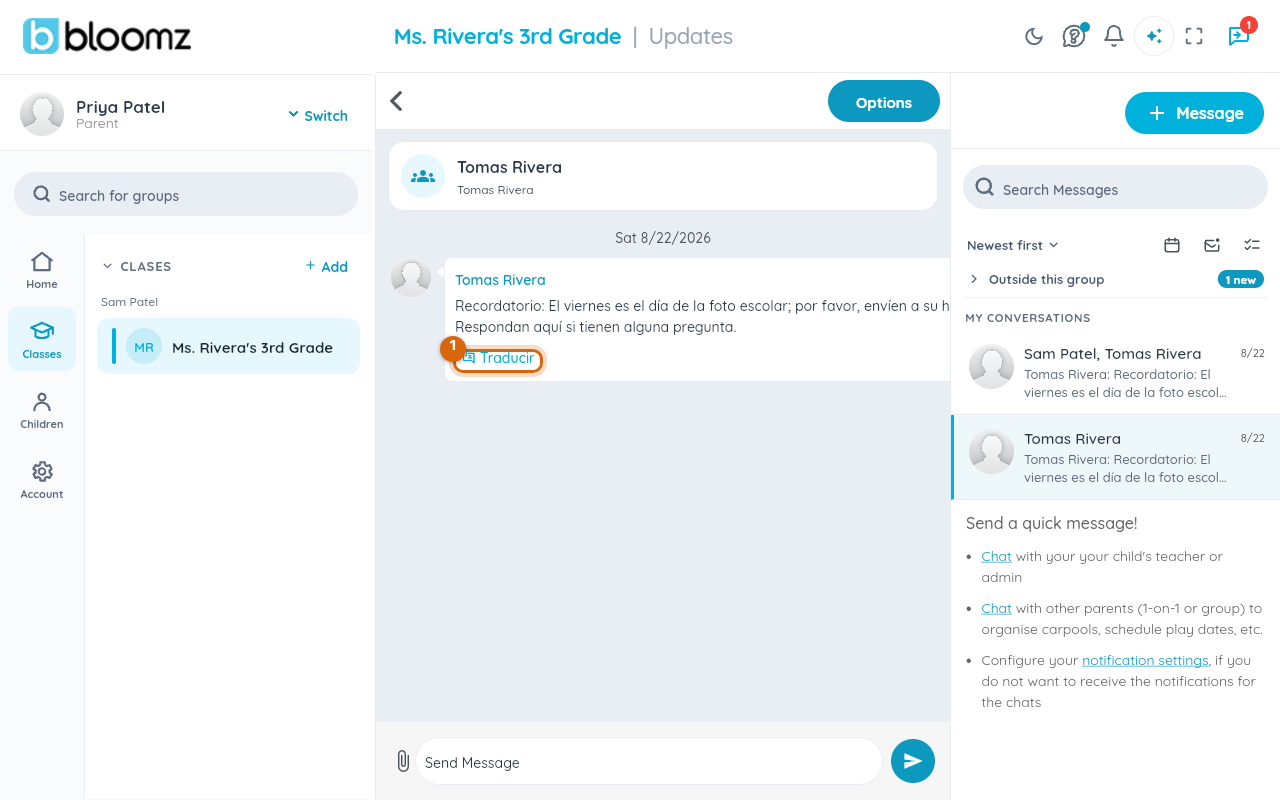
Step 4 — Translate a message the same way
In a conversation, the same Translate option (shown in your own app language — Traducir if your language is Spanish) appears on individual messages written in another language — tap it to translate just that message, and again to see the original.
Watch out: a translation is automatic and approximate — for anything where exact wording matters (a legal notice, a medical instruction), treat it as a helpful gist rather than an official version.
Related
- Get posts and messages translated into your language
- Message your family
- Search, sort, and clean up your messages