 Bloomz
Message your family
Family Messaging lets a student and their own parents or guardians message each other directly in Bloomz. Teachers could already message both parents and students — this adds the one link that was missing: you and your own family, in the same app the school already uses.
Before you start
Three things decide whether you can use this at all:
- Your school has to turn it on. Family Messaging is controlled by your district or school and is off by default. If you do not see the options below, your school has not enabled it — that is a school decision, not something in your own settings.
- Your family is who the school says it is. Bloomz uses the family links the school already has on file. A student sees their linked guardians; a parent sees their linked children. You cannot add someone to this list yourself — if a person who should be there is missing, ask the school to check its records.
- It works in both directions. The steps below are shown for a parent messaging their child; a student messaging a guardian follows the same picker flow. Students also see a prompt in the messages area inviting them to chat with their parent or guardian once the school enables the feature.

Watch out: where it is required — for example by a custody arrangement or court order — a school can exclude a specific guardian from messaging a specific student, separately from the school-wide setting. If one guardian sees the option and another does not, that is why.
Step 1 — Start a new message
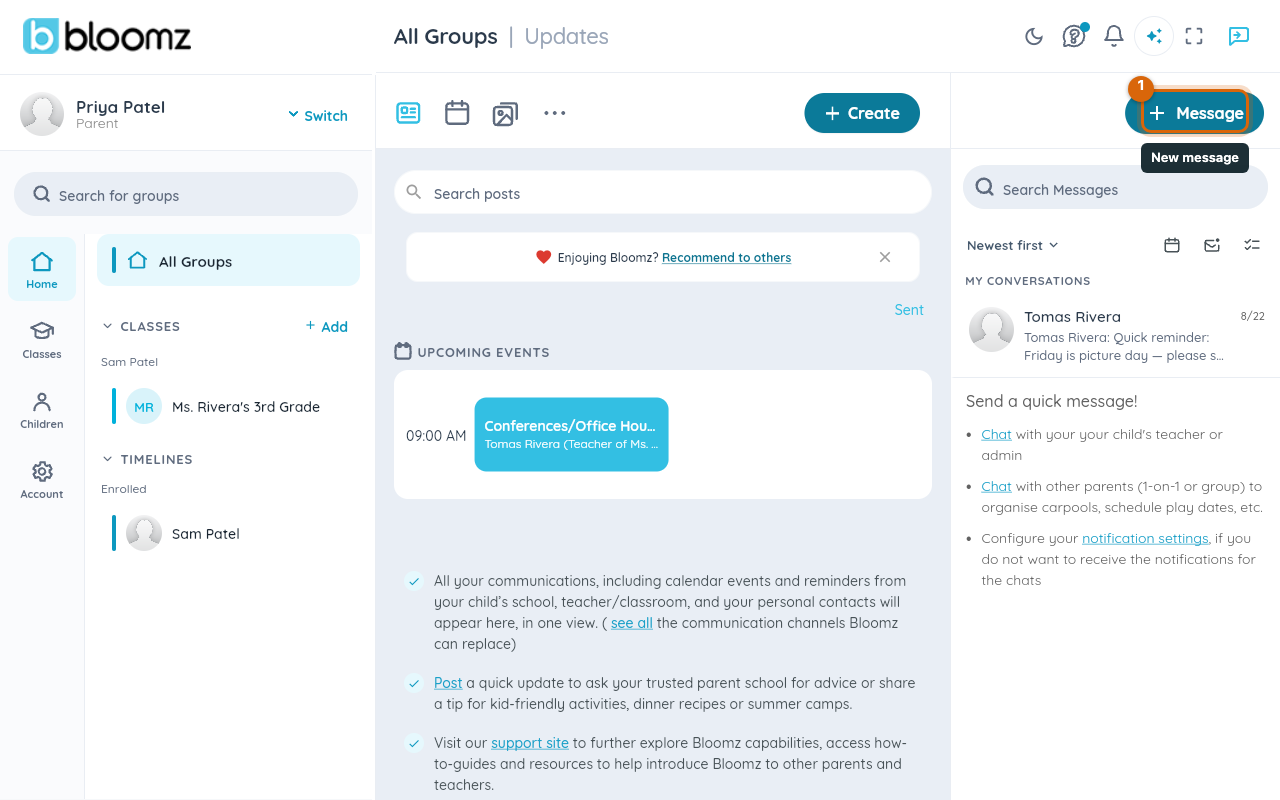
Start a new message the way you normally would. This opens the screen where you choose who to message.
Step 2 — Open the My Family tab
In the recipient picker, select the My Family tab. For a parent it lists your linked children; for a student it lists your linked guardians.


The My Family tab only appears when your school has the feature on and you actually have linked family members. Its absence always means one of those two things, never an error.
Watch out: family messaging deliberately fails closed. If anything about your family link or your school's setting cannot be confirmed, the option simply does not appear rather than letting a message through. If a student and parent disagree about whether they can see each other, have the school verify the link.
Step 3 — Pick your family member
Select the person you want to message from the list.
Step 4 — Write and send your message
Write your message and send it, the same way as any other message. The conversation opens as an ordinary one-to-one thread: it sits in your message list alongside your other conversations, and you read and reply to it the same way.

Who can see the conversation
The people in the conversation — and the school. Family conversations appear in school administrators' message oversight view like any other thread, with the same search and filters. That is worth knowing before you treat a family thread as private: it is family-to-family, but it lives inside a school platform the school can review.