 Bloomz
Print a message thread
Need a paper or PDF copy of a conversation — for a record, a meeting, or a file — print the whole thread straight from its options menu.
Before you start
Printing works from a web browser; use it there rather than the mobile app. It prints the conversation as it exists at the moment you print — new messages sent after don't retroactively appear on a copy you already printed.
Step 1 — Open the thread's options menu
Open the conversation, then select Options. The menu shows Delete the Conversation, View members, Add member, Flag for Follow-up, Mute Notifications, and Print.
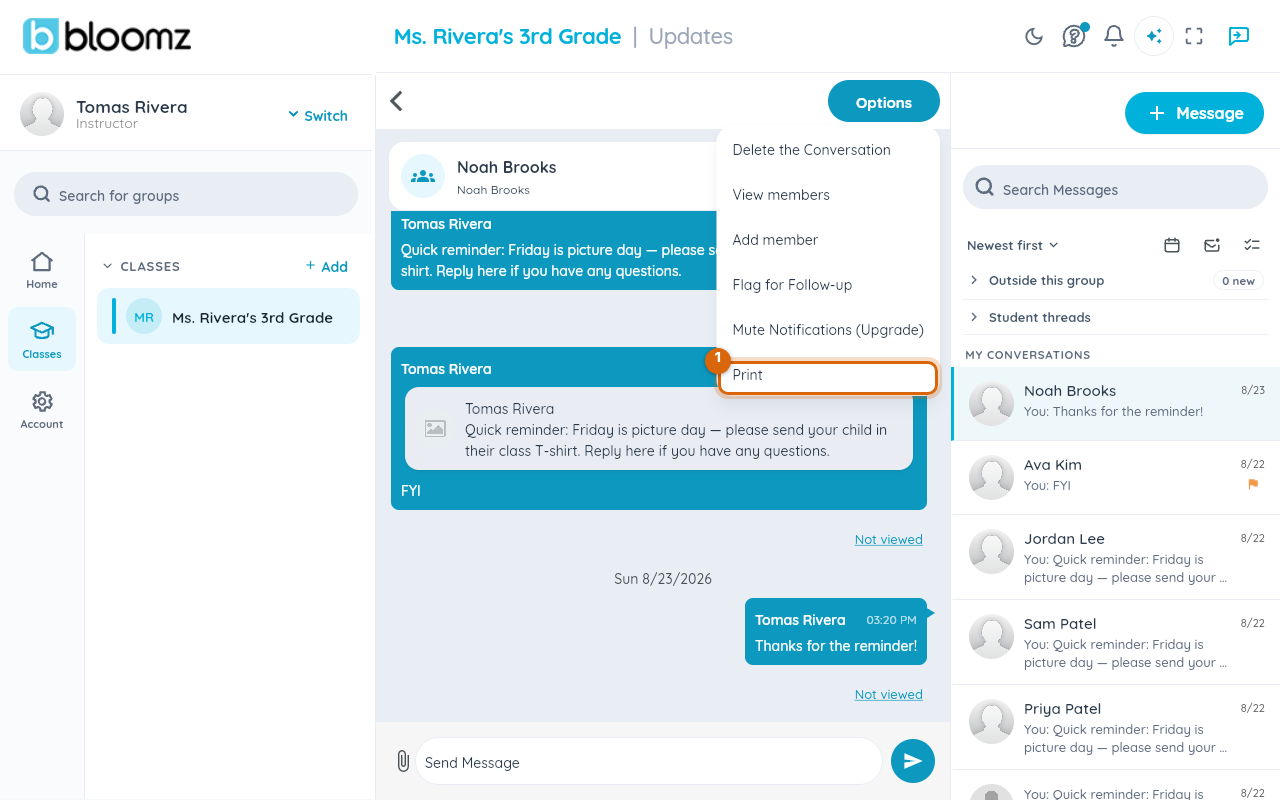
Step 2 — Choose Print
Select Print.

Step 3 — Review the print layout
Bloomz opens a formatted page: sender names, timestamps, and message text laid out top to bottom, with a print button in the top-right corner. Scroll it to confirm the whole thread is there, then select the print button to send it to your browser's print dialog.
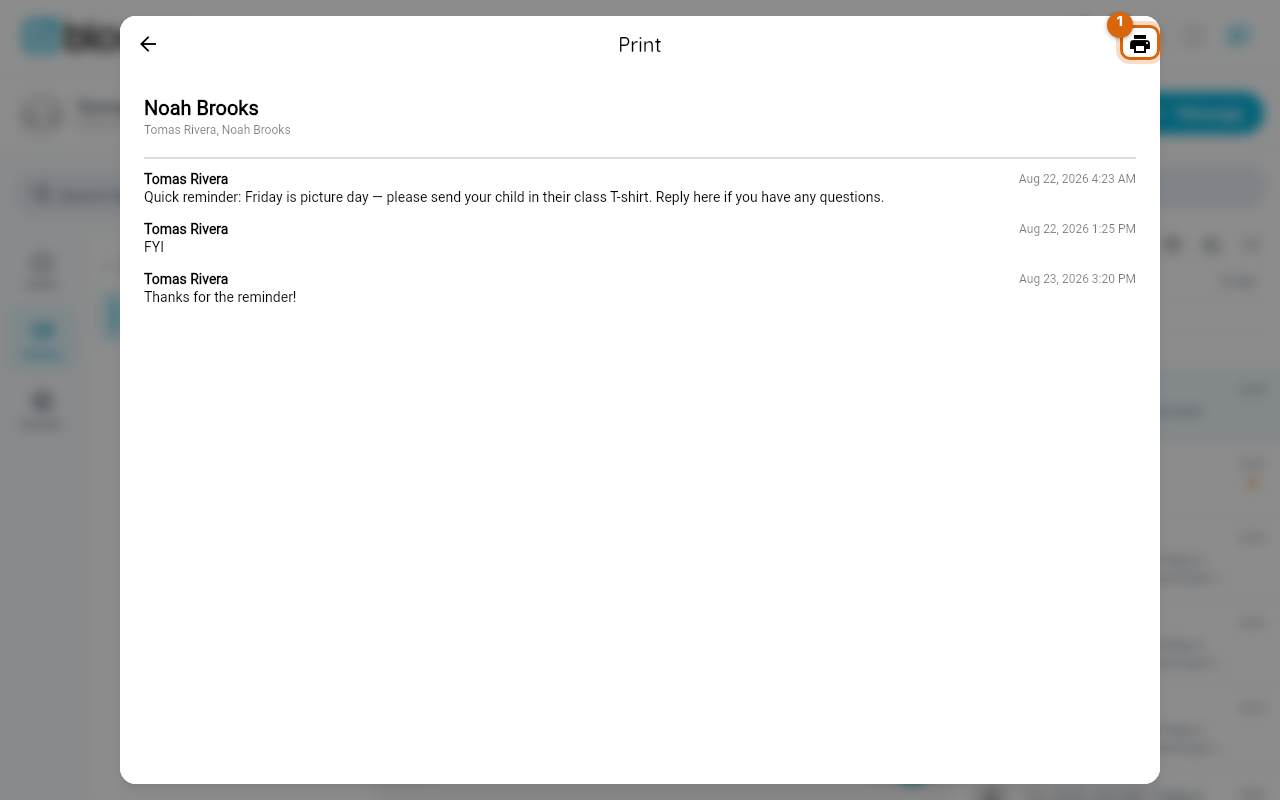
Watch out: attachments — photos, files, voice notes — print as a reference line, not as embedded images or playable audio. For a photo or file itself, open and save it separately.
Step 4 — Print or save as PDF
Use your browser's print dialog to send it to a printer, or choose Save as PDF to keep a digital copy instead.
Related
- Search, sort, and clean up your messages
- Mute or flag a conversation
- Read a post's delivery report