 Bloomz
Switch between your children
If you have more than one child on Bloomz — even at different schools — your Home screen keeps them side by side, and switching between them takes one tap.
Before you start
You need at least two children linked to your account. If you only see one child and expect more, the second may not be added to a class yet — see Join with a class code or QR code or Join your child's school from an invitation email or text to add them.
Step 1 — Find your children in the Classes panel
Every child linked to your account gets their own header in the Classes panel on the left of your Home screen, with their class (or classes) listed underneath.
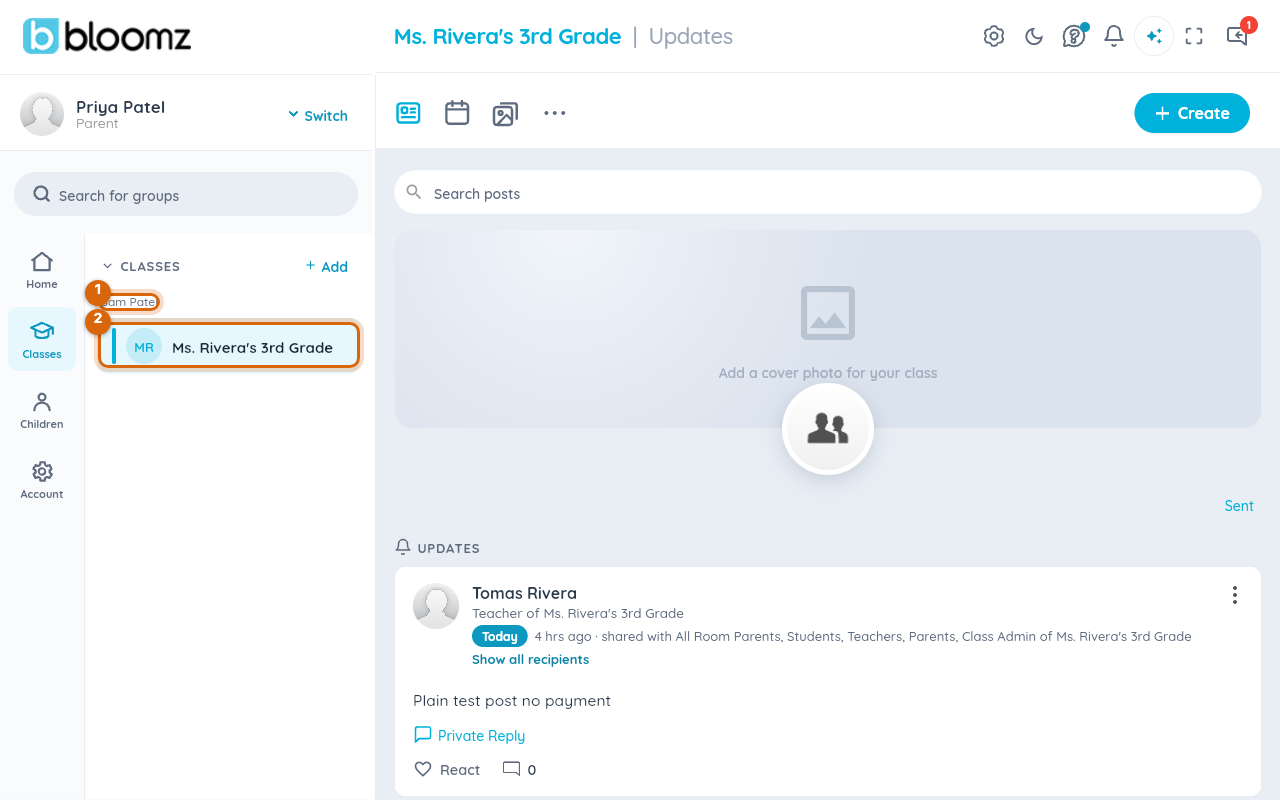
If you only have one child, you will see just one header here — add more children and each one gets its own.
Step 2 — Select a class under a different child's name
Select a class listed under a different child's header to switch your whole view — feed, messages and menus — to that child.
Step 3 — Confirm you're on the right feed
Check the banner at the top of the screen, which always names the class — and so the child — you are currently viewing, before you post or message anyone.
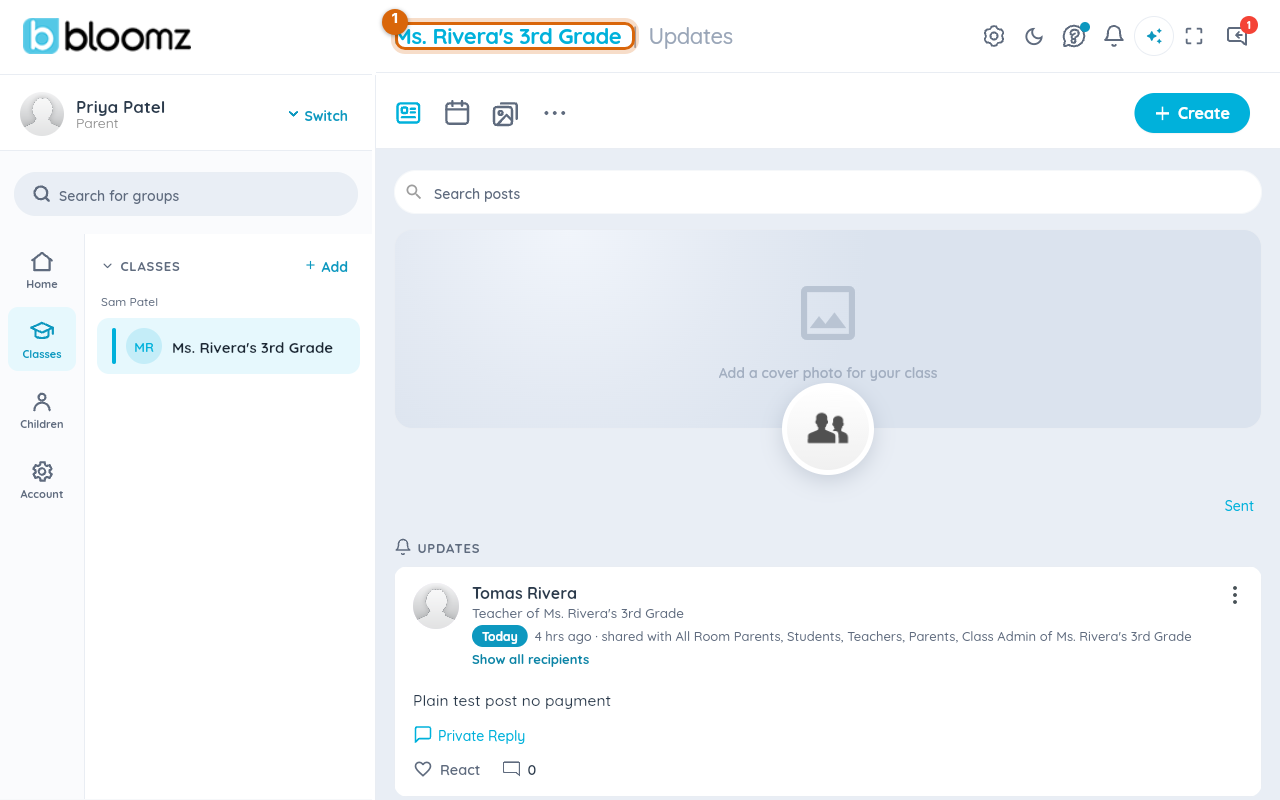
Watch out: switching only changes what you are viewing — it does not change your role or permissions, and a message you send goes to whichever child's class you are currently viewing. Double-check the banner before sending anything.
Related
- Join with a class code or QR code
- Invite a co-parent or another guardian
- Find your way around Bloomz (for families)