 Bloomz
Install the Bloomz app and sign in on your phone
Bloomz works from your phone's browser exactly the same way it works on a computer — same account, same classes, same messages. There is no separate app-store download to chase down: opening the site is enough, and you can optionally pin it to your home screen so it opens like an app.
Before you start
If you do not have a Bloomz account yet, use an invitation link or class code instead of starting from scratch — see Join your child's school from an invitation email or text or Join with a class code or QR code.
Step 1 — Open Bloomz in your phone's browser
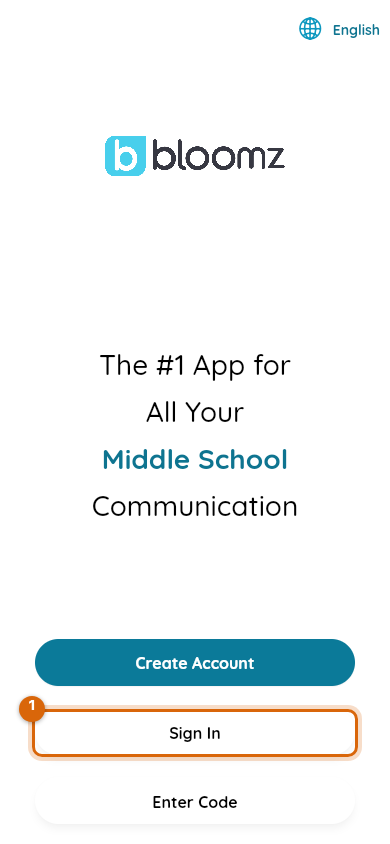
Open your phone's browser (Safari on iPhone, Chrome on Android) and go to app.bloomz.com. You will land on the same welcome screen as the desktop site.
Step 2 — Sign in
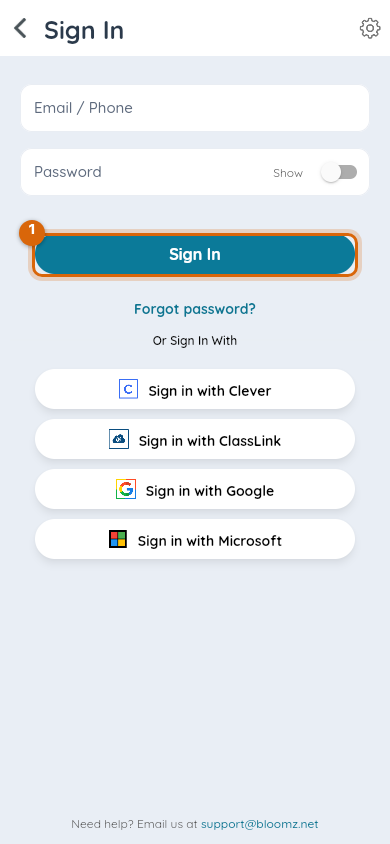
Select Sign In and enter your existing Bloomz email and password, or use Google, Apple or Microsoft — see Sign in with Google, Apple or Microsoft if you use one of those.
Step 3 — Everything syncs automatically
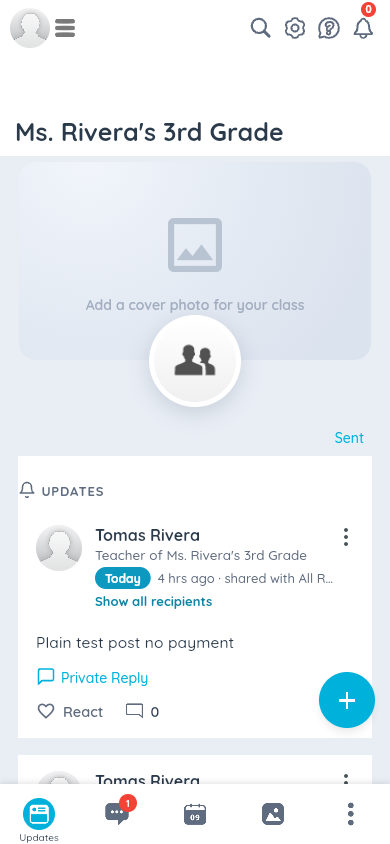
Your classes, messages and notification settings are exactly what you already had on the web — nothing to set up twice.
Add it to your home screen (optional)
For a shortcut that looks and opens like an app, use your browser's own Add to Home Screen option (Safari: Share button > Add to Home Screen; Chrome: menu > Add to Home screen/Install app). It is the same site underneath — just a faster way back in.
Watch out: installing this a second time on a new phone does not create a second account — always sign in with the same email or provider you already use, so your existing classes and history come with you.
Related
- Join your child's school from an invitation email or text
- Join with a class code or QR code
- Sign in with Google, Apple or Microsoft
- Choose which notifications you receive