 Bloomz
Switch between your staff and parent profiles
If you're a teacher at one school and a parent at another — or you hold logins for more than one Bloomz account for any other reason — switch between them from the same device in a couple of taps, without signing out and back in each time.
Before you start
You need at least one other Bloomz account saved on this device already. The first time you use a second account here, sign into it normally (see Sign in with Google, Apple or Microsoft, or use your email and password) — Bloomz saves it to your switcher automatically from then on.
Step 1 — Open Switch Profile
Select your name and photo, then select Switch next to it.
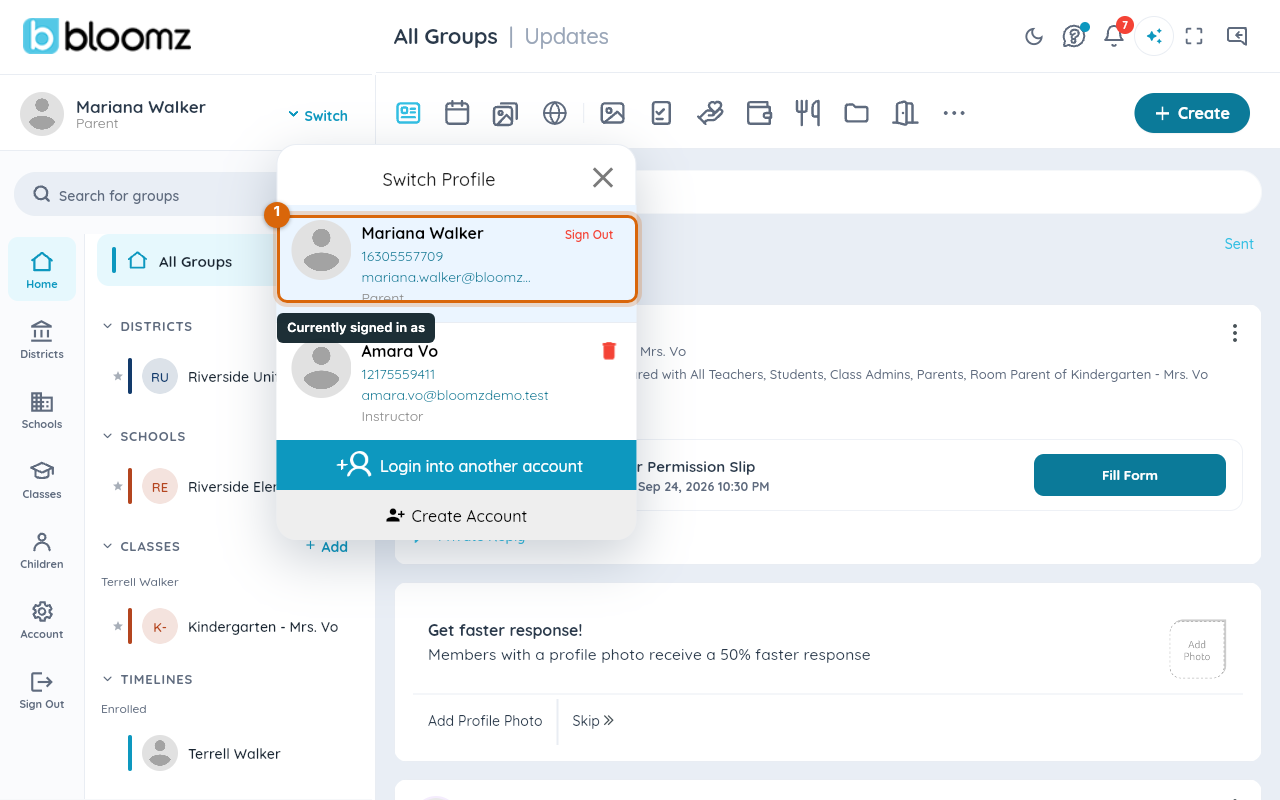
The Switch Profile popup opens, listing every account saved on this device.
Step 2 — Choose a saved profile
Each saved account shows as its own row — photo, name, and role — with the one you're currently on highlighted. Select a different row to switch to it immediately; if a row reads Signed Out, selecting it takes you to sign in for that account instead of switching straight in.
Watch out: switching only changes which account you're acting as — it doesn't change what either account is allowed to do. Check the name at the top before you post or message anyone, especially right after switching.
Step 3 — Add another account
Select Log In To Another Account to sign into a different login you already have, or Create Account if the other profile doesn't exist yet. Either way, Bloomz adds it to your switcher so it shows up as its own row next time.
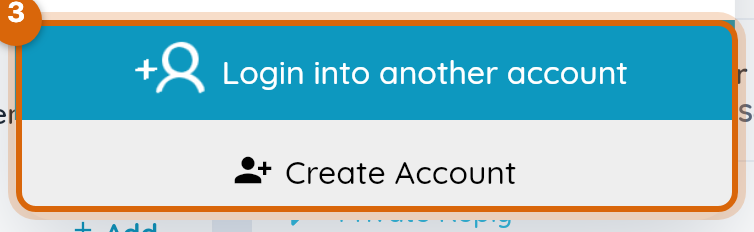
Once you're signed in, you land on that account, and it now appears as its own row in the switcher for next time.
Removing a saved profile
Select the delete icon next to any row that isn't your current one to remove it from this device's switcher. This doesn't delete the account itself, only its saved shortcut here — sign back into it the same way to bring it back. The row disappears from the popup immediately.
Watch out: each saved profile keeps its own sign-in on this device. Deleting the profile you're not currently using is safe for that account; deleting or signing out of the one you are using ends your current session, not just the shortcut.
Related
- Sign out of Bloomz
- Sign in with Google, Apple or Microsoft
- Switch between your children